

WordPress malware removal is the process of detecting, cleaning, and preventing malicious code that compromises your website’s integrity. Malware can significantly disrupt site performance, lead to data breaches, damage SEO rankings, and harm visitors.
Efficient malware removal requires understanding the infection type, tracking changes in files and databases, and applying both manual and automated remediation methods, which are considered below.
Why WordPress Malware Removal Matters?
WordPress websites are particularly vulnerable due to their popularity and reliance on plugins and themes. Attackers often exploit outdated plugins, weak credentials, or insecure servers to inject malicious scripts.
For sites hosted on a VPS, malware removal becomes even more critical because unmanaged VPS environments allow hackers to exploit server-level vulnerabilities. By properly addressing malware threats, website owners ensure site stability, secure user data, and maintain search engine trust.
Selon Sucuri’s 2023 Threat Report:
“WordPress remains the most targeted CMS, accounting for 92% of all infected websites analyzed. The primary cause of these compromises stems from vulnerabilities within its ecosystem, particularly outdated plugins and themes”.

Hébergement Web WordPress
À partir de 3,99 $/mois
5 Common Malware Infections to Know
Recognizing the infection types below ensures that the removal strategy addresses the root cause, not just the visible symptoms.
- Portes dérobées: Hidden scripts that allow hackers to regain access even after cleaning the site. These often reside in wp-config.php, functions.php, or plugin files.
- Pharma Hacks: Injected spam content, typically pharmaceutical ads, that appear in search results, damaging SEO.
- Malicious Redirects: Visitors are redirected to unsafe websites, often caused by modified .htaccess files or JavaScript injections.
- Drive-by Downloads: Malware automatically downloads to visitors’ devices, posing security risks to users.
- Malicious Scripts: JavaScript or PHP code injected into site files to steal data or manipulate website behavior.
Signs Your WordPress Site Is Infected
Identifying infection early can prevent significant damage. VPS users must monitor server logs, file changes, and unusual activities. The signs often indicate whether malware is active in core files, plugins, or themes.
- Sudden Traffic Drops: Blacklisting by Google or hosting providers may reduce organic traffic.
- Unusual Pop-ups or Ads: Unexpected content on your pages, often linked to malware.
- Unknown Users: Newly created admin accounts without your authorization.
- Modified or Deleted Files: File changes that were not performed by the site owner.
- Slow Website Performance: Unexplained site crashes or heavy resource usage.
- Security Plugin Alerts: Plugins like Wordfence or iThemes Security are detecting suspicious activity.
Monitoring tools such as ServerAvatar or VPS control panels can provide real-time analytics on server resources and file integrity to catch infections early.

What to Do Before Removing Malware on WordPress
Before initiating malware removal, preparation is essential to prevent the attack from spreading or causing irreversible damage. Skipping these steps may lead to persistent infections or data loss.

Serveur VPS pas cher
À partir de 2,99 $/mois
- Restrict WordPress Access: Limit site access via .htaccess to prevent visitors from triggering malware or phishing redirects. Only allow your IP during cleanup.
- Back Up WordPress Files: Full file and database backups let you compare infected versus clean data, ensuring no critical files are lost during removal.
- Check Recent Changes: Review logs and recently modified files to identify the source of malware. Commands like « find . -type f -ctime -3 » can locate recently altered files.
- Update Passwords and Access Keys: Immediately change all admin, base de données, and FTP passwords to prevent hackers from maintaining access.
- Remove Symlinks: Delete symbolic links that could be exploited for file access.
- Update WordPress, Plugins, Themes, and PHP: Ensure the CMS and extensions are patched to fix vulnerabilities.
- Reset File and Folder Permissions: Set permissions to secure sensitive files and directories, typically 644 for files and 755 for folders.
- Scan Your Computer for Malware: Prevent reinfection by ensuring your local device is clean before reconnecting to the VPS.
How to Manually Remove Malware From Your WordPress Site
For users with technical knowledge, manually removing malware provides the most thorough cleanup and gives you complete control over your site’s integrity. While automated tools offer a quick solution, they can sometimes miss deeply embedded threats.
So let’s walk you through the exact steps and commands needed to find and destroy malicious code, clean your database, and secure your website:
Étape 1: Isolate Your Site and Create a Full Backup
D'abord, take your site offline to stop malware from spreading and protect your visitors. You can use a maintenance plugin or, for better control, add the following code to your .htaccess file. This blocks all visitors except you.
(Remember to replace YOUR.IP.ADDRESS with your actual IP)
htaccess
<IfModule mod_rewrite.c>

Hébergement VPS Windows
Remote Access & Full Admin
RewriteEngine on
# Allow your IP to access the site
RewriteCond %{REMOTE_ADDR} !^YOUR\.IP\.ADDRESS$
# Redirect all other traffic
RewriteCond %{REQUEST_URI} !^/maintenance\.html$
RewriteRule .* /maintenance.html [R=503,L]
</IfModule>
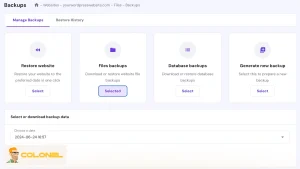
Suivant, create a full backup of both your files and your database. This is your safety net. Connect to your server via SSH and run these commands:
bash
# Backup website files
tar -czvf site_backup_files.tar.gz /path/to/your/public_html
# Backup the database
mysqldump -u DBNAME -p DBPASSWORD > database_backup.sql
Étape 2: Reinstall and Compare WordPress Core Files
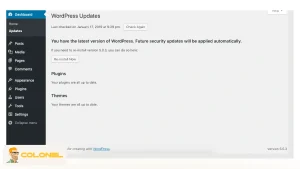
Infected core files are a common issue. Start by reinstalling a fresh version of WordPress. If you have dashboard access, go to Dashboard → Updates and click Re-install Now.
If not, use WP-CLI via SSH for a clean installation, which will overwrite the core wp-admin and wp-includes folders:
bash
# Download the latest WordPress core files, skipping the wp-content directory
wp core download –skip-content –force
Maintenant, verify the integrity of your installation. This WP-CLI command compares your files against the official WordPress checksums to find modifications:
bash
# Check for modified core files
wp core verify-checksums
Any file that returns a « Checksum does not match » error is suspicious and needs investigation.
Étape 3: Hunt for Hidden Backdoors in Your Files
Hackers love to hide backdoors in your files to regain access later. These are often obfuscated using PHP functions like base64_decode, exec, eval, and str_rot13.
Run this powerful command via SSH to search your entire directory for files containing these suspicious functions:
bash
find . -type f -name ‘\*.php’ | xargs egrep -i « (mail|fsockopen|pfsockopen|stream_socket_client|exec|system|passthru|eval|base64_decode) »
Pay close attention to the results. While some plugins might use these functions legitimately, any appearance in files like wp-config.php, functions.php, or within the wp-content/uploads folder is a major red flag.
Étape 4: Scan the Database for Malicious Injections
Malware isn’t just in your files; it can also be injected directly into your database. Use WP-CLI to search for common malicious patterns like <script> tags or functions like eval() and atob():
bash
# Search the entire database for the opening « <script » tag
wp db search « <script »
# Use regex to search for multiple suspicious patterns at once
wp db search ‘(<script|eval\(|atob|fromCharCode)’ –regex
Note down any posts, pages, or options that contain these scripts. You will clean these in the next phase.

Étape 5: Clean the wp-content/uploads Directory
The uploads folder should only contain media files, not PHP scripts. Hackers often hide backdoors here. Run this command to find any PHP files in this directory:
bash
find ./wp-content/uploads -type f -name « *.php »
Carefully review any files it finds and delete them.

Étape 6: Remove Malicious Code and Sanitize Files
Go back to the list of infected files you found in Step 3. Open each file and carefully remove the malicious code you identified. Do not delete entire theme or plugin files, as this will break your site. Plutôt, remove only the added, obfuscated code. Si tu’re unsure what the original code looked like, compare it to a fresh copy of the theme or plugin.
Étape 7: Review and Clean User Accounts
A common tactic for hackers is to create a hidden admin user. In your WordPress dashboard, go to Users → All Users. Delete any user accounts you don’t recognize.
You can also use WP-CLI to get a clear list of all users and their roles:
bash
# List all users with their role and creation date
wp user list –fields=ID,user_login,role,user_registered –orderby=user_registered
Demote any users who have a higher role than they should (par ex., un « Subscriber » who is now an « Administrator »).
Étape 8: Reset All Passwords and Security Keys
Assume all credentials have been compromised. Reset everything:
- All WordPress user passwords (especially admins).
- Your database password.
- FTP and SSH passwords.
- Your hosting account password.
Enfin, generate new WordPress security keys (salts) and add them to your wp-config.php file. You can get new keys from the official WordPress salt generator.
Étape 9: Request a Review from Google
If your site was flagged for malware, you need to ask Google to review it.
- Go to your Google Search Console account.
- Navigate to the Security issues tab.
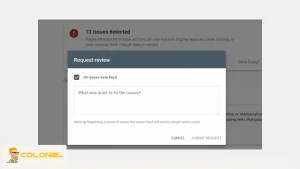
- Confirm that you have fixed the problems and click « Request a review. »
This process can take a few days, but it’s essential for removing any warnings from search results and restoring your site’s reputation.
How to Automatically Remove WordPress Malware
If your WordPress site is compromised, you can remove the infection quickly without complex manual steps. The two easiest automated methods are:
Use a WordPress Malware Scanner Plugin
The most straightforward DIY solution is to use a security plugin. Tools like WordFence act as an antivirus for your website, allowing you to scan your entire site and remove malicious code with just a few clicks. Here’s how it works:
- Install and Scan: If you can access your WordPress admin dashboard, install a security plugin like Wordfence. Navigate to its scanning feature and run a full site scan.
- Identify Threats: The plugin will check your core files, thèmes, plugins, and database, then provide a list of all identified malware, backdoors, and suspicious code.
- Clean Automatically: Next to each identified threat, you will see options like « Delete File » ou « Repair. » Simply click the recommended action, and the plugin will handle the cleanup for you.
The Limitation: This method only works if you have access to your WordPress admin dashboard. Cyber attackers often lock you out, which makes installing and using a plugin impossible. Si tu’re locked out, move on to the next method.
Use Your Host’s Built-in Malware Scanner
If you can’t access your admin dashboard, your web host is your next best friend. Many managed WordPress hosts provide built-in security tools that you can access directly from your WordPress hosting Panneau de contrôle:
- Log into your Hosting Panel: Access your hosting account’s control panel (like hPanel, cPanel).
- Navigate to the Security Section: Look for a menu item like « Sécurité » ou « Malware Scanner. »
- Run the Scan: This tool will automatically scan all your website files from the server level and remove any malware it finds. You don’t need to do anything manually. You’ll see a report confirming that your site is clean or detailing the malware that was removed.
This is the perfect solution when you’re locked out of WordPress, as the scan runs independently of your website’s dashboard.
Conclusion
Cleaning malware from a WordPress site hosted on a VPS involves much more than removing suspicious files. It requires coordinated action across containment, scanning, manual remediation, file and database restoration, credential rotation, and full hardening. Since malware can reside within core files, thèmes, plugins, uploads folders, and database tables, only a layered and comprehensive approach provides complete recovery.
After cleanup, implementing strong hardening measures such as a WAF, authentification à deux facteurs, controlled permissions, and routine scanning significantly improves long-term resilience. Effective WordPress malware removal combined with disciplined maintenance ensures lasting security for the VPS environment.
Foire aux questions (FAQ)
How do I know if my WordPress site is infected with malware?
Common indicators include unauthorized redirects, unfamiliar admin accounts, modified files, unusual server resource usage, SEO spam, and unexpected changes to posts or pages.
What is the fastest way to remove malware from WordPress?
The fastest option is using an automated security scanner like Wordfence or Sucuri, which identifies malicious files and removes them with minimal manual effort.
Can malware return after removal?
Oui. Reinfection happens when the original vulnerability remains unpatched. You must update WordPress, plugins, thèmes, passwords, and server configurations.
Does a VPS increase WordPress security?
A VPS provides better isolation, ressources dédiées, and deeper control compared to shared hosting, but it requires proper configuration.
Should I reinstall WordPress after malware cleanup?
Reinstalling core files is recommended because it guarantees that all essential components are clean. This step does not delete your content and ensures code integrity.