

Die Installation von Proxmox VE auf einem Server kann für Anfänger eine entmutigende Aufgabe sein, vor allem, wenn sie mit dem Konzept der Virtualisierung und Serververwaltung noch nicht vertraut sind. In diesem Einsteigerleitfaden erfahren Sie die Grundlagen der Installation von Proxmox VE auf einem Server, Wir führen Sie Schritt für Schritt durch den Prozess der Installation von Proxmox VE auf einem Server, Wir helfen Ihnen zu verstehen, worum es bei Proxmox VE geht und was Sie wissen müssen, bevor Sie mit der Installation von Proxmox VE auf Ihrem Server beginnen. Am Ende dieses Leitfadens, Sie können Proxmox VE einfach und sicher auf Ihrem physischen Server installieren.
Was ist Proxmox VE und wie funktioniert es??
Proxmox VE, oder virtuelle Umgebung, ist eine Unternehmensebene, Open-Source-Virtualisierungslösung zur Verwaltung virtueller Maschinen und Container mit einer einzigen, zentrale Schnittstelle. Die Lösung basiert auf Debian Linux. Die Lösung nutzt eine Kombination aus zwei der leistungsstärksten Virtualisierungstools: KVM, Wird für die vollständige Virtualisierung verwendet, und LXC, für Behälter verwendet.
Die Lösung funktioniert nach einem einfachen Prinzip: es abstrahiert physische Server‘ Ressourcen, wie CPU, RAM, Lagerung, usw., in einen virtuellen Raum. Dies macht es zu einer einfachen Wahl für die Installation einer Lösung wie Proxmox VE, sei es für eine Labor- oder Produktionsinfrastruktur.
Eine der wichtigsten Funktionen einer Lösung wie Proxmox VE ist die Fähigkeit, Server zu Clustern zu bilden. Die Lösung ermöglicht die Zusammenfassung mehrerer Server zu einem einzigen Cluster. Dies ermöglicht Live-Migrationen, hohe Verfügbarkeit, usw. Dies macht es zu einem wichtigen Merkmal, vor allem in der heutigen Welt.
Vorteile der Verwendung von Proxmox VE auf einem Server
Zu den Vorteilen der Verwendung von Proxmox VE auf einem physischen Server gehört eine ausgewogene Leistung, Flexibilität, und Wirtschaftlichkeit. Zum Beispiel, Proxmox VE ist eine Open-Source-Lösung, Dies ermöglicht es Unternehmen, Virtualisierung auf Unternehmensebene zu nutzen, ohne dass zusätzliche Kosten anfallen.

WordPress-Webhosting
Ab 3,99 $/Monat
Bevor wir die Vorteile der Installation von Proxmox VE auf einem Server im Detail besprechen, Es ist erwähnenswert, warum die Installation von Proxmox VE bei Systemadministratoren und DevOps-Ingenieuren immer beliebter wird.
Zu den Vorteilen der Verwendung von Proxmox VE gehören::
- Einheitliche Verwaltung virtueller Maschinen und Container
- Sicherung, Schnappschuss, und Replikationstools
- Große Community und häufige Updates
Ein weiterer Vorteil der Installation von Proxmox VE besteht darin, dass Unternehmen ihre Hardwareressourcen optimal nutzen können. Mit Proxmox VE, Unternehmen können mehrere isolierte virtuelle Maschinen auf einem einzigen physischen Server ausführen, Dies hilft, Kosten für zusätzliche physische Maschinen zu sparen.
!!!
Bei der Leistungsoptimierung Ihres Proxmox VE-Servers, Die Wahl von Hochgeschwindigkeitsspeicherlösungen wie NVMe-Laufwerken kann einen erheblichen Unterschied machen. Zum Beispiel, wenn Sie Webanwendungen oder WordPress-Sites auf virtuellen Maschinen hosten, Die Nutzung von NVMe-Speicher kann die Ladezeiten drastisch verkürzen und die Reaktionsfähigkeit verbessern – wie in Select erläutert Ihre WordPress-Site ist langsam – NVMe-Hosting behebt das.


Günstiger VPS-Server
Ab 2,99 $/Monat
Systemanforderungen für die Installation von Proxmox VE
Vor der Installation von Proxmox VE auf einem Server ist es wichtig, die Systemanforderungen zu verstehen. Während Proxmox VE auf bescheidener Hardware ausgeführt werden kann, Produktionsumgebungen profitieren von höherwertigen Spezifikationen.
Mindest- und empfohlene Anforderungen
| Komponente | Mindestanforderung | Empfohlen für die Produktion |
|---|---|---|
| CPU | 64-Bit mit VT-x/AMD-V | Multi-Core-CPU mit Virtualisierungserweiterungen |
| RAM | 2 GB | 16 GB oder mehr |
| Lagerung | 32 GB | SSD/NVMe mit RAID oder ZFS |
| Netzwerk | 1 NIC | 2+ NICs für Redundanz |
Die Unterstützung der Hardwarevirtualisierung im CPU-BIOS ist obligatorisch. Ohne es, KVM-basierte virtuelle Maschinen funktionieren nicht ordnungsgemäß. Auch die Wahl des Speichers spielt eine wichtige Rolle, insbesondere bei der Installation von Proxmox VE mit ZFS, was für eine optimale Leistung ausreichend RAM erfordert.
Herunterladen der Proxmox VE-Installations-ISO
Das ISO-Image für Proxmox VE kann kostenlos von der offiziellen Website heruntergeladen werden. Bei der Installation von Proxmox VE, Für Sicherheits- und Funktionsupdates ist es immer ratsam, die neueste Version herunterzuladen.
Laut ihrer offiziellen Website:
„Proxmox VE ist eine vollständige Open-Source-Plattform für die Unternehmensvirtualisierung.“ – Offizielle Proxmox-Website
Jetzt kaufen
Windows VPS-Hosting
Remote Access & Full Admin
Nach dem Herunterladen des ISO-Images, Es empfiehlt sich, die Prüfsumme zu überprüfen. Dies minimiert die Wahrscheinlichkeit von Installationsfehlern, die aufgrund eines beschädigten Downloads auftreten können.
Erstellen einer bootfähigen USB-Festplatte für die Proxmox-Installation
Nachdem die ISO-Datei vorbereitet wurde, Der nächste Schritt bei der Installation von Proxmox VE ist die Erstellung eines bootfähigen USB-Datenträgers. Um dies zu tun, Wir haben die Möglichkeit, Rufus zu verwenden, Radierer, oder das Befehlszeilen-Dienstprogramm dd, Abhängig vom Betriebssystem, das wir verwenden.
Bevor wir anfangen, Es ist wichtig zu verstehen, dass die USB-Festplatte gelöscht wird. Es wird daher empfohlen, eine zuverlässige USB-Festplatte zu verwenden, vorzugsweise eines mit einer Kapazität von mindestens 2 GB. Sobald die ISO-Datei auf die Festplatte geschrieben wurde, Wir sollten die Festplatte sicher auswerfen und mit dem Zielserver verbinden.
Proxmox VE auf einem physischen Server installieren
In diesem Abschnitt wird das vollständige und technische Verfahren zur Installation von Proxmox Virtual Environment beschrieben (Proxmox VE) auf einem Bare-Metal-Server. Aus Gründen der Übersichtlichkeit und Betriebsgenauigkeit ist jede Phase der Installation getrennt.
1. Booten des Servers vom Installationsmedium
Stecken Sie das Proxmox VE-Installations-USB-Laufwerk in den Server und schalten Sie ihn ein.
Geben Sie bei Bedarf die BIOS/UEFI-Einstellungen des Servers ein und konfigurieren Sie die Startreihenfolge, um dem USB-Gerät Priorität einzuräumen.
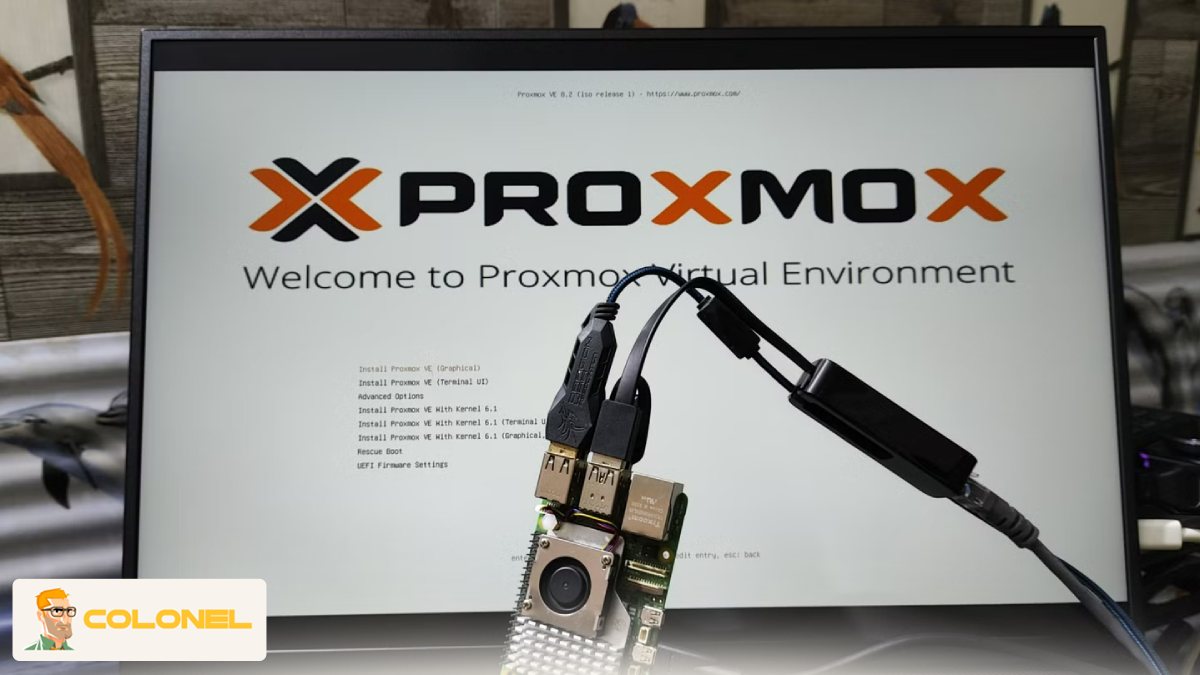
Sobald das Proxmox-Bootmenü erscheint, wählen:
Install Proxmox VE
Diese Option startet das grafische Installationsprogramm für eine Neuinstallation auf dem physischen Host.
2. Annahme der Lizenzvereinbarung
Der Installer präsentiert zunächst die Proxmox VE Endbenutzer-Lizenzvereinbarung (EULA).
Lesen Sie die Bedingungen sorgfältig durch und wählen Sie „Akzeptieren“, um fortzufahren.
Die Installation kann nur fortgesetzt werden, wenn die Lizenzvereinbarung akzeptiert wird.
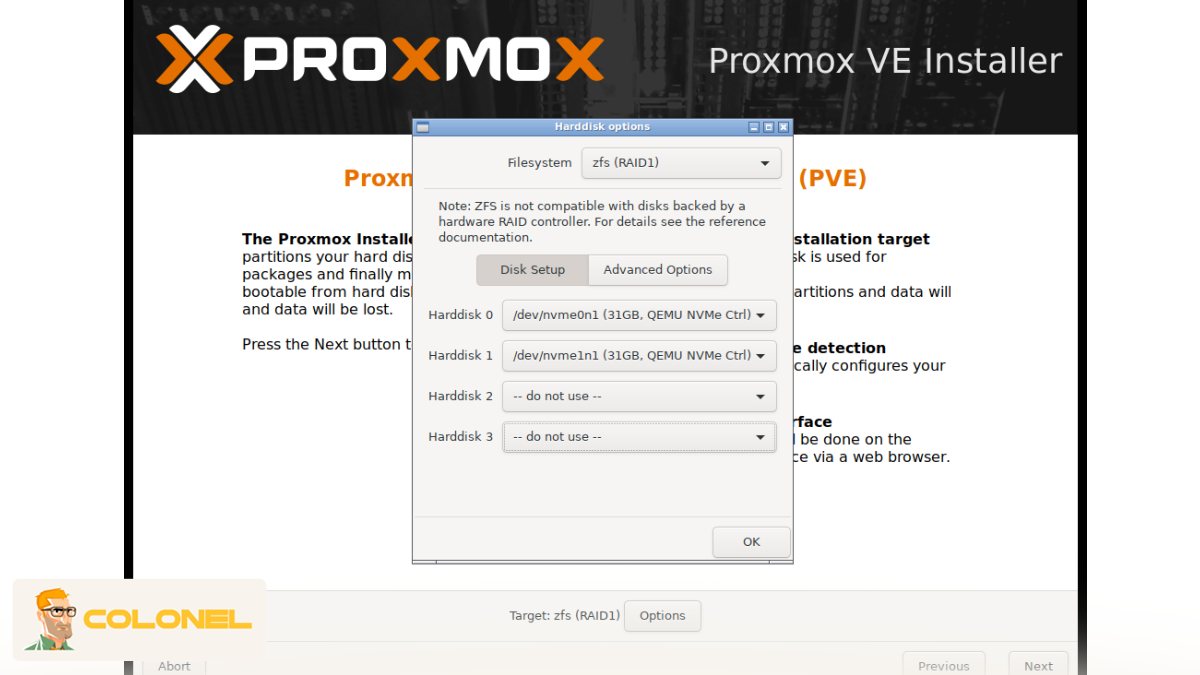
3. Konfiguration der Zielfestplatte und des Dateisystems
In diesem Stadium, Sie müssen die Festplatte auswählen, auf der Proxmox VE installiert werden soll.
Wichtige Überlegungen:
- Alle vorhandenen Daten auf der ausgewählten Festplatte werden dauerhaft gelöscht
- Stellen Sie sicher, dass das richtige physische Laufwerk ausgewählt ist, insbesondere auf Systemen mit mehreren Festplatten
- Sie können auch erweiterte Speicheroptionen konfigurieren, einschließlich:
- Dateisystemtyp (z.B., ext4, XFS, oder ZFS)
- RAID-Konfiguration (wenn ZFS ausgewählt ist)
- Festplatten-Cache- und Komprimierungseinstellungen (für erweiterte Bereitstellungen)
Dieser Schritt wirkt sich direkt auf die Systemleistung aus, Redundanz, und Speicherverhalten.
4. Regional- und Lokalisierungseinstellungen
Konfigurieren Sie Systemlokalisierungsparameter, um eine korrekte Zeitmessung und ein korrektes Eingabeverhalten sicherzustellen:
- Land
- Zeitzone
- Tastaturlayout
Diese Einstellungen sind für eine genaue Protokollierung von entscheidender Bedeutung, Terminplanung, und administrativen Zugriff.
5. Konfiguration des Root-Kontos und des Administratorzugriffs
Legen Sie das Root-Passwort für den Proxmox-Host fest.
Dieses Konto verfügt über vollständige Administratorrechte für den Hypervisor, virtuelle Maschinen, und Behälter.
Zusätzlich, Geben Sie eine E-Mail-Adresse für Systembenachrichtigungen an, z:
- Backup-Fehler
- Festplatten- oder Hardwareprobleme
- Cluster- und Replikationswarnungen
Verwenden Sie ein starkes, Sicheres Passwort zum Schutz der Verwaltungsschnittstelle.
6. Netzwerkkonfiguration
Definieren Sie die primären Netzwerkeinstellungen für die Proxmox-Verwaltungsschnittstelle:
Hostname (Vollqualifizierter Domainname empfohlen)
Verwaltungs-IP-Adresse
Subnetzmaske
Standard-Gateway
DNS-Server(S)
Eine statische IP-Adresse wird dringend empfohlen, denn Proxmox setzt auf eine konsistente Netzwerkidentität:
- Zugriff auf die Webverwaltung
- Clusterkommunikation
- Speicher- und Backup-Konnektivität
7. Installationsausführung und Systembereitstellung
Nach Überprüfung und Bestätigung aller Konfigurationsparameter, Das Installationsprogramm beginnt:
- Systemdateien kopieren
- Installation des Proxmox-Kernels und der Pakete
- Speicher konfigurieren, Vernetzung, und Dienstleistungen
Dieser Vorgang ist vollständig automatisiert und in der Regel innerhalb weniger Minuten abgeschlossen, abhängig von der Hardwareleistung.
8. Abschluss der Installation und erster Start
Sobald die Installation abgeschlossen ist, Entfernen Sie das USB-Installationsmedium und starten Sie den Server neu.
Nach dem Booten, Auf Proxmox VE kann über einen Webbrowser unter zugegriffen werden:
Sie können sich jetzt mit den Root-Anmeldeinformationen anmelden und mit der Erstellung virtueller Maschinen beginnen, Behälter, und Speicherressourcen.

Konfigurieren der Netzwerkeinstellungen nach der Installation
Nach dem Neustart des Systems, Die Installation von Proxmox VE ist technisch abgeschlossen. Jedoch, Die Netzwerkeinstellungen müssen ordnungsgemäß konfiguriert werden. Proxmox VE nutzt eine Linux-Bridge zur Anbindung der virtuellen Maschinen an das physische Netzwerk.
Bevor Sie Änderungen vornehmen, Es ist wichtig, das Ziel der Änderungen zu verstehen. Zum Beispiel, Die Änderungen für eine einzelne NIC unterscheiden sich grundlegend von denen für ein Setup mit mehreren NICs oder einer verbundenen NIC.
Im Folgenden sind die häufigsten Änderungen aufgeführt, die an den Netzwerkeinstellungen vorgenommen werden:
- Anpassen der Bridge-Schnittstellen
- VLAN-Bewusstsein
- Zusätzliche IP-Bereiche
Die Netzwerkeinstellungen sind das häufigste Problem, das bei der Konfiguration von Proxmox VE auftritt. Infolge, Die Änderungen sollten sorgfältig vorgenommen werden.
Zugriff auf die Proxmox-Weboberfläche
Nachdem die Netzwerkeinstellungen ordnungsgemäß funktionieren, Der nächste Schritt ist der Zugriff auf die Proxmox-Weboberfläche. Die Schritte zum Zugriff auf die Proxmox-Weboberfläche sind wie folgt:
https://Server-IP:8006
Das Webinterface ist das zentrale Bedienfeld für Proxmox VE. Es ist das Hauptbedienfeld für das gesamte System nach der Installation von Proxmox VE. Es ist benutzerfreundlich und reaktionsschnell, Damit ist es auch für Anfänger die perfekte Wahl.
Erstellen Sie Ihre erste virtuelle Maschine in Proxmox VE
Das Erstellen einer virtuellen Maschine ist oft die erste echte Aufgabe nach der Installation von Proxmox VE. Laden Sie eine Betriebssystem-ISO in den lokalen Speicher hoch, Verwenden Sie dann den Assistenten „VM erstellen“..
Bevor es losgeht, Es hilft, die grundlegenden VM-Parameter zu verstehen. Die folgende Tabelle fasst allgemeine VM-Einstellungen zusammen:
| Einstellung | Beschreibung |
|---|---|
| CPU-Kerne | Anzahl der virtuellen Kerne |
| Erinnerung | Zugewiesener RAM |
| Festplattentyp | VirtIO empfohlen |
| Netzwerkmodell | VirtIO für beste Leistung |
Einmal konfiguriert, Starten Sie die VM und fahren Sie mit der Installation des Gastbetriebssystems fort, genau wie auf physischer Hardware.
Grundlegende Sicherheits- und Update-Einstellungen in Proxmox
Sicherheit ist keine Funktion, die nachträglich hinzugefügt werden kann. Sobald Proxmox VE installiert wurde, Der erste Schritt besteht darin, Systemupdates anzuwenden.
Es wird empfohlen, automatische Updates zu aktivieren oder regelmäßig Patches über die Weboberfläche einzuspielen. Die integrierte Firewall sollte auf Datencenter- und Knotenebene aktiviert werden. Zusätzlich, Es ist wichtig, den Zugriff auf Verwaltungsports einzuschränken.
Verwendung starker Passwörter und, wenn möglich, Durch die Zwei-Faktor-Authentifizierung wird das Potenzial für unbefugten Zugriff erheblich reduziert.
Häufige Probleme bei der Proxmox-Installation und deren Behebung
Auch bei richtiger Planung und Konfiguration, Bei der Installation von Proxmox VE können unerwartete Probleme auftreten. Zu den häufigsten Installationsproblemen gehört ein Startfehler, Probleme mit der Netzwerkkonfiguration, und Hardware-Support.
Bevor Sie versuchen, das Problem zu beheben, Es ist wichtig, die Systemprotokolle und die BIOS-Konfiguration zu überprüfen. In vielen Fällen, Eine Neuinstallation des Systems mit den richtigen Optionen wird das Problem lösen.
Best Practices nach der Installation von Proxmox VE
Nach der Installation von Proxmox VE, Das Befolgen der Best Practices trägt dazu bei, die Stabilität und Leistung des Systems sicherzustellen. Bevor Sie Ihr System skalieren, Sie sollten sich Zeit nehmen, das Basissystem zu optimieren.
Zu den empfohlenen Best Practices gehören::
- Regelmäßiges Sichern des Systems auf einem externen Gerät.
- Ressourcenüberwachung.
- Führen Sie Aufzeichnungen über Konfigurationsänderungen.
Die Best Practices sorgen dafür, dass das System reibungslos läuft und die virtuelle Umgebung nicht durch unvorhergesehene Ausfälle zum Erliegen kommt.
Erste Schritte mit Proxmox VE als Anfänger
Als Einsteiger in die Virtualisierungsbranche, Die Installation von Proxmox VE ist ein guter Anfang. Dies liegt daran, dass das System über hervorragende Funktionen und eine geringe Lernkurve verfügt. Darüber hinaus, Das System ist lizenzgebührenfrei.
Ein gutes Verständnis des Systems und der Hardwareanforderungen trägt dazu bei, die Zuverlässigkeit des Systems sicherzustellen. Dies ist für einen Anfänger sehr wichtig.