


Installing ClawdBot on a VPS is the most reliable way to run a personal AI assistant continuously, without relying on a local machine that can go offline, sleep, or lose connectivity. A properly configured VPS ensures ClawdBot stays available 24/7, maintains a persistent state, and can safely interact with messaging platforms such as Telegram, Discord, or WhatsApp. Keep reading to know how to install ClawdBot on a VPS efficiently and securely.
Why Should You Install ClawdBot on a VPS?
Installing ClawdBot on a VPS guarantees constant uptime and reliability, unlike a local machine that may sleep or disconnect. When you install ClawdBot on a VPS, your AI assistant can maintain a persistent state, respond to requests at any time, and handle multiple channels simultaneously.
A VPS also allows customization and scalability. You can increase CPU, RAM, or storage depending on the number of skills and workflows you plan to run. Furthermore, using a VPS isolates your AI environment from your personal system, enhancing security and reducing the risk of conflicts with other software. As Tim-Kleyersburg notes:
“Once it’s up on a VPS, you don’t worry about downtime, and you gain full flexibility to scale and tweak your assistant”.
Choosing the Right VPS for Installing ClawdBot
Colonel’s website offers optimized VPS plans that are ideal to install ClawdBot on a VPS. We provide global NVMe SSD servers with reasonable pricing and full root access, making them suitable for both beginners and advanced users. Here are the most important parameters for choosing the right VPS for installing ClawdBot that Colonel plans can offer:

WordPress Web Hosting
Starting From $3.99/Monthly
- Performance & Stability: Colonel VPS ensures low latency, consistent uptime, and SSD-backed storage, providing ClawdBot with fast response times.
- Global Coverage: Multiple server locations worldwide allow you to choose the nearest node for optimal connectivity.
- Ease of Use: Pre-configured OS images, including Ubuntu 22.04, simplify the initial setup process.
- Cost-Effectiveness: Pricing starts around $7–8/month, making it a budget-friendly option for personal or small business use.
Minimum VPS Requirements for ClawdBot
To run ClawdBot efficiently, the VPS should meet certain baseline specifications. These requirements ensure that ClawdBot operates smoothly even when managing multiple chat channels or executing complex workflows.
- CPU: Minimum 2 vCPUs, preferably more for heavy workloads.
- RAM: 2–4 GB is sufficient for most setups; increase RAM for additional skills or multi-channel deployments.
- Storage: 20–50 GB SSD provides fast access and enough space for logs and models.
- OS: Ubuntu 22.04 LTS or similar for stability and package compatibility.
- Network: Reliable and fast internet connection to handle API requests and gateway communication.
These resources balance cost with performance, ensuring that ClawdBot runs without lag or interruption.
Initial VPS Setup and Security
Before installing ClawdBot, securing your VPS is essential to protect it from unauthorized access and potential attacks. Begin by creating a dedicated user for ClawdBot to avoid running services as root.
1- Update and Upgrade Packages:
ssh root@YOUR_SERVER_IP
apt update && apt upgrade -y
2- Create a Dedicated User:

Cheap VPS Server
Starting From $2.99/Monthly
adduser clawdbot
usermod -aG sudo clawdbot
su - clawdbot
3- SSH Key Authentication:
Generate an SSH key locally and copy it to your VPS:
ssh-keygen -t ed25519 -C "[email protected]"
ssh-copy-id clawdbot@YOUR_SERVER_IP
Test key login:
ssh clawdbot@YOUR_SERVER_IP
4- Disable Password Authentication:
Edit /etc/ssh/sshd_config to ensure PasswordAuthentication no and restart SSH:
sudo systemctl restart ssh
5- Install Fail2Ban for Security:

Windows VPS Hosting
Remote Access & Full Admin
sudo apt install fail2ban -y
sudo systemctl enable --now fail2ban
6- Set up Firewall with UFW:
sudo ufw allow ssh
sudo ufw allow http
sudo ufw allow https
sudo ufw enable
This layered approach protects your VPS while providing a secure environment for ClawdBot.
Installing Prerequisites for ClawdBot
ClawdBot requires Node.js and optional tools like Homebrew or Tailscale for additional skills. Using NVM when you install ClawdBot on a VPS, ensures you can manage Node versions efficiently.
- Install NVM and Node.js:
curl -o- https://raw.githubusercontent.com/nvm-sh/nvm/v0.40.3/install.sh | bash
\. "$HOME/.nvm/nvm.sh"
nvm install 24
node -v
>npm -v
- Install Homebrew (Optional):
/bin/bash -c "$(curl -fsSL https://raw.githubusercontent.com/Homebrew/install/HEAD/install.sh)"
- Tailscale (Optional for remote network access):
curl -fsSL https://tailscale.com/install.sh | sh
sudo tailscale up
These prerequisites ensure that ClawdBot can run all skills effectively and remain compatible with future updates.
Installing and Onboarding ClawdBot
Installing ClawdBot on your VPS is straightforward, but following a structured sequence ensures smooth setup and reduces troubleshooting. Start by installing ClawdBot globally using npm:
npm install -g clawdbot
Once installed, initiate the onboarding process:
clawdbot onboard
During onboarding, you’ll encounter multiple prompts:
- Onboarding Mode: Choose Manual to gain full control over gateway and network settings.
- Gateway Setup: Select Local gateway to run the service on your VPS. The gateway ensures persistent connectivity for your chat channels.
- Workspace Directory: Default to /home/clawdbot/clawd or a preferred path for storing data.
- Model/Auth Provider: Options include OpenAI, Claude, Qwen, and others. OpenAI Codex is commonly used for flexibility and skill integration.
- Gateway Port & Bind: Use default port 18789 and loopback address 127.0.0.1 for security.
- Token Authentication: Recommended for secure access to the dashboard.
After completing the prompts, install the Gateway service to run ClawdBot as a background daemon. This guarantees the bot continues operating even after a system reboot.
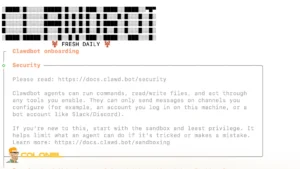
Configuring Telegram and Other Chat Channels
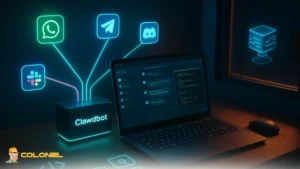
Once ClawdBot is running, integrate your chat applications to leverage automation. Telegram is often the easiest channel for initial setup:
- Create a Telegram Bot: Use @BotFather to generate a token.
- Connect to ClawdBot: Paste the token during onboarding or via the ClawdBot dashboard.
- Test Commands: Send /start to verify the bot responds.
- Optional Automations: Configure skills and workflows to handle tasks like daily summaries, alerts, or multi-step commands.
ClawdBot’s interface is intuitive; instead of manually configuring complex scripts, simply describe the task in natural language, and the bot suggests actionable workflows.
Hetzner VPS: Alternative Hosting Option
Hetzner VPS provides a cost-effective European alternative for hosting ClawdBot. Its environment is minimal and allows full root access, which is ideal for manual setups. Here are the advantages and disadvantages that you face when you install ClawdBot on a VPS:
- Pros:
- Lower European pricing compared to some global VPS providers.
- Clean and minimal OS environment, reducing conflicts.
- Reliable network connectivity in Europe.
- Cons:
- Limited global server locations may affect latency for non-European users.
- Fewer pre-configured options; most settings are manual.
Basic Hetzner setup steps are:
- Create a VPS instance with at least 2 vCPUs and 4GB RAM.
- Update and secure your VPS.
- Install prerequisites (Node.js via NVM, Homebrew, optional Tailscale).
- Follow the ClawdBot onboarding sequence as described above.
Hetzner’s VPS can host ClawdBot reliably and cost-effectively, especially for European users or anyone seeking a minimal environment.
ClawdBot Performance Optimization
Proper allocation of system resources ensures ClawdBot runs efficiently and avoids memory leaks or downtime. After you install ClawdBot on a VPS, consider the following:
- Node.js Version Management: Use NVM to install and manage Node.js versions. ClawdBot currently recommends Node 24+ for optimal stability.
- Monitor Resource Usage: Use commands like top, htop, or pm2 list to track CPU, RAM, and process health. Adjust VPS resources if usage consistently exceeds 80%.
- Skill Optimization: Only activate the skills you need. Running unnecessary automations increases memory load and can degrade performance.
Comparative Analysis of VPS Providers
Selecting the right VPS provider is essential to ensure reliability, performance, and ease of management for ClawdBot. While Hetzner is cost-effective and offers a minimal environment for advanced users, other global VPS providers, such as LightNode and AWS, provide advantages like faster deployment, multiple geographic nodes, and cloud integrations. Here is a detailed comparison of the three providers:
| VPS Provider | Key Features | Advantages |
| LightNode | NVMe SSD, multiple global nodes, hourly billing, Ubuntu/Debian/Windows | Quick deployment, predictable pricing, simple management |
| AWS | EC2/Lightsail, scalable, integrated cloud tools, global coverage | Top-tier infrastructure, strong cloud ecosystem, highly scalable |
| Hetzner | Minimal preinstalled software, root access, Europe-based | Cost-effective in Europe, full control, clean environment |
The optimal choice depends on factors like budget, server location relative to your audience, and your technical expertise in managing a VPS.
Security Best Practices
Even on a VPS, exposing ClawdBot requires caution:
- Restrict Ports: Only open necessary ports in your firewall (SSH, HTTP/HTTPS if needed).
- Use SSH Keys: Passwordless login is safer and reduces the risk of brute-force attacks.
- Regular Updates: Keep Node.js, ClawdBot, and system packages up to date to mitigate vulnerabilities.
- Optional HTTPS/Reverse Proxy: If you plan to expose the Dashboard over the internet, use Nginx or Caddy with SSL to encrypt traffic.
For more information, read (How to Secure Clawdbot on a VPS with Cloudflare?) article.
Conclusion
The process to install ClawdBot on a VPS transforms it from a local experiment into a reliable, always-on personal assistant. Choosing the right VPS provider, securing the server, and properly configuring the Gateway and channels are critical steps to maintain uptime, safety, and performance.
Using platforms like Hetzner offers cost-effective reliability, while LightNode or AWS provides global scalability. Regular monitoring, optimized skills, and security best practices ensure ClawdBot remains responsive and effective for all your automated workflows.
FAQ About Installing ClawdBot on a VPS
Do I need to keep my computer on to run ClawdBot?
No, once ClawdBot is installed on a VPS, it runs independently 24/7. Your local computer is only used for control and monitoring.
Which messaging apps can ClawdBot integrate with?
ClawdBot supports Telegram, Discord, WhatsApp, and other channels based on API tokens configured during onboarding.
How do I update ClawdBot after initial installation?
Run npm update -g clawdbot@latest and restart the Gateway service to apply updates.
Is exposing ClawdBot over the internet safe?
Yes, if you use SSH keys, firewalls, token-based authentication, and optionally HTTPS through a reverse proxy.