
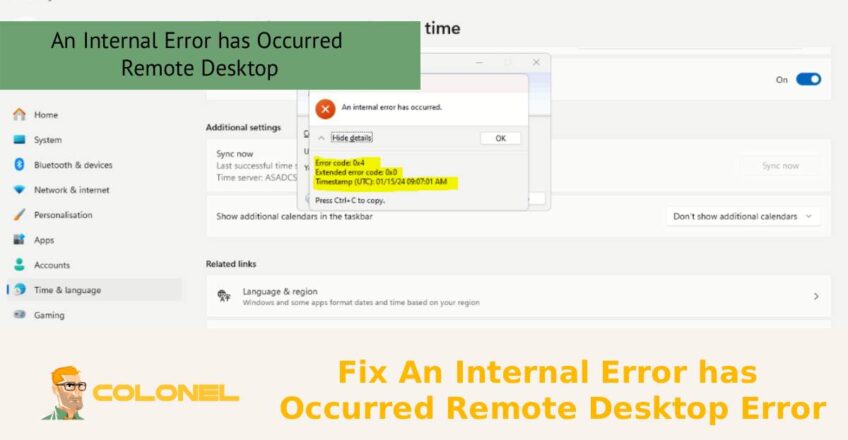
Réparer une erreur interne s'est produite. L'erreur du bureau à distance est un problème courant qui peut empêcher les utilisateurs de se connecter à des systèmes distants via le protocole de bureau à distance. (RDP), provoquant de la frustration et des temps d'arrêt inattendus. Cette erreur apparaît souvent sans explication claire et peut être liée à l'instabilité du réseau, paramètres de sécurité incorrects, mises à jour Windows obsolètes, ou des problèmes avec la configuration du Bureau à distance. Comprendre les causes possibles de ce message est la première étape pour le résoudre rapidement.. Dans ce guide, nous explorerons les méthodes les plus efficaces pour dépanner et résoudre ce problème de bureau à distance afin que vous puissiez restaurer un accès à distance sécurisé et stable sans retards inutiles..
Quelles sont les causes de l'erreur de bureau à distance « Une erreur interne s'est produite »?
Le message « Une erreur interne s'est produite » dans le protocole Bureau à distance (RDP) est l'un de ces problèmes frustrants qui indiquent rarement une seule cause profonde. Plutôt, c'est généralement le résultat d'une panne quelque part dans la chaîne de communication entre le client et la machine hôte. Comprendre les causes sous-jacentes est essentiel si vous souhaitez corriger correctement une erreur interne s'est produite sur le bureau à distance plutôt que de simplement appliquer des solutions de contournement temporaires..
niveau technique
Au niveau technique, cette erreur provient souvent d'incohérences dans la négociation du chiffrement, échecs d'authentification, ou inadéquations dans les attentes du protocole. Lorsqu'un client RDP initie une connexion, il tente d'établir une session sécurisée en utilisant des niveaux de cryptage et des couches de sécurité prédéfinis. Si le client et le serveur ne peuvent pas s'entendre sur ces paramètres, la session échoue silencieusement et renvoie cette erreur interne générique.
Un autre contributeur majeur est la corruption des composants du système ou les services Windows mal configurés.. Par exemple, si les services Bureau à distance (Service à terme) ne fonctionne pas correctement, ou si certaines dépendances comme RPC (Appel de procédure à distance) sont instables, la connexion ne peut pas être complétée.
composants système cassés ou services Windows mal configurés
Les problèmes liés aux titres de compétences jouent également un rôle. Informations d'identification mises en cache, mots de passe expirés, ou des problèmes de confiance de domaine peuvent perturber la phase d'authentification. En plus, les restrictions de pare-feu ou les mauvaises configurations NAT peuvent interrompre le processus de prise de contact à mi-chemin.

Hébergement Web WordPress
À partir de 3,99 $/mois
Enfin, les mises à jour ou leur absence peuvent introduire une incompatibilité. Un client exécutant une version RDP plus récente peut tenter d'utiliser des fonctionnalités non prises en charge par un serveur obsolète, entraînant un échec. C'est pourquoi le diagnostic du problème nécessite d'examiner l'ensemble de l'environnement., pas seulement une machine.
Comment les problèmes de connexion réseau déclenchent des erreurs internes du bureau à distance
La fiabilité du réseau est l'épine dorsale de toute session de bureau à distance réussie. Même une instabilité mineure peut entraîner des interruptions de session ou l'échec de l'établissement d'une connexion.. Lors du dépannage, comment réparer une erreur interne s'est produite ? Erreur de bureau à distance, l'examen du comportement du réseau devrait être l'une de vos premières étapes.
Facteurs pouvant perturber la poignée de main RDP
Pics de latence, perte de paquets, ou un routage incohérent peut perturber le processus de prise de contact RDP. RDP repose sur une connexion TCP stable (et éventuellement UDP pour les performances). Si les paquets sont retardés ou abandonnés, l'initialisation de la session peut expirer ou échouer de manière inattendue.
VPN et proxys
Les VPN et les proxys sont une autre source courante de problèmes. Bien qu'ils ajoutent une couche de sécurité, ils peuvent également introduire une complexité de routage supplémentaire. Des tunnels VPN mal configurés ou des règles de proxy restrictives peuvent bloquer les ports requis comme TCP 3389.
Problèmes de résolution DNS
Les problèmes de résolution DNS peuvent également entraîner des échecs de connexion. Si le client ne parvient pas à résoudre correctement le nom d'hôte de la machine distante, il peut tenter de se connecter à une adresse IP incorrecte ou inaccessible.
Dans les environnements d'entreprise, la segmentation du réseau et des politiques de pare-feu strictes peuvent bloquer le trafic RDP entièrement ou partiellement. Même si le port est ouvert, les systèmes d'inspection approfondie des paquets ou de prévention des intrusions peuvent mettre fin à la connexion s'ils détectent des modèles inhabituels.

Serveur VPS pas cher
À partir de 2,99 $/mois
Pour atténuer ces problèmes:
- Garantit une connectivité stable avec une perte de paquets minimale
- Vérifiez l'accessibilité du port à l'aide d'outils tels que telnet ou Test-NetConnection
- Évitez les doubles couches VPN
- Utiliser des connexions IP directes pour les tests
Vérification des paramètres du bureau à distance sous Windows
Les paramètres mal configurés du Bureau à distance sont l'une des causes les plus négligées des échecs de connexion. Avant de plonger dans les correctifs avancés, il est essentiel de vérifier que la configuration de base est correcte. Cette étape à elle seule peut parfois corriger complètement une erreur interne s'est produite sur le bureau à distance sans dépannage plus approfondi..
- Commencez par vous assurer que le Bureau à distance est activé sur la machine cible. Sous Windows, cela peut être trouvé sous Propriétés système → À distance. L'option « Autoriser les connexions à distance à cet ordinateur » doit être sélectionnée.
- Suivant, vérifier les autorisations des utilisateurs. Seuls les utilisateurs faisant partie du groupe « Utilisateurs du Bureau à distance » ou les administrateurs peuvent se connecter via RDP.. Si le bon utilisateur n'est pas ajouté, l'authentification échouera même si tout le reste est configuré correctement.
- Un autre paramètre important est l'authentification au niveau du réseau. (SUPER). Alors que NLA améliore la sécurité, cela peut entraîner des problèmes de compatibilité avec les anciens clients. La désactivation temporaire de NLA peut aider à déterminer si elle contribue au problème..
- Aussi, vérifier que le bon port est utilisé. Bien que 3389 est la valeur par défaut, certains environnements le modifient pour des raisons de sécurité. Si le port est modifié, le client doit le préciser explicitement (par ex., IP:Port).
Dernièrement, assurez-vous que les services Bureau à distance sont en cours d'exécution. Vous pouvez vérifier cela dans le gestionnaire de services (services.msc). Le redémarrage du service peut résoudre des problèmes temporaires.
Correction de la couche de sécurité RDP et des paramètres de cryptage
L'un des moyens les plus efficaces de corriger une erreur interne s'est produite sur le bureau à distance consiste à ajuster la couche de sécurité RDP et les paramètres de cryptage.. Ces configurations déterminent comment le client et le serveur établissent une session sécurisée.
Méthode 1: Utilisation de l'Éditeur du Registre (Interface graphique)
Ouvrir l'éditeur de registre:

Hébergement VPS Windows
Accès à distance et administrateur complet
Presse Gagner + R., taper regedit, et appuyez sur Entrée
Accédez à:
HKEY_LOCAL_MACHINE\SYSTEM\CurrentControlSet\Control\Terminal Server\WinStations\RDP-Tcp
Localiser MinEncryptionLevel:
- Double-cliquez dessus
- Changer la valeur de 4 à 3
- Cliquez sur OK
Cela réduit légèrement les exigences de cryptage, permettant la compatibilité avec plus de clients.
Méthode 2: Utiliser PowerShell
Exécutez PowerShell en tant qu'administrateur et exécutez:
Set-ItemProperty -Path "HKLM:\SYSTEM\CurrentControlSet\Control\Terminal Server\WinStations\RDP-Tcp" -Name "MinEncryptionLevel" -Value 3
Méthode 3: Exécuter le script de renforcement PSM
Courir:
.\PSMHardening.ps1
Ce script garantit que toutes les configurations de sécurité requises sont appliquées correctement.
Ces ajustements résolvent souvent les échecs de négociation de chiffrement, qui sont l'une des principales causes de cette erreur.
Comment désactiver UDP pour résoudre les erreurs du bureau à distance
RDP utilise à la fois les protocoles TCP et UDP. Alors que UDP améliore les performances en réduisant la latence, cela peut également introduire une instabilité dans certains environnements réseau. La désactivation d'UDP peut être un moyen fiable de corriger une erreur interne s'est produite sur le bureau à distance lorsque d'autres méthodes échouent..
Les problèmes UDP surviennent généralement dans les réseaux dotés de règles de pare-feu strictes., Limites de traversée NAT, ou un routage incohérent. Dans de tels cas, Les paquets UDP peuvent être bloqués ou abandonnés, provoquant une instabilité de session.
Pour désactiver UDP:
- Ouvrir l'éditeur de stratégie de groupe (
gpedit.msc)
2. Accédez à:
Configuration ordinateur → Modèles d'administration → Composants Windows → Services Bureau à distance → Client de connexion Bureau à distance
3. Activer la stratégie: Désactiver UDP sur le client
Alternativement, vous pouvez utiliser les modifications du registre pour obtenir le même résultat.
Après avoir désactivé UDP, RDP s'appuiera uniquement sur TCP, qui est plus stable dans des environnements restrictifs. Même si vous remarquerez peut-être une légère baisse des performances, la connexion devient nettement plus fiable.
Mettre à jour Windows pour résoudre les problèmes de connexion au Bureau à distance
Garder votre système à jour n'est pas seulement une question de sécurité, c'est également essentiel pour la compatibilité. Microsoft publie fréquemment des correctifs qui corrigent les bogues des services Bureau à distance. Ne pas mettre à jour votre système peut vous rendre vulnérable à des problèmes déjà résolus.
Lorsque vous essayez de corriger une erreur interne, une erreur de bureau à distance s'est produite, vérifiez toujours les mises à jour en attente sur les machines client et serveur. Des versions incompatibles peuvent entraîner des incohérences de protocole.
Les mises à jour incluent souvent:
- Correctifs pour les plantages RDP
- Améliorations de la gestion du chiffrement
- Meilleure compatibilité avec les clients les plus récents
- Correctifs de sécurité qui empêchent les échecs de connexion
Dans certains cas, une mise à jour Windows spécifique peut introduire un bug. Si le problème a commencé après une mise à jour récente, envisagez de le restaurer temporairement.
Aussi, assurez-vous que votre application client Remote Desktop est à jour. Les clients plus anciens peuvent ne pas prendre en charge les fonctionnalités de sécurité les plus récentes, conduisant à des connexions échouées.
Utilisation de l'éditeur de stratégie de groupe pour résoudre les erreurs internes RDP
La stratégie de groupe fournit un contrôle granulaire sur le comportement de RDP, ce qui en fait un outil puissant pour résoudre les problèmes persistants. Si vous avez du mal à corriger une erreur interne s'est produite. Erreur de bureau à distance, l'examen des paramètres de stratégie de groupe peut révéler des erreurs de configuration cachées.
Les politiques clés à vérifier incluent:
- Couche de sécurité (réglé sur « Négocier » au lieu de « SSL »)
- Niveau de cryptage (réglé sur « Compatible avec le client »)
- Exiger l'authentification des utilisateurs pour les connexions à distance (SUPER)
Des politiques mal alignées entre le client et le serveur peuvent entraîner des échecs de négociation. Par exemple, si le serveur applique un cryptage élevé mais que le client ne peut pas le prendre en charge, la connexion échouera.
Vous pouvez accéder à ces paramètres via:
gpedit.msc → Computer Configuration → Administrative Templates → Windows Components → Remote Desktop Services
Après avoir apporté des modifications, courir gpupdate /force pour les appliquer immédiatement.
La stratégie de groupe est particulièrement utile dans les environnements d'entreprise où plusieurs machines doivent suivre des configurations cohérentes..

Derniers conseils pour éviter les erreurs internes du bureau à distance à l'avenir
La prévention des problèmes RDP nécessite une approche proactive. Au lieu d'essayer à plusieurs reprises de corriger une erreur interne, une erreur de bureau à distance s'est produite, se concentrer sur le maintien d’un environnement stable et compatible.
Voici quelques bonnes pratiques:
- Maintenir les systèmes client et serveur à jour
- Utilisez des paramètres de chiffrement et de sécurité cohérents sur toutes les machines
- Surveillez la stabilité du réseau et évitez toute complexité inutile
- Examinez régulièrement les configurations du pare-feu et du VPN
- Évitez un renforcement agressif de la sécurité sans tester la compatibilité
C'est également une bonne idée de documenter votre configuration RDP. Cela facilite le dépannage lorsque des problèmes surviennent.
Si vous souhaitez améliorer les performances et la sécurité globales de votre serveur, Je recommande de consulter l'article Comment activer Cloudflare en quelques minutes (Guide facile). Il fournit des étapes pratiques pour améliorer la connectivité et la protection.
Ne voyez plus jamais cette erreur RDP: Prévention intelligente & Stratégie de correction
À la fin, Résoudre ce problème nécessite moins une solution unique qu'une compréhension de l'écosystème dans lequel RDP opère.. De la stabilité du réseau et des paramètres de chiffrement aux mises à jour du système et aux configurations de politiques, chaque composant joue un rôle.
La clé pour gérer avec succès cette erreur est une approche structurée: commencez par des vérifications de base, passer aux ajustements de configuration, et enfin appliquer des correctifs avancés tels que des modifications de registre ou de stratégie de groupe. Ce faisant, non seulement vous corrigez une erreur interne qui s'est produite sur le bureau à distance, mais vous créez également un environnement d'accès à distance plus résilient..
Quand tout est bien aligné, Le Bureau à distance devient un outil puissant et fiable, exactement tel qu'il a été conçu pour être.
