
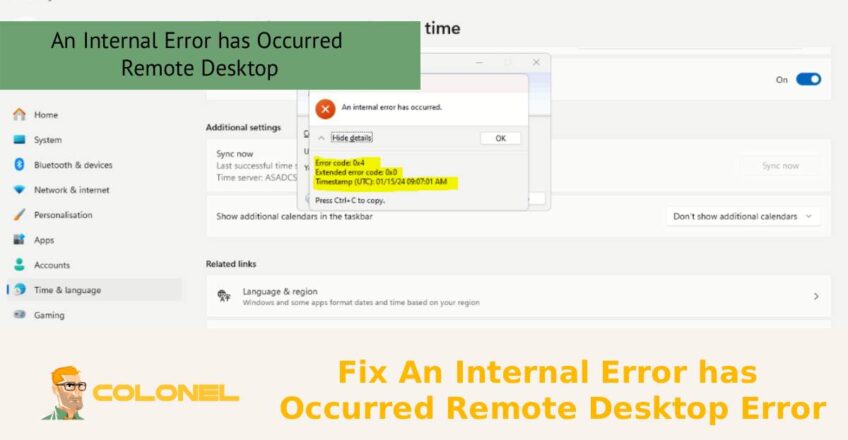
Er is een interne fout opgetreden. Remote Desktop Error is een veelvoorkomend probleem dat kan voorkomen dat gebruikers verbinding maken met externe systemen via Remote Desktop Protocol (RDP), waardoor frustratie en onverwachte downtime ontstaan. Deze fout verschijnt vaak zonder duidelijke uitleg en kan verband houden met netwerkinstabiliteit, onjuiste beveiligingsinstellingen, verouderde Windows-updates, of problemen met de configuratie van Extern bureaublad. Het begrijpen van de mogelijke oorzaken achter dit bericht is de eerste stap om het probleem snel op te lossen. In deze gids, we zullen de meest effectieve methoden onderzoeken om dit Remote Desktop-probleem op te lossen en op te lossen, zodat u veilige en stabiele externe toegang kunt herstellen zonder onnodige vertragingen.
Wat veroorzaakt de externe bureaubladfout 'Er is een interne fout opgetreden'?
Het bericht “Er is een interne fout opgetreden” in Remote Desktop Protocol (RDP) is een van die frustrerende problemen die zelden naar één enkele oorzaak wijzen. In plaats van, het is meestal het gevolg van een storing ergens in de communicatieketen tussen de client en de hostmachine. Het begrijpen van de onderliggende oorzaken is essentieel als u een interne fout die een externe bureaubladfout heeft opgetreden op de juiste manier wilt oplossen, in plaats van alleen maar tijdelijke oplossingen toe te passen.
technisch niveau
Op technisch niveau, deze fout komt vaak voort uit inconsistenties in de onderhandelingen over encryptie, authenticatiefouten, of mismatches in protocolverwachtingen. Wanneer een RDP-client een verbinding initieert, het probeert een veilige sessie tot stand te brengen met behulp van vooraf gedefinieerde coderingsniveaus en beveiligingslagen. Als de client en server het niet eens kunnen worden over deze parameters, de sessie mislukt stil en genereert deze algemene interne fout.
Een andere belangrijke oorzaak zijn beschadigde systeemcomponenten of verkeerd geconfigureerde Windows-services. Bijvoorbeeld, als de Extern bureaublad-services (TermijnService) functioneert niet correct, of als bepaalde afhankelijkheden zoals RPC (Procedureoproep op afstand) zijn onstabiel, de verbinding kan niet worden voltooid.
kapotte systeemcomponenten of verkeerd geconfigureerde Windows-services
Ook legitimatiegerelateerde kwesties spelen een rol. In cache opgeslagen referenties, verlopen wachtwoorden, of domeinvertrouwensproblemen kunnen de authenticatiefase verstoren. Aanvullend, firewallbeperkingen of verkeerde NAT-configuraties kunnen het handshake-proces halverwege onderbreken.

WordPress-webhosting
Vanaf $ 3,99/maandelijks
Eindelijk, updates of het ontbreken daarvan kunnen incompatibiliteit veroorzaken. Een client met een nieuwere RDP-versie kan proberen functies te gebruiken die niet worden ondersteund door een verouderde server, resulterend in een mislukking. Daarom vereist het diagnosticeren van het probleem dat we naar de hele omgeving kijken, niet slechts één machine.
Hoe netwerkverbindingsproblemen interne fouten op extern bureaublad veroorzaken
Netwerkbetrouwbaarheid is de ruggengraat van elke succesvolle Remote Desktop-sessie. Zelfs kleine instabiliteit kan resulteren in het wegvallen van sessies of het helemaal niet tot stand brengen van een verbinding. Bij het oplossen van problemen met het oplossen van een interne fout is een externe bureaubladfout opgetreden, Het onderzoeken van netwerkgedrag zou een van uw eerste stappen moeten zijn.
Factoren die de RDP-handshake kunnen verstoren
Latentie pieken, pakketverlies, of inconsistente routering kunnen allemaal het RDP-handshakeproces verstoren. RDP is afhankelijk van een stabiele TCP-verbinding (en optioneel UDP voor prestaties). Als pakketten worden vertraagd of wegvallen, de sessie-initialisatie kan een time-out krijgen of onverwacht mislukken.
VPN's en proxy's
VPN's en proxy's zijn een andere veelvoorkomende bron van problemen. Terwijl ze een beveiligingslaag toevoegen, ze kunnen ook extra routeringscomplexiteit introduceren. Verkeerd geconfigureerde VPN-tunnels of beperkende proxyregels kunnen vereiste poorten zoals TCP blokkeren 3389.
Problemen met de DNS-resolutie
Problemen met de DNS-resolutie kunnen ook leiden tot verbindingsfouten. Als de client de hostnaam van de externe machine niet correct kan omzetten, het kan proberen verbinding te maken met een onjuist of onbereikbaar IP-adres.
In bedrijfsomgevingen, netwerksegmentatie en een strikt firewallbeleid kunnen RDP-verkeer geheel of gedeeltelijk blokkeren. Zelfs als de haven open is, systemen voor diepe pakketinspectie of inbraakpreventie kunnen de verbinding verbreken als ongebruikelijke patronen worden gedetecteerd.

Goedkope VPS-server
Vanaf $ 2,99/maandelijks
Om deze problemen te verzachten:
- Zorg voor stabiele connectiviteit met minimaal pakketverlies
- Controleer de poorttoegankelijkheid met behulp van tools zoals telnet of Test-NetConnection
- Vermijd dubbele VPN-lagen
- Gebruik directe IP-verbindingen voor het testen
Externe bureaubladinstellingen controleren in Windows
Verkeerd geconfigureerde Remote Desktop-instellingen zijn een van de meest over het hoofd geziene oorzaken van verbindingsfouten. Voordat u in geavanceerde oplossingen duikt, het is van cruciaal belang om te verifiëren dat de basisconfiguratie correct is. Deze stap alleen al kan soms een interne fout die zich heeft voorgedaan in een extern bureaublad-fout volledig oplossen zonder diepere probleemoplossing.
- Zorg er eerst voor dat Extern bureaublad is ingeschakeld op de doelcomputer. In Windows, deze kun je vinden onder Systeemeigenschappen → Extern. De optie “Externe verbindingen met deze computer toestaan” moet geselecteerd zijn.
- Volgende, controleer de gebruikersrechten. Alleen gebruikers die deel uitmaken van de groep “Remote Desktop Users” of beheerders kunnen verbinding maken via RDP. Als de juiste gebruiker niet is toegevoegd, authenticatie zal mislukken, zelfs als al het andere correct is geconfigureerd.
- Een andere belangrijke instelling is verificatie op netwerkniveau (GEWELDIG). Terwijl NLA de veiligheid verbetert, het kan compatibiliteitsproblemen met oudere clients veroorzaken. Het tijdelijk uitschakelen van NLA kan helpen bepalen of dit bijdraagt aan het probleem.
- Ook, controleer of de juiste poort wordt gebruikt. Hoewel 3389 is de standaard, sommige omgevingen veranderen dit om veiligheidsredenen. Als de poort is gewijzigd, de opdrachtgever dient dit expliciet te specificeren (bijv., IP:Haven).
Ten slotte, zorg ervoor dat Remote Desktop Services actief zijn. U kunt dit controleren in de Services Manager (services.msc). Het opnieuw starten van de service kan tijdelijke problemen oplossen.
RDP-beveiligingslaag en coderingsinstellingen repareren
Een van de meest effectieve manieren om een interne fout op te lossen is het aanpassen van de RDP-beveiligingslaag en de coderingsinstellingen.. Deze configuraties bepalen hoe de client en server een veilige sessie tot stand brengen.
Methode 1: Register-editor gebruiken (GUI)
Open Register-editor:

Windows VPS-hosting
Toegang op afstand en volledig beheer
Druk op Winnen + R, type regedit, en druk op Enter
Navigeer naar:
HKEY_LOCAL_MACHINE\SYSTEM\CurrentControlSet\Control\Terminal Server\WinStations\RDP-Tcp
Zoek MinEncryptionLevel:
- Dubbelklik erop
- Wijzig de waarde van 4 naar 3
- Klik op OK
Dit verlaagt de coderingsvereiste enigszins, waardoor compatibiliteit met meer clients mogelijk is.
Methode 2: PowerShell gebruiken
Voer PowerShell uit als beheerder en voer het uit:
Set-ItemProperty -Path "HKLM:\SYSTEM\CurrentControlSet\Control\Terminal Server\WinStations\RDP-Tcp" -Name "MinEncryptionLevel" -Value 3
Methode 3: Voer het PSM-verhardingsscript uit
Loop:
.\PSMHardening.ps1
Dit script zorgt ervoor dat alle vereiste beveiligingsconfiguraties correct worden toegepast.
Deze aanpassingen lossen vaak mislukte onderhandelingen over encryptie op, die een primaire oorzaak van deze fout zijn.
Hoe u UDP kunt uitschakelen om fouten met extern bureaublad op te lossen
RDP gebruikt zowel TCP- als UDP-protocollen. Terwijl UDP de prestaties verbetert door de latentie te verminderen, het kan ook instabiliteit in bepaalde netwerkomgevingen veroorzaken. Het uitschakelen van UDP kan een betrouwbare manier zijn om een interne fout op te lossen die een externe bureaubladfout heeft veroorzaakt wanneer andere methoden falen.
UDP-problemen doen zich doorgaans voor in netwerken met strikte firewallregels, NAT-traversalbeperkingen, of inconsistente routering. In dergelijke gevallen, UDP-pakketten kunnen worden geblokkeerd of verwijderd, waardoor sessie-instabiliteit ontstaat.
Om UDP uit te schakelen:
- Open de Groepsbeleid-editor (
gpedit.msc)
2. Navigeer naar:
Computerconfiguratie → Beheersjablonen → Windows-componenten → Extern bureaublad-services → Extern bureaublad-verbindingsclient
3. Schakel het beleid in: Schakel UDP op client uit
Als alternatief, u kunt registerwijzigingen gebruiken om hetzelfde resultaat te bereiken.
Na het uitschakelen van UDP, RDP zal uitsluitend afhankelijk zijn van TCP, die stabieler is in restrictieve omgevingen. Hoewel u mogelijk een lichte prestatiedaling merkt, de verbinding wordt aanzienlijk betrouwbaarder.
Windows bijwerken om problemen met de verbinding met extern bureaublad op te lossen
Het up-to-date houden van uw systeem gaat niet alleen over beveiliging, het is ook van cruciaal belang voor compatibiliteit. Microsoft brengt regelmatig patches uit die bugs in Remote Desktop Services repareren. Als u uw systeem niet bijwerkt, kunt u kwetsbaar worden voor problemen die al zijn opgelost.
Wanneer u probeert een interne fout op te lossen, is er een externe bureaubladfout opgetreden, Controleer altijd of er updates in behandeling zijn op zowel de client- als de servermachines. Niet-overeenkomende versies kunnen leiden tot inconsistenties in het protocol.
Updates bevatten vaak:
- Oplossingen voor RDP-crashes
- Verbeteringen in de verwerking van versleuteling
- Betere compatibiliteit met nieuwere clients
- Beveiligingspatches die verbindingsfouten voorkomen
In sommige gevallen, een specifieke Windows-update kan een bug introduceren. Als het probleem is begonnen na een recente update, overweeg om het tijdelijk terug te draaien.
Ook, Zorg ervoor dat uw Remote Desktop-clienttoepassing up-to-date is. Oudere clients ondersteunen mogelijk geen nieuwere beveiligingsfuncties, wat leidt tot mislukte verbindingen.
De Groepsbeleid-editor gebruiken om interne RDP-fouten op te lossen
Groepsbeleid biedt gedetailleerde controle over RDP-gedrag, waardoor het een krachtig hulpmiddel is voor het oplossen van hardnekkige problemen. Als u moeite heeft met het oplossen van een interne fout, is er een externe bureaubladfout opgetreden, het controleren van de instellingen voor Groepsbeleid kan verborgen verkeerde configuraties aan het licht brengen.
Belangrijke beleidsregels die u moet controleren, zijn onder meer::
- Beveiligingslaag (ingesteld op “Onderhandelen” in plaats van “SSL”)
- Versleutelingsniveau (ingesteld op “Clientcompatibel”)
- Vereist gebruikersauthenticatie voor externe verbindingen (GEWELDIG)
Verkeerd uitgelijnd beleid tussen client en server kan onderhandelingsfouten veroorzaken. Bijvoorbeeld, als de server hoge codering afdwingt, maar de client dit niet kan ondersteunen, de verbinding zal mislukken.
U kunt toegang krijgen tot deze instellingen via:
gpedit.msc → Computer Configuration → Administrative Templates → Windows Components → Remote Desktop Services
Na het aanbrengen van wijzigingen, loop gpupdate /force om ze onmiddellijk toe te passen.
Groepsbeleid is vooral handig in bedrijfsomgevingen waar meerdere machines consistente configuraties moeten volgen.

Laatste tips om interne fouten op afstand in de toekomst te voorkomen
Het voorkomen van POP-problemen vereist een proactieve aanpak. In plaats van herhaaldelijk te proberen een interne fout op te lossen, is er een externe bureaubladfout opgetreden, focus op het behouden van een stabiele en compatibele omgeving.
Hier zijn enkele best practices:
- Houd zowel client- als serversystemen up-to-date
- Gebruik consistente encryptie- en beveiligingsinstellingen op alle machines
- Bewaak de netwerkstabiliteit en voorkom onnodige complexiteit
- Controleer regelmatig de firewall- en VPN-configuraties
- Vermijd agressieve verscherping van de beveiliging zonder de compatibiliteit te testen
Het is ook een goed idee om uw RDP-configuratie te documenteren. Dit maakt het oplossen van problemen eenvoudiger wanneer zich problemen voordoen.
Als u geïnteresseerd bent in het verbeteren van uw algehele serverprestaties en beveiliging, Ik raad aan om het artikel te bekijken Hoe u Cloudflare in enkele minuten activeert (Gemakkelijke gids). Het biedt praktische stappen om de connectiviteit en bescherming te verbeteren.
Zie deze RDP-fout nooit meer: Slimme preventie & Strategie repareren
Op het einde, Het oplossen van dit probleem gaat niet zozeer over een enkele oplossing, maar meer over het begrijpen van het ecosysteem waarin RDP opereert. Van netwerkstabiliteit en encryptie-instellingen tot systeemupdates en beleidsconfiguraties, elk onderdeel speelt een rol.
De sleutel tot het succesvol omgaan met deze fout is een gestructureerde aanpak: begin met basiscontroles, ga naar configuratie-aanpassingen, en ten slotte geavanceerde oplossingen toepassen, zoals wijzigingen in het register of groepsbeleid. Door dit te doen, u repareert niet alleen een interne fout die is opgetreden bij een externe bureaubladfout, maar bouwt ook een veerkrachtigere omgeving voor externe toegang.
Als alles goed op elkaar is afgestemd, Remote Desktop wordt een krachtig en betrouwbaar hulpmiddel, precies zoals het bedoeld is.
