
Het inschakelen van Cloudflare is een van de snelste methoden om de veiligheid en snelheid van uw website te verbeteren zonder technische complicaties. Ongeacht of u een persoonlijke blog beheert of een website op ondernemingsniveau beheert, Cloudflare fungeert als een schild dat uw server beschermt tegen kwaadaardige activiteiten en zorgt tegelijkertijd voor een snellere laadtijd voor de bezoekers. In dit artikel vindt u alle instructies die u moet volgen om Cloudflare binnen een paar minuten in te schakelen.
Inleiding tot het activeren van Cloudflare
Als u serieus de snelheid van uw website wilt verbeteren, beveiliging, en betrouwbaarheid, Leren hoe je Cloudflare activeert is een must. Cloudflare fungeert als een krachtig contentleveringsnetwerk (CDN) en beveiligingslaag die zich tussen uw website en zijn bezoekers bevindt. Dit betekent snellere laadtijden, bescherming tegen aanvallen, en betere algehele prestaties, allemaal zonder dat diepgaande technische expertise vereist is. In deze gids, Je leert stap voor stap hoe je Cloudflare activeert, met duidelijke instructies en praktische tips om veelgemaakte fouten te voorkomen.

Waarom u Cloudflare zou moeten gebruiken
Voordat je ingaat op het activeren van Cloudflare, het is belangrijk om te begrijpen waarom het ertoe doet. Veel website-eigenaren onderschatten hoeveel invloed de prestaties en beveiliging hebben op de gebruikerservaring en SEO.
Cloudflare biedt verschillende belangrijke voordelen:
- Snellere levering van inhoud via wereldwijde CDN-servers
- Bescherming tegen DDoS-aanvallen en kwaadaardige bots
- Gratis SSL-certificaten voor veilige verbindingen
- Verminderde serverbelasting en bandbreedtegebruik
- Eenvoudig DNS-beheer op één plek
Als uw site traag of kwetsbaar is, het activeren van Cloudflare is een van de snelste overwinningen die je kunt behalen.

WordPress-webhosting
Vanaf $ 3,99/maandelijks
Stap 1: Maak een Cloudflare-account aan
De eerste stap bij het activeren van Cloudflare is het aanmaken van een account.
Ga naar de officiële Cloudflare-website en klik op de knop Aanmelden. U wordt doorgestuurd naar de pagina voor het maken van een account.
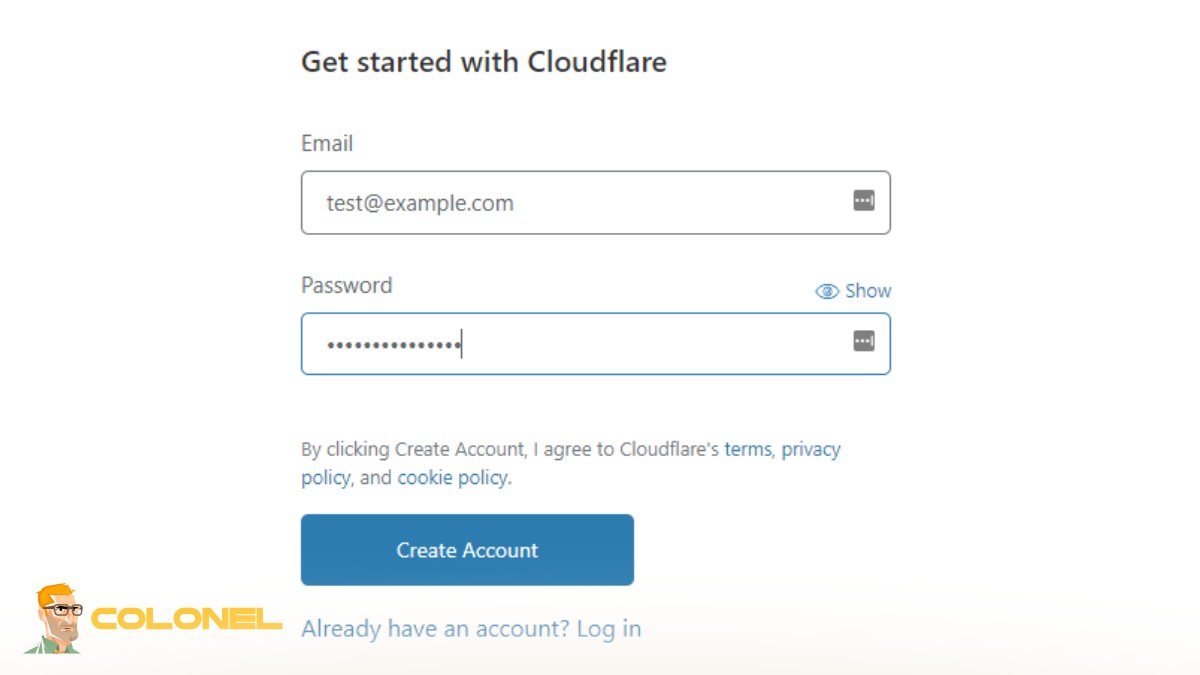
Dit is wat u moet doen:
- Voer uw e-mailadres in
- Kies een sterk wachtwoord
- Klik op Account aanmaken
Als u al een account heeft, sla deze stap over en log direct in. Dit is een veelvoorkomend scenario voor ontwikkelaars die meerdere domeinen beheren.
Stap 2: Voeg uw website toe aan Cloudflare
Eenmaal ingelogd, je komt terecht op het Cloudflare-dashboard. Bovenaan de pagina, klik op Site toevoegen.

Goedkope VPS-server
Vanaf $ 2,99/maandelijks
Nu:
- Voer uw domeinnaam in (bijv., jouwwebsite.com)
- Klik op Site toevoegen om door te gaan
Deze stap is cruciaal in het proces van Hoe Cloudflare te activeren, omdat het Cloudflare vertelt welke website u wilt optimaliseren en beschermen.

Stap 3: Kies het juiste abonnement
Nadat u uw domein heeft toegevoegd, Cloudflare zal u vragen een abonnement te selecteren.
Beschikbare opties omvatten doorgaans::
- Gratis abonnement
- Pro-plan
- Businessplan
- Enterprise-plan
Als u het niet zeker weet, begin met het gratis abonnement. Het biedt solide prestatieverbeteringen en basisbeveiligingsfuncties, wat voldoende is voor de meeste websites.

Windows VPS-hosting
Toegang op afstand en volledig beheer
Het kiezen van het juiste abonnement maakt deel uit van het begrijpen hoe u Cloudflare effectief kunt activeren zonder te veel geld uit te geven.
Stap 4: Controleer DNS-records
Zodra u een plan selecteert, Cloudflare scant automatisch de DNS-records van uw domein.
Deze stap wordt vaak over het hoofd gezien, maar het is cruciaal.
U ziet een lijst met DNS-vermeldingen, zoals:
- Een record
- CNAME-records
- MX-records
Bekijk ze zorgvuldig en zorg ervoor dat ze goed zijn:
- Uw hoofddomein verwijst naar het juiste IP-adres
- Subdomeinen zijn correct geconfigureerd
- E-mailgerelateerde records zijn intact
Breng de nodige wijzigingen aan, klik vervolgens op Doorgaan.
Dit goed doen is essentieel als je leert hoe je Cloudflare activeert, omdat onjuiste DNS-instellingen uw website of e-mail kapot kunnen maken.

Stap 5: Koop Cloudflare-naamservers
Nadat u uw DNS-records heeft bevestigd, Cloudflare zal u twee naamservers toewijzen.
Deze zullen er ongeveer zo uitzien:
- ns1.cloudflare.com
- ns2.cloudflare.com
Noteer deze naamservers. Je hebt ze nodig bij de volgende stap.
Dit is een belangrijk keerpunt in Hoe Cloudflare te activeren, omdat het wisselen van naamserver is wat uw domein feitelijk verbindt met het netwerk van Cloudflare.
Stap 6: Update naamservers bij uw domeinregistreerder
Nu komt de belangrijkste stap in het activeren van Cloudflare: de naamservers van uw domein bijwerken.
Log in bij uw domeinregistreerder (waar u uw domein heeft gekocht), zoals:
- GoDaddy
- Naamgoedkoop
- Hostingaanbieders
Zoek de DNS- of naamserverinstellingen en vervang de bestaande naamservers door die van Cloudflare.
Elke registrar heeft een iets andere interface, maar het algemene proces is dat wel:
- Zoek uw domeininstellingen
- Zoek het naamservergedeelte
- Vervang oude naamservers door Cloudflare-naamservers
- Wijzigingen opslaan
Deze stap kan technisch aanvoelen, maar het is eenvoudig als u eenmaal de juiste instellingen heeft gevonden.
Stap 7: Wacht op DNS-propagatie
Na het updaten van de naamservers, je moet wachten tot de wijzigingen zich verspreiden.
Dit duurt doorgaans:
- In sommige gevallen een paar minuten
- Tot 24 uur in de meeste gevallen
Gedurende deze tijd, uw domein wordt geleidelijk verbonden met het netwerk van Cloudflare.
Zodra de voortplanting is voltooid, Cloudflare wordt automatisch actief.
Deze wachtperiode is een normaal onderdeel van Hoe Cloudflare te activeren, dus raak niet in paniek als de veranderingen niet onmiddellijk plaatsvinden.

Stap 8: Controleer Cloudflare-activering
Na voortplanting, keer terug naar uw Cloudflare-dashboard.
Als alles goed is ingesteld, uw domeinstatus wordt weergegeven als Actief.
U kunt de activering ook verifiëren door:
- Controleren of uw site sneller laadt
- Zoeken naar Cloudflare-headers in browserontwikkelaarstools
- Online tools gebruiken om CDN-gebruik te bevestigen
Op dit punt, je hebt met succes Hoe Cloudflare te activeren voltooid.
Cloudflare-instellingen beheren
Nadat je Hoe Cloudflare activeert hebt doorlopen, het echte werk begint in het dashboard. Hier bepaalt u hoe uw site presteert en hoe goed deze wordt beschermd. Cloudflare is niet alleen maar ‘aan of uit’: het is een set tools die u moet afstemmen op uw behoeften.
In het veiligheidsgedeelte, u kunt bepalen wie toegang krijgt tot uw site. Met firewallregels kunt u verdacht verkeer blokkeren voordat het zelfs maar uw server bereikt. U kunt het beveiligingsniveau ook aanpassen, afhankelijk van hoe agressief u wilt dat Cloudflare is bij het filteren van bezoekers.
Aan de prestatiekant, functies zoals caching en bestandsoptimalisatie maken een merkbaar verschil. Cloudflare slaat uw statische bestanden op wereldwijde servers op, zodat gebruikers uw site sneller laden. Opties zoals Auto Minify en Brotli-compressie verkleinen de bestandsgrootte automatisch, wat de snelheid verbetert zonder extra inspanning.
SSL/TLS-instellingen zijn ook van cruciaal belang. Als u de juiste modus kiest, zorgt u ervoor dat uw site veilig en zonder fouten werkt. Het inschakelen van HTTPS op uw site is niet langer optioneel, zo wordt verwacht.
Veelvoorkomende fouten die u moet vermijden
Ook al is Hoe Cloudflare te activeren eenvoudig, kleine fouten kunnen grote problemen veroorzaken. Het meest voorkomende probleem zijn onjuiste DNS-records. Als uw domein niet naar de juiste server verwijst, uw site laadt gewoon niet.
Een andere fout is het niet correct bijwerken van naamservers. Sommige gebruikers vergeten de wijzigingen op te slaan of vervangen niet beide naamservers, waardoor Cloudflare niet kan worden geactiveerd.
Verkeerde SSL-configuratie is een ander veel voorkomend probleem. Als u de verkeerde modus kiest, kan dit leiden tot omleidingsfouten die uw site kapot maken. Het is niet ingewikkeld., maar het vraagt wel aandacht.
Eindelijk, veel mensen onderschatten de DNS-propagatietijd. Veranderingen zijn niet onmiddellijk, en als je dingen te vroeg probeert op te lossen, ontstaat er vaak meer verwarring dan oplossingen.

Tips voor betere resultaten
Als je betere prestaties wilt nadat je hebt geleerd hoe je Cloudflare activeert, je moet verder gaan dan de basisconfiguratie. Begin met het optimaliseren van caching. Niet alle inhoud moet op dezelfde manier worden behandeld, en met Cloudflare kunt u dit met eenvoudige regels regelen.
U moet ook paginaregels gebruiken om te beheren hoe specifieke URL's zich gedragen. Dit geeft u meer controle over de prestaties en het cachegedrag.
Analytics binnen Cloudflare kan u laten zien hoe uw site presteert en wat voor soort verkeer u krijgt. Dit helpt u te begrijpen wat werkt en wat moet worden aangepast.
Het regelmatig controleren van beveiligingslogboeken is ook een slimme zet. Het laat u zien welke bedreigingen worden geblokkeerd en helpt u uw beveiligingsinstellingen te verfijnen.
Laatste gedachten en volgende stappen
Leren hoe u Cloudflare kunt activeren is een slimme zet, maar als je daar stopt, gebruik je slechts een deel van het potentieel ervan. De installatie is snel, maar de echte waarde komt voort uit de manier waarop u het daarna beheert en optimaliseert.
Zodra alles actief is, uw site wordt sneller, veiliger, en stabieler. Maar om het beste resultaat te behalen, je moet de tools die Cloudflare biedt daadwerkelijk gebruiken.
Als je Cloudflare activeren hebt voltooid, laat het niet zomaar zoals het is. Ga terug, pas de instellingen aan, en laat het precies werken zoals uw site nodig heeft. Dat is waar het echte verschil ontstaat.
