

Common WordPress Errors and Quick Fixes are essential knowledge for any website owner who wants to keep their site running smoothly and professionally. From the frustrating 500 Internal Server Error to memory limit issues, plugin conflicts, and a slow WordPress admin dashboard, these problems can disrupt your workflow and impact user experience. Understanding the most frequent causes and applying practical, step-by-step solutions can save time, prevent downtime, and ensure your WordPress website remains stable, secure, and high-performing.
Common WordPress Errors and Quick Fixes
List of content you will read in this article:
ToggleWhat Are Common WordPress Errors?
Common WordPress Errors refer to a group of recurring technical issues that frequently appear on WordPress websites, regardless of size or industry. Because WordPress powers millions of sites worldwide, it operates in countless hosting environments, with different themes, plugins, server configurations, and custom code. This flexibility is one of its greatest strengths, but it also increases the likelihood of conflicts and technical glitches. Understanding what Common WordPress Errors are helps site owners recognize problems quickly instead of panicking when something unexpected happens.
Most Common WordPress Errors are not caused by the core software itself. Instead, they usually result from plugin incompatibilities, outdated themes, corrupted files, insufficient server resources, incorrect permissions, or misconfigured databases. When these issues occur, they can affect website performance, user experience, search engine rankings, and even revenue in the case of business websites.
By learning to identify patterns and typical symptoms, website owners and developers can diagnose issues more confidently and reduce downtime significantly.
500 Internal Server Error in WordPress
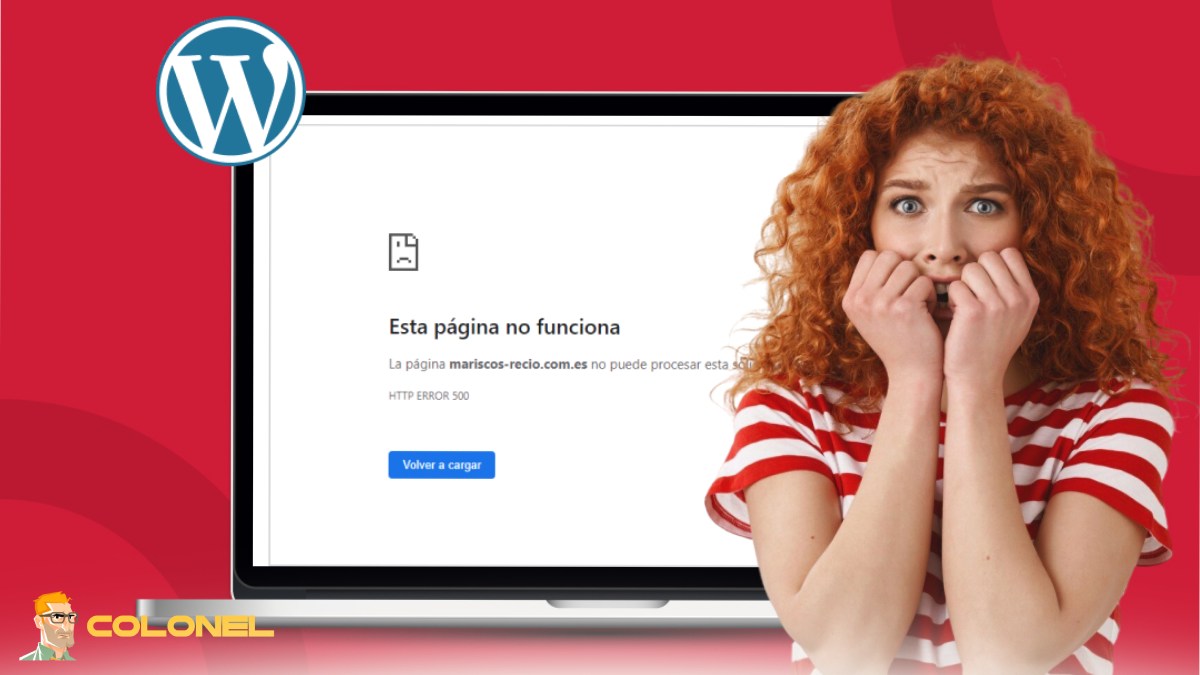
The 500 Internal Server Error is one of the most frustrating issues in WordPress. It is a generic server-side error, meaning the server encountered an unexpected condition that prevented it from fulfilling a request. Unfortunately, it does not provide specific details about the root cause.

WordPress Web Hosting
Starting From $3.99/Monthly
This error may appear after installing a new plugin, editing the .htaccess file, modifying PHP code, or exceeding server resource limits. It can also occur due to corrupted core files or incorrect file permissions. In many cases, the website becomes completely inaccessible, displaying only a blank error page.
Because it provides little information, the 500 error is considered one of the more confusing Common WordPress Errors. Website owners typically need to check server logs, disable plugins, switch themes, or review configuration files to pinpoint the cause. Although intimidating, this error usually has a straightforward technical explanation once investigated carefully.
403 Forbidden Error Explained
The 403 Forbidden Error indicates that the server understands the request but refuses to authorize it. In WordPress, this commonly happens due to incorrect file permissions, security plugin restrictions, or corrupted .htaccess rules.
When this error appears, users may be blocked from accessing specific pages, the WordPress admin area, or even the entire site. Hosting providers often implement strict security rules, and sometimes these rules mistakenly block legitimate requests.
Among Common WordPress Errors, the 403 error is typically permission-related. It serves as a reminder that WordPress relies heavily on proper server configuration. Even a minor change in file access settings can prevent visitors or administrators from loading important resources.

Cheap VPS Server
Starting From $2.99/Monthly
404 Not Found Error in WordPress
The 404 Not Found Error occurs when a requested page cannot be located on the server. In WordPress, this is often linked to broken permalinks, deleted posts, or incorrect URL structures.
For example, after migrating a site or changing permalink settings, users may find that individual blog posts return 404 errors even though they still exist in the database. This mismatch between the URL structure and the server configuration causes the issue.
Although 404 errors are common across the web, they are also counted among Common WordPress Errors because they frequently occur after theme or permalink adjustments. While occasional 404 pages are normal, persistent ones can negatively impact SEO and user experience.
WordPress White Screen of Death (WSOD)
The WordPress White Screen of Death, commonly abbreviated as WSOD, is one of the most alarming problems a site owner can encounter. Instead of showing an error message, the site simply displays a blank white page.
This issue is typically caused by PHP memory exhaustion, plugin conflicts, or fatal coding errors. Because no error message appears by default, it can be difficult to determine what went wrong.
The WSOD stands out among Common WordPress Errors because of its silent nature. It often affects both the front-end and the admin dashboard, leaving site owners unsure of how to proceed. Enabling debugging mode in WordPress usually reveals more detailed information about the underlying cause.

Windows VPS Hosting
Remote Access & Full Admin
WordPress Memory Limit Error
The WordPress Memory Limit Error occurs when a script exceeds the allocated PHP memory. Every hosting environment sets a maximum memory limit, and if a plugin or theme consumes too much memory, the system stops executing the script.
This error commonly appears when installing large plugins, importing demo content, or running resource-intensive processes such as backups. The message typically reads: “Allowed memory size exhausted.”
As one of the technical Common WordPress Errors, this issue highlights the importance of server resources. Insufficient memory allocation can limit performance and cause unexpected site crashes, especially on shared hosting plans.
Error Establishing a Database Connection
The “Error Establishing a Database Connection” message indicates that WordPress cannot communicate with its database. Since WordPress stores all content, settings, and user data in the database, this issue makes the site completely inaccessible.
Common causes include incorrect database credentials in the wp-config.php file, a corrupted database, server downtime, or reaching database capacity limits. If the database server is overloaded or temporarily offline, WordPress cannot retrieve information to display pages.
Among Common WordPress Errors, this one directly impacts the foundation of the website. Without database access, WordPress cannot function, making it one of the most critical errors to address quickly.
Syntax Error in WordPress
A syntax error usually occurs after manually editing theme files, plugin files, or the functions.php file. Even a missing semicolon or bracket can cause PHP to stop executing the script.
The error message often includes details about the file and line number where the mistake occurred. This makes syntax errors more specific than some other Common WordPress Errors.
Developers frequently encounter syntax errors while customizing code. While frustrating, these errors are generally straightforward to fix once the problematic line is identified.
WordPress Stuck in Maintenance Mode
When WordPress updates plugins, themes, or core files, it briefly activates maintenance mode. Normally, this process lasts only a few seconds. However, if the update is interrupted, the site may remain stuck in maintenance mode.
Visitors will see a message indicating that the site is undergoing scheduled maintenance. This situation typically happens if the update process times out or the server connection drops.
This issue is included in Common WordPress Errors because it can unexpectedly lock both visitors and administrators out of the site, even though no permanent damage has occurred.
Mixed Content Error in WordPress
A Mixed Content Error appears when a website loads some resources over HTTPS and others over HTTP. Modern browsers block insecure content on secure pages, resulting in warnings or broken elements.
This often happens after installing an SSL certificate but failing to update internal links or media URLs. Images, scripts, or stylesheets may still reference HTTP addresses.
Among Common WordPress Errors, mixed content problems are closely tied to security and SEO. Browsers may label the site as “Not Secure,” reducing user trust and potentially affecting search rankings.
Too Many Redirects Error (ERR_TOO_MANY_REDIRECTS)
The ERR_TOO_MANY_REDIRECTS message appears when a page enters an infinite redirection loop. This means the browser is repeatedly redirected between URLs without reaching a final destination.
Common causes include incorrect WordPress URL settings, conflicting redirect rules, or SSL misconfigurations. For example, a site might redirect from HTTP to HTTPS and then back again in a continuous loop.
This is one of the more technical Common WordPress Errors because it often involves both WordPress settings and server-level configurations. Resolving it requires reviewing redirect rules carefully.
Failed Auto-Update Error in WordPress
WordPress includes automatic updates for minor core releases and sometimes for plugins or themes. However, these updates may fail due to insufficient file permissions, limited server resources, or connectivity problems.
When an auto-update fails, it can leave files partially updated, leading to additional functionality issues. In some cases, the website may temporarily become unstable.
Although less dramatic than other Common WordPress Errors, failed updates can create inconsistencies within the system. Keeping backups and monitoring update processes reduces associated risks.
Image Upload HTTP Error in WordPress
The Image Upload HTTP Error occurs when attempting to upload media files to the WordPress Media Library. Instead of successfully uploading the file, WordPress displays a vague HTTP error message.
Possible causes include insufficient PHP memory, incorrect file permissions, unsupported file types, or server configuration limits. It may also occur due to plugin conflicts affecting the media uploader.
This error is categorized among Common WordPress Errors because it directly impacts content creation. Without the ability to upload images, publishing blog posts and pages becomes difficult.
Briefly Unavailable for Scheduled Maintenance Message
The “Briefly Unavailable for Scheduled Maintenance” message appears during updates. While normally temporary, it may persist if the update process is interrupted.
This happens when the .maintenance file remains in the root directory after an incomplete update. As a result, WordPress continues to display the maintenance notice.
Although usually harmless, it is still counted among Common WordPress Errors because it can create confusion and prevent access to the site.
How Plugin and Theme Conflicts Cause Errors
Plugins and themes extend WordPress functionality, but they can also introduce compatibility problems. Since developers create them independently, updates may conflict with the WordPress core or with each other.
For example, two plugins may attempt to modify the same function, leading to unexpected behavior. An outdated theme might rely on deprecated code, causing fatal errors after a WordPress update.
Many Common WordPress Errors originate from these conflicts. Identifying compatibility issues often requires deactivating plugins one by one or temporarily switching to a default theme. This process helps isolate the source of the problem.
Quick Fixes for Common WordPress Errors
WordPress errors can disrupt your website, but many of them have simple, quick solutions that restore functionality fast. Knowing the right steps to address each error saves time and prevents prolonged downtime.
| WordPress Error | Quick Fix Steps |
|---|---|
| 500 Internal Server Error | Check .htaccess file, deactivate plugins, increase PHP memory limit. |
| 403 Forbidden Error | Correct file permissions, disable security plugins, review .htaccess rules. |
| 404 Not Found Error | Reset permalinks, check deleted pages, update URL structures. |
| White Screen of Death (WSOD) | Increase PHP memory, deactivate plugins/themes, enable WP_DEBUG. |
| Memory Limit Error | Increase PHP memory limit in wp-config.php or php.ini. |
| Error Establishing Database Connection | Verify database credentials, repair database, check server status. |
| Syntax Error | Correct the PHP syntax in the indicated file/line. |
| Maintenance Mode Stuck | Delete the .maintenance file from the root directory. |
| Mixed Content Error | Update HTTP links to HTTPS, use SSL plugin to fix URLs. |
| Too Many Redirects | Check WordPress URL settings, remove conflicting redirects. |
| Failed Auto-Update | Manually update WordPress/plugins, check file permissions. |
| Image Upload HTTP Error | Increase PHP memory, check file permissions, disable conflicting plugins. |
| Briefly Unavailable Message | Remove .maintenance file, ensure updates complete properly. |
| Plugin/Theme Conflicts | Deactivate plugins one by one, switch to default theme to isolate issue. |
Conclusion
WordPress is a powerful and flexible platform, but its dynamic ecosystem inevitably leads to technical challenges. From server-level problems like the 500 Internal Server Error to configuration issues such as mixed content warnings and redirect loops, website owners may encounter various obstacles over time.
Understanding the nature of these errors is the first step toward maintaining a stable and secure website. Most issues stem from predictable causes, including plugin conflicts, limited server resources, incorrect permissions, or misconfigured settings. With careful monitoring, regular updates, reliable hosting, and consistent backups, the impact of these errors can be minimized significantly.
By recognizing the patterns behind frequent issues and staying informed about system behavior, website owners can handle technical disruptions calmly and efficiently. Awareness transforms unexpected downtime into manageable troubleshooting, ensuring long-term website performance and reliability.