
What Are VMware Shared Folders?
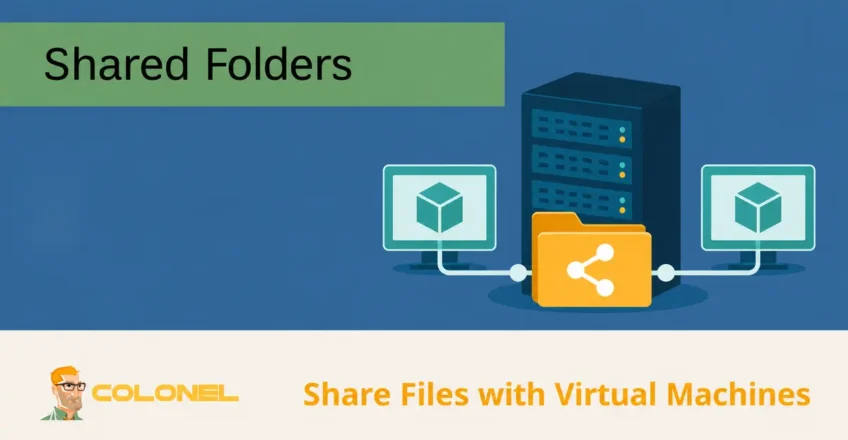
VMware Shared Folders provide a convenient method for sharing files and directories between a host operating system and one or more virtual machines. Instead of manually transferring files between environments, shared folders allow both the host and guest operating systems to access the same data directly.
This feature is particularly useful in development, testing, training, and lab environments where files frequently need to be accessed from multiple operating systems.
For example, a developer might use a Windows workstation while testing applications inside a Linux virtual machine. Shared folders eliminate the need to repeatedly copy configuration files, software packages, or project data between systems.
How VMware Shared Folders Work
Virtual machines are isolated environments by design. This isolation improves security and prevents unintended interaction with the host operating system.
Because of this separation, a virtual machine cannot normally access files stored on the host system.
VMware Shared Folders create a controlled bridge between the host and guest operating systems, allowing designated directories on the host machine to become accessible inside the virtual machine.

WordPress Web Hosting
Starting From $3.99/Monthly
The shared folder can be:
- A local directory on the host system
- A network directory accessible by the host
- A project folder used by multiple virtual machines
Multiple virtual machines running on the same host can also access the same shared folder if sharing is enabled for each machine.
Users can read, write, copy, and modify files depending on the permissions assigned to the share.
Benefits of VMware Shared Folders
Shared folders simplify virtual machine management and improve workflow efficiency.
Save Time
Copying large files between a host and guest operating system can be slow and inconvenient.
Examples include:

Cheap VPS Server
Starting From $2.99/Monthly
- ISO images
- Software installers
- Backup archives
- Virtual appliance files
- High-resolution media files
Shared folders provide direct access to these files without repeated transfers.
Reduce Storage Consumption
When files are copied into virtual machines, they occupy disk space on both the host and guest systems.
Using shared folders allows multiple environments to access a single copy of the data, reducing unnecessary storage consumption.
Simplify Host and Guest Integration
Although virtual machines remain isolated, shared folders allow them to work more closely with the host system.
Benefits include:
- Easier file management
- Faster development workflows
- Shared access to project files
- Simplified testing environments
Access Control
Shared folders can be configured as:

Windows VPS Hosting
Remote Access & Full Admin
- Read-only
- Read/write
Read-only access allows virtual machines to view and copy files while preventing modification or deletion.
This helps protect important host system data from accidental changes.
Requirements for VMware Shared Folders
Before enabling folder sharing, verify that the environment meets the necessary requirements.
Supported Guest Operating Systems
VMware Shared Folders support many operating systems, including:
Windows
- Windows XP
- Windows Vista
- Windows 7
- Windows 8
- Windows 8.1
- Windows 10
- Windows Server 2003
- Windows Server 2008
- Windows Server 2012
- Windows Server 2016
Linux
Most Linux distributions with:
Kernel version 2.4 or newer
macOS
Supported versions include many modern macOS releases.
VMware Tools Installation
VMware Tools must be installed inside the guest operating system.
VMware Tools provides:
- Display drivers
- Storage drivers
- Network enhancements
- Mouse integration
- Shared folder functionality
The VMHGFS driver included with VMware Tools enables host-to-guest file sharing.
Without VMware Tools, shared folders will not function correctly.
Local Virtual Machines Only
Shared folders are designed for virtual machines running on the local host.
They do not function with remote virtual machines hosted on separate systems.
Installing VMware Tools
If VMware Tools has not been installed, complete this step before configuring shared folders.
Within VMware Workstation:
- Right-click the virtual machine.
- Select:
Install VMware Tools
- Follow the installation process inside the guest operating system.
- Reboot the virtual machine if required.
After installation, the necessary drivers become available.
How to Create a VMware Shared Folder
The configuration process is straightforward and requires only a few steps.
Step 1: Power Off the Virtual Machine
Shared folder settings are easiest to configure while the virtual machine is fully powered off.
If the VM is running, some sharing options may be unavailable.
Step 2: Open Virtual Machine Settings
Launch VMware Workstation and open the Virtual Machine Library.
Locate the desired virtual machine and select:
Settings
Step 3: Open Shared Folder Settings
Navigate to:
Options → Shared Folders
Step 4: Select a Sharing Mode
VMware provides two sharing modes.
Always Enabled
The shared folder remains configured regardless of whether the VM is:
- Running
- Suspended
- Powered off
Enabled Until Next Power Off or Suspend
The shared folder remains available only until the VM is powered off or suspended.
This option is useful for temporary access requirements.
Step 5: Add a Shared Folder
Click:
Add
The Add Shared Folder Wizard will launch.
Step 6: Select the Host Folder
Choose the directory on the host operating system that should be shared.
Examples:
C:\Projects
D:\Software
/home/admin/shared
Assign a share name that will appear inside the virtual machine.
Step 7: Configure Permissions
VMware allows additional configuration options.
Enable This Share
Keeps the shared folder active and accessible.
Read Only
Allows the virtual machine to:
- View files
- Copy files
but prevents:
- Creating files
- Modifying files
- Deleting files
Step 8: Finish Configuration
Click:
Finish
The folder now appears in the VM’s shared folder list and is available to the guest operating system.
Accessing Shared Folders in Windows Virtual Machines
Shared folders can appear in several locations depending on the Windows version.
Common locations include:
- Network
- Network Neighborhood
- My Network Places
Many systems display:
VMware Shared Folders
automatically.
Using File Explorer
Open:
This PC
or:
My Computer
and look for:
Shared Folders on VMware-Host
if the folder has been mapped as a network drive.
Accessing Shared Folders in Linux Virtual Machines
On Linux guest operating systems, VMware shared folders usually appear under:
/mnt/hgfs
Display available shares:
ls /mnt/hgfs
Each configured shared folder should appear as a directory.
Example
A shared folder named:
Projects
may appear as:
/mnt/hgfs/Projects
Mounting Shared Folders Manually
Some Linux environments require manual mounting.
For Linux kernels older than version 4:
mount -t vmhgfs .host:/ /home/user/vmshare
For Linux kernel version 4 and newer:
/usr/bin/vmhgfs-fuse .host:/ /home/user/vmshare -o subtype=vmhgfs-fuse,allow_other
This mounts all shared folders.
Mounting a Specific Shared Folder
Example:
/usr/bin/vmhgfs-fuse .host:/test /home/user/test -o subtype=vmhgfs-fuse,allow_other
This mounts only the share named:
test
Mounting a Shared Subdirectory
Example:
/usr/bin/vmhgfs-fuse .host:/test/tools /var/lib/vmtools -o subtype=vmhgfs-fuse,allow_other
This mounts a subdirectory named:
tools
within the shared folder.
Enabling Shared Folders for All Users
By default, VMware restricts shared folder access to the user account that created the share.
This protects data from unauthorized access by other users on the host system.
Enable Sharing for All Host Users
Open:
Edit → Preferences
Select:
Workspace
Enable:
Enable all shared folders by default
Security Considerations
Enabling global shared folder access allows other users on the host system to access your shared directories.
Only enable this setting if:
- All users are trusted
- Shared data is non-sensitive
- Multi-user access is required
Otherwise, the default behavior provides better security.
Troubleshooting VMware Shared Folder Issues
Shared Folder Does Not Appear
Symptoms:
- Missing folders inside the guest
- Empty
/mnt/hgfs - Missing VMware Shared Folders entry
Possible Solutions
Verify VMware Tools installation:
vmware-toolbox-cmd -v
Ensure:
- Shared folders are enabled
- The host file system supports sharing
- VMHGFS drivers are installed
Linux systems may require manual mounting.
Shared Folder Disappears After Reboot
Some Linux virtual machines lose shared folder mounts after restarting.
Solution
Configure automatic mounting.
Add the following to:
/etc/fstab
Example:
sudo vmhgfs-fuse /mnt/hgfs fuse defaults,allow_other 0 0
This automatically remounts shared folders after reboot.
Best Practices for VMware Shared Folders
Use Read-Only Shares When Possible
Read-only access protects important files from accidental modification.
Keep VMware Tools Updated
Updated VMware Tools versions improve:
- Compatibility
- Stability
- Performance
Organize Shared Directories
Examples:
Projects
Backups
Software
ISOs
Documentation
Consistent naming simplifies administration.
Avoid Sharing Sensitive Data
Shared folders bridge host and guest systems.
Sensitive files should only be shared when absolutely necessary and with appropriate access controls.
Document Shared Resources
In environments with multiple virtual machines, maintain documentation describing:
- Shared folder locations
- Permissions
- Intended usage
This simplifies troubleshooting and long-term management.
Simplifying File Access Across VMware Environments
VMware Shared Folders provide an efficient way to exchange data between host operating systems and guest virtual machines without relying on network transfers or repeated file copies. By installing VMware Tools, configuring folder sharing properly, and using appropriate access controls, administrators can create a seamless workflow that improves productivity while maintaining flexibility and security across VMware environments.