

Activer la navigation dans les répertoires pour Windows est une méthode simple et efficace pour accéder aux fichiers contenus dans les dossiers directement depuis votre serveur Web ou même localement.. Si vous utilisez votre propre serveur Windows ou si vous développez simplement des applications ou si vous travaillez sur des problèmes liés aux fichiers, allowing directory browsing might be quite useful. It allows you to list files easily and quickly using several steps on either your Windows computer or in IIS.
Requirements Before Enabling Directory Browsing
Before changing any IIS settings, administrators should understand how Windows handles directory requests when no default document exists. Par défaut, IIS blocks folder listing requests for security reasons. When users browse to a directory without an index file, the server usually returns an error instead of displaying the folder contents. To Enable directory browsing for Windows, you must first verify that IIS is installed correctly and that the Directory Browsing feature is available inside the server roles configuration.
management components
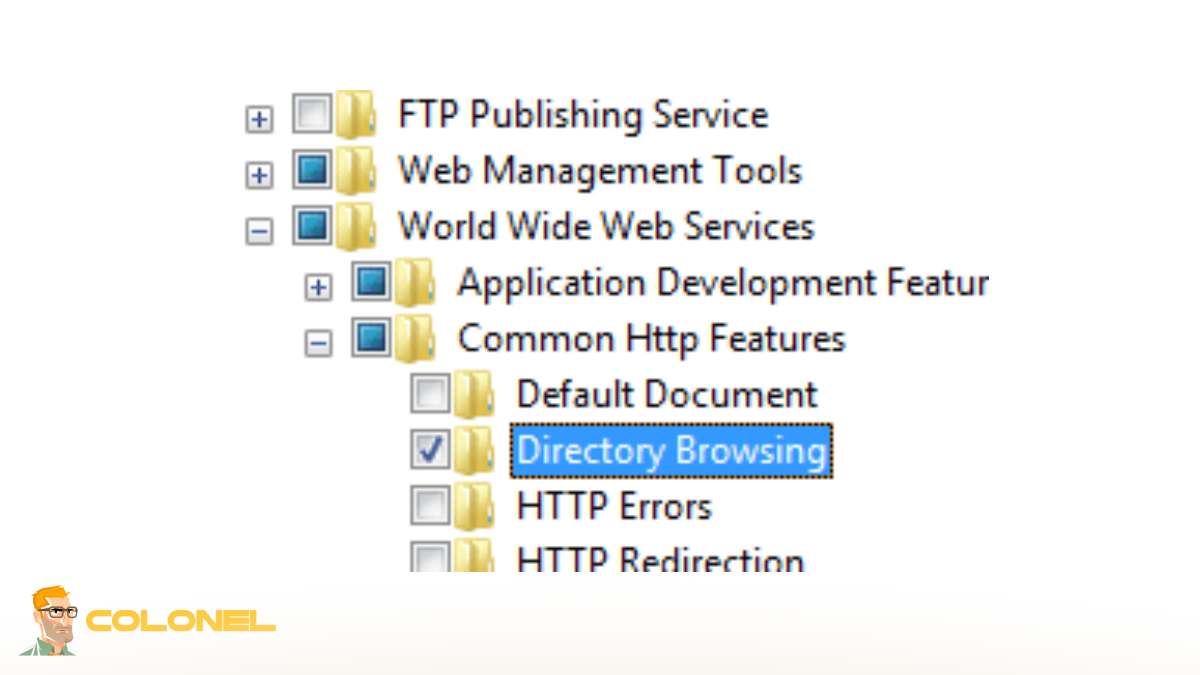
Systems running Windows Server or Windows 10/11 with IIS enabled usually include the required modules, but lightweight IIS installations may not contain all management components. Open “Turn Windows features on or off” and confirm that Internet Information Services, Web Management Tools, and World Wide Web Services are active. Missing IIS subcomponents are one of the main reasons administrators see the message Directory browsing is not enabled on the server.

Autorisations
Permissions are equally important. The IIS worker process must have read access to the target directory. If NTFS permissions block the application pool identity, IIS cannot display directory contents even when browsing is enabled. Dans les environnements d'entreprise, administrators often separate IIS identities from standard system users for security isolation.
structure du site Web
Another important requirement is understanding the website structure. Directory listing should never be activated blindly on production directories containing application logic, sauvegardes, ou fichiers de configuration. Dans certains cas, Directory browsing might reveal where files are stored, including upload paths and temporary application resources. This becomes especially dangerous when old archives, scripts, or logs remain inside public folders.

Hébergement Web WordPress
À partir de 3,99 $/mois
operating system firewall
The operating system firewall should also be reviewed before exposing folder listings externally. Internal development servers may work safely behind NAT or VPN environments, while public-facing IIS servers require stricter filtering policies. Administrators should additionally confirm that request filtering modules are active to reduce unwanted enumeration attempts.
How to Enable Directory Browsing in IIS
To Enable directory browsing for Windows, IIS provides a built-in feature accessible from the server management console. After opening IIS Manager, select the target website or virtual directory from the Connections panel. Inside the Features View section, locate “Directory Browsing” and open it.
Une fois activé, IIS responds to folder requests by generating an HTML listing of files and subdirectories. This listing is dynamically created by the web server and reflects the underlying filesystem structure. Administrators can apply the setting globally at the server level or selectively for individual sites.
The following table shows the most common IIS directory browsing configuration levels:
| Configuration Level | But | Recommended Usage |
|---|---|---|
| Server Level | Applies browsing to all hosted sites | Development or testing environments |
| Website Level | Enables browsing for a single website | Shared hosting separation |
| Virtual Directory Level | Limits browsing to a specific folder | Secure public download directories |
| Niveau d'application | Applies browsing to web applications | Controlled internal portals |
Many administrators search for How to enable directory browsing in iis 10 because Microsoft slightly changed the IIS interface layout in newer Windows versions. Cependant, the workflow remains nearly identical across IIS 8, IIS 10, et éditions Windows Server.
After enabling the feature, restart the website or recycle the application pool to ensure configuration propagation. In some deployments, stale cache entries may prevent immediate visibility of changes. En utilisant iisreset from an elevated command prompt forces IIS to reload all configurations.

Serveur VPS pas cher
À partir de 2,99 $/mois
It is important to note that enabling browsing does not bypass authentication. If Windows Authentication or Basic Authentication is configured, users still require valid credentials before viewing file listings.
Enabling Directory Browsing in Windows in Five Seconds
Parfois, experienced admins require an efficient method of enabling directory browsing on Windows. IIS supports this via an optimized process that does not take more than a few seconds:
- Go to the IIS manager
- Select the desired site
- Select “Directory Browsing”
- Select “Enable”
Utiliser PowerShell, admins with sufficient privileges could perform the same operation without using the IIS Manager interface. Such an approach works best when there is a need to configure remote Windows machines from another computer.
A typical problem that arises when trying to browse a directory is receiving a notification that The web server is configured to not list the contents of this directory. The cause lies in the fact that IIS disables directory enumeration by default until browsing is explicitly enabled.
Inheritance is another aspect to keep in mind. In case browsing is turned off in the parent configuration, it might affect child configurations. Donc, it is vital to determine whether applicationHost.config overrides local site configurations.
Infrastructure engineers tend to include IIS configurations in provisioning scripts to ensure consistency between different environments such as staging, QA, and production servers.

Hébergement VPS Windows
Accès à distance et administrateur complet

Using IIS Manager to Configure Directory Browsing
The IIS graphical interface provides advanced controls beyond simply turning the feature on or off. To Enable directory browsing for Windows safely, administrators should configure display behavior, file visibility rules, and directory access scope carefully.
Inside IIS Manager, the Directory Browsing module includes customizable options such as:
- File size display
- Last modified timestamps
- Extension visibility
- Long date formatting
These settings affect how listings appear to users and can reduce unnecessary information exposure. Hiding extensions, Par exemple, prevents casual users from identifying backend technologies immediately.
website inheritance paths
Before applying modifications, administrators should review website inheritance paths. IIS uses a hierarchical configuration model where server-level settings cascade downward unless overridden locally.
enabling browsing does not recommended in environments with many hosted
In environments with many hosted applications, enabling browsing globally is rarely recommended. Plutôt, isolate public file repositories inside dedicated virtual directories. This prevents accidental exposure of sensitive application resources.
monitor server logs
Administrators should also monitor server logs after enabling browsing. Repeated requests against enumerated directories may indicate reconnaissance activity from automated scanners. Many security audits flag unrestricted directory listing as a medium-risk finding because attackers can map application structures rapidly.
enabling directory browsing
In some troubleshooting cases, enabling directory browsing helps diagnose broken routing logic, missing default documents, or failed deployment pipelines. Development teams often use temporary browsing access to verify whether build artifacts deployed correctly.
One unrelated but occasionally associated administrative issue is An Internal Error has Occurred Remote Desktop Error, which may appear when administrators remotely manage IIS servers with unstable RDP sessions. While unrelated to IIS itself, interrupted remote administration sessions can complicate server configuration tasks.
Enabling Directory Browsing Through web.config
Another simple way to Enable directory browsing for Windows is by editing the web.config file directly. This method is popular in development and automated deployment environments because the configuration stays with the application itself.
Add the following line inside the <system.webServer> section:
<directoryBrowse enabled="true" />
Using web.config is faster for developers managing multiple projects or CI/CD pipelines. It also allows different folders to use different browsing rules without changing global IIS settings.
Many admins searching for IIS enable directory browsing prefer this method because it works well with version control systems like Git. Cependant, even a small XML syntax mistake can break the entire site and trigger HTTP 500 erreurs.
Dans les environnements d'entreprise, security teams often enforce Directory browsing disable in web config policies to stop accidental exposure of sensitive folders.
How to Disable Directory Browsing for Security
After testing or troubleshooting, it is important to disable directory browsing again. Leaving it enabled permanently can expose unnecessary server information.
To disable it in IIS:
- Open IIS Manager
- Select the website
- Open “Directory Browsing”
- Click “Disable”
The term Disable directory browsing IIS is common in security hardening guides because public folder listings increase attack surface unnecessarily.
Even when you temporarily Enable directory browsing for Windows, keep the feature limited to safe directories only. Never enable it on application roots, backup folders, or upload directories.
Security Risks of Leaving Directory Browsing Enabled
A major Directory browsing vulnerability is information disclosure. Attackers can inspect folder structures, filenames, sauvegardes, journaux, or outdated application files without authentication if the server is poorly configured.
When admins Enable directory browsing for Windows without restrictions, attackers may discover:
- Backup ZIP files
- Old application versions
- Database exports
- Log directories
- Upload folders
- Fichiers de configuration
Another risk is metadata leakage. File names and timestamps can reveal deployment schedules, cadres, or internal project structures.
Dans certains cas, Directory browsing might reveal where files are stored, making targeted attacks much easier.
Best Practices for Safe Directory Browsing Configuration
If you need to Enable directory browsing for Windows, follow security-focused configuration practices instead of enabling it globally.
Before using directory browsing, make sure the folder contains only public files. Avoid exposing scripts, application logic, or sensitive resources.
Recommended best practices:
- Enable browsing only for specific folders
- Use HTTPS connections
- Restrict access with authentication
- Remove old backups regularly
- Monitor IIS logs for unusual requests
- Disable script execution in browsable folders
A good approach is temporary activation. Enable browsing only during debugging or maintenance windows, then disable it immediately afterward.

Common Problems When Enabling Directory Browsing
Even though IIS makes configuration simple, admins still run into common issues while trying to Enable directory browsing for Windows.
One frequent problem is default document conflict. If IIS detects index.html or default.aspx, it loads that page instead of showing the directory listing.
Another common error is:
Directory browsing is not enabled on the server
This usually means the feature is disabled globally or overridden by a parent configuration.
Other common issues include:
- Missing NTFS read permissions
- HTTP 401 authentication errors
- Browser caching problems
- Inherited IIS policy conflicts
- Request filtering restrictions
Sometimes admins also see:
The web server is configured to not list the contents of this directory
This happens when browsing remains disabled or IIS cannot access the folder properly.
Fixing IIS Directory Browsing Errors
When IIS directory browsing does not work correctly, start with the basics instead of changing random settings.
D'abord, verify that the Directory Browsing feature is installed in IIS. Minimal IIS installations may not include it by default.
Suivant, check the web.config file for XML syntax problems. A missing bracket or invalid tag can generate HTTP 500 errors immediately.
If you still cannot Enable directory browsing for Windows, try these fixes:
- Restart IIS using iisreset
- Recycle the application pool
- Verify NTFS permissions
- Disable conflicting default documents
- Check IIS logs and Event Viewer
- Review request filtering settings
Large server environments often use PowerShell for troubleshooting because it provides faster visibility into IIS runtime settings.
Interestingly, some administrators confuse unrelated server issues like An Internal Error has Occurred Remote Desktop Error with IIS problems during remote troubleshooting sessions.
Directory Browsing for Localhost and Development Environments
Development environments are the safest place to Enable directory browsing for Windows. Developers commonly use it for testing uploads, deployment outputs, or downloadable assets.
On localhost systems, exposure risk is lower because access is limited to internal users. That makes directory browsing useful during debugging and QA workflows.
Cependant, even internal environments should follow basic security rules. Shared development servers can still expose sensitive project files accidentally if permissions are too broad.
Modern DevOps workflows sometimes use temporary directory browsing during CI/CD verification. Build artifacts can be reviewed quickly before deployment goes live.
Toujours, directory browsing should remain a lightweight troubleshooting feature rather than a permanent file management solution.
Pensées finales: Smart IIS Configuration Matters
Directory browsing in IIS can be useful for development, débogage, and internal file access, but it should always be configured carefully. The safest strategy is enabling it only when necessary and limiting access to controlled folders.
Whether you use IIS Manager or web.config, always combine directory browsing with strong permissions, HTTPS, and proper monitoring. A small configuration mistake can expose far more information than expected, especially on public-facing servers.
For most production websites, controlled access is always better than open directory visibility.
