
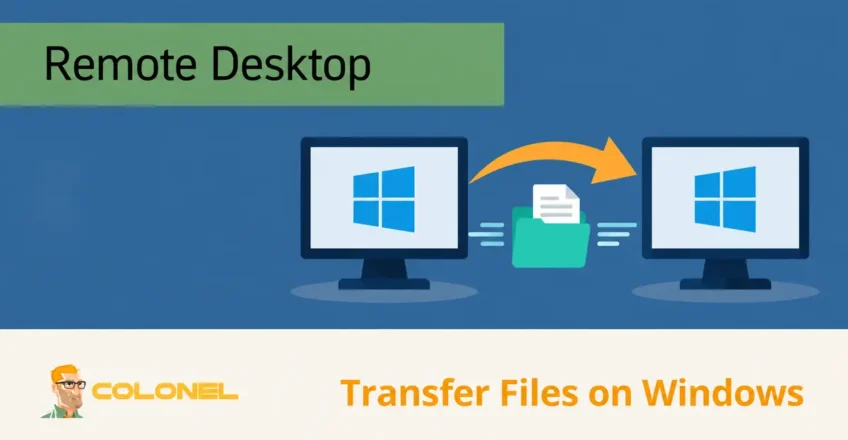
Understanding Remote Desktop File Transfers
When setting up a new Windows-server, transferring files is often one of the first tasks administrators need to complete. In many situations, common transfer methods may not be ready yet.
Bijvoorbeeld:
- FTP may not be configured
- Plesk may not be installed
- Network sharing may not be enabled
- Firewall rules may still need adjustment
- Certain ports may be blocked by the network provider
In these cases, Remote Desktop Protocol can be used as a practical way to move files between a local Windows computer and a remote Windows server.
Remote Desktop allows drive redirection, which makes your local computer’s drives available inside the remote session. Eenmaal geconfigureerd, files can be copied between the local machine and the server using standard Windows tools.
What Is Remote Desktop Protocol?
Remote Desktop Protocol, commonly known as RDP, is Microsoft’s remote access protocol for connecting to Windows computers and servers over a network.
RDP provides a graphical interface that allows users to control a remote Windows system as if they were working directly on it.

WordPress-webhosting
Vanaf $ 3,99/maandelijks
With RDP, administrators can:
- Manage Windows servers
- Install software
- Configure services
- Logboeken bekijken
- Transfer files
- Perform maintenance tasks
One important RDP feature is local resource redirection. This allows local drives, printers, clipboard content, and other resources to appear inside the remote desktop session.
Why Use RDP for File Transfers?
RDP file transfer is useful when other methods are unavailable or inconvenient.
Common scenarios include:
- Initial server setup
- Moving small configuration files
- Uploading installers
- Copying logs from the server
- Transferring scripts
- Downloading reports
For small files and occasional transfers, RDP is simple and efficient.
For large files or frequent transfers, dedicated tools such as SFTP, SMB, of cloud-opslag may be more suitable.

Goedkope VPS-server
Vanaf $ 2,99/maandelijks
Opening Remote Desktop Connection
Remote Desktop Connection is included with Windows.
To open it:
- Click the Start button.
- Search for:
Remote Desktop Connection
- Open the application.
You can also launch it from the Run dialog:
mstsc
Press Enter to start the Remote Desktop Connection tool.
Configuring Local Drive Redirection
Redirect only the drives needed for the task. The remote server can access the redirected files with your session permissions, so do not expose personal or sensitive drives to an untrusted host. Organization policies may disable redirection even when the client checkbox is selected.
Before connecting to the server, configure Remote Desktop to make your local drive available in the remote session.
Windows VPS-hosting
Toegang op afstand en volledig beheer
Stap 1: Show Advanced Options
Open Remote Desktop Connection and click:
Show Options
Enter the server IP address or hostname in the Computer field.
Voorbeeld:
203.0.113.10
Stap 2: Open Local Resources
Select the tab named:
Local Resources
This section controls which local devices and resources are available inside the remote session.
Stap 3: Open More Options
Under Local devices and resources, klik:
More
A list of redirectable resources will appear.
Stap 4: Select Local Drives
Expand:
Drives
Select the checkbox next to the drive you want to redirect.
Common examples include:
Local Disk (C:)
Downloads drive
USB storage device
External hard drive
You may select multiple drives if required.
Klik:
OK
to save the drive redirection settings.
Stap 5: Connect to the Server
Return to the General tab and click:
Connect
Enter your Windows server credentials when prompted.
After login, the selected local drives will be available inside the remote Windows environment.
Saving the RDP Configuration
If you use the same connection frequently, save the settings as an RDP file.
Before connecting:
- Open the General tab.
- Confirm the server address.
- Configure local resources.
- Klik:
Save As
This creates a reusable RDP profile that remembers the drive redirection configuration.
Accessing Local Files from the Server
After connecting to the Windows server:
- Open File Explorer.
- Selecteer:
This PC
- Look for redirected drives.
The redirected local drive may appear with a label similar to:
C on LOCALCOMPUTER
The exact name depends on your local workstation hostname.
Double-click the redirected drive to access local files from within the remote server session.
Copying Files from Local PC to Remote Server
Once local drives are visible inside the remote session, copying files is straightforward.
Method 1: Copy and Paste
From the remote session:
- Open the redirected local drive.
- Locate the file on your local computer.
- Right-click the file and choose:
Copy
- Navigate to the desired location on the remote server.
- Right-click and choose:
Paste
The file will be transferred to the server.
Keyboard shortcuts also work:
CTRL + C
CTRL + V
Copying Files from Remote Server to Local PC
To download a file from the server:
- Locate the file on the remote Windows server.
- Right-click and select:
Copy
- Open the redirected local drive.
- Navigate to the target local folder.
- Right-click and select:
Paste
The file will be copied from the server to your local computer.
Using File Explorer Tools
Windows File Explorer also provides Copy to and Move to options.
Stap 1: Select the File
Click the file or folder you want to transfer.
Stap 2: Open the Home Tab
Selecteer:
Home
from the top toolbar.
Stap 3: Choose Copy or Move
Klik:
Copy to
of
Move to
Stap 4: Choose Destination
Select an existing location or click:
Choose location
Then select the redirected local drive or a server folder.
Understanding Copy vs Move
Copy
Copy creates a duplicate in the destination while keeping the original file in place.
Move
Move transfers the file to the destination and removes it from the original location.
For server administration tasks, Copy is usually safer because it preserves the original file.
Disconnecting from Remote Desktop
After completing your work, close the session properly.
There are two main options:
- Sign out
- Disconnect
Each behaves differently.
Sign Out Method
Signing out fully closes the Windows session and releases resources on the server.
To sign out:
- Right-click the Start button or press:
Windows + X
- Selecteer:
Shut down or sign out
- Klik:
Sign out
Wait for transfers and interactive tasks to finish before signing out; sign-out closes applications in that session.
Disconnect Method
Disconnecting closes the RDP window but leaves the session active on the server.
To disconnect:
- Open the Start menu.
- Click the Power icon.
- Selecteer:
Disconnect
Disconnect when you intentionally need the session to remain running, subject to server time-limit policies. Redirected-drive transfers may fail when the connection drops; verify completion first.
Leaving disconnected sessions open for long periods can consume server resources.
Troubleshooting RDP File Transfers
Local Drives Do Not Appear
Check that drive redirection is enabled under:
Local Resources → More → Drives
Reconnect after changing the setting.
Clipboard Copy and Paste Does Not Work
Reconnect the RDP session and verify that clipboard redirection is enabled.
You can also restart the clipboard process inside the remote session if needed.
File Transfer Is Slow
RDP is not ideal for large transfers.
For large files, overwegen:
- SFTP
- SMB file sharing
- Cloud storage
- FTP over TLS
Access Denied Errors
Verify that your Windows user account has permission to access the destination folder.
Try copying the file to:
Desktop
Documents
Downloads
or another user-accessible folder.
Best Practices for RDP File Transfers
Use RDP for Small Transfers
RDP drive redirection is best for small files, scripts, installers, and configuration files.
Avoid Sensitive Files on Shared Machines
If using a shared workstation, be careful when redirecting local drives into a remote server session.
Sign Out When Finished
Signing out releases server resources and reduces the chance of session-related issues.
Use Secure Connections
RDP should be protected with:
- Sterke wachtwoorden
- Network-level authentication
- Firewall restrictions
- VPN access when possible
Use Dedicated Transfer Tools for Large Files
For frequent or large data transfers, use purpose-built file transfer methods rather than RDP.
Managing Files Efficiently Through Remote Desktop
Remote Desktop file transfer is a convenient method for moving files between a local Windows computer and a remote Windows server when other file transfer services are not yet configured. By enabling local drive redirection before connecting, administrators can access workstation drives directly from the server and copy files using familiar Windows tools.
This method is especially useful during initial server setup, probleemoplossing, and small administrative file transfers. For larger or recurring transfers, dedicated file transfer protocols remain a better long-term option.