
Introduction
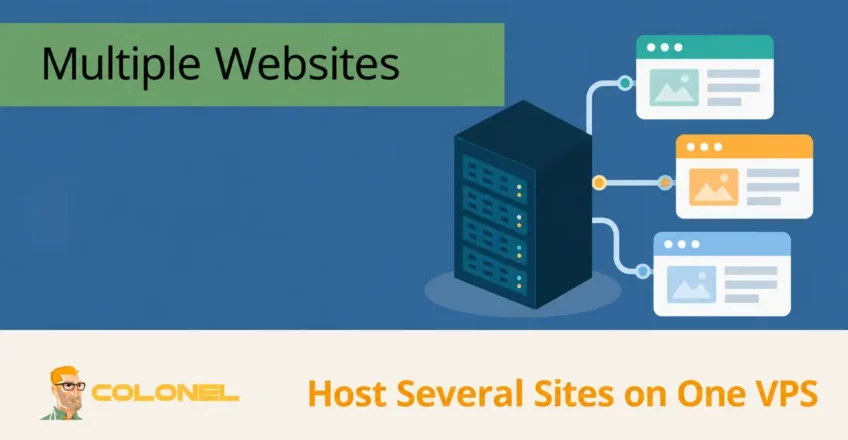
A Virtual Private Server (VPS) provides a flexible and cost-effective platform for hosting multiple websites on a single server. Whether you manage personal projects, client websites, development environments, or business applications, consolidating multiple domains onto one VPS can simplify management while reducing hosting costs.
There are two common approaches to hosting multiple websites on a VPS:
- Using a hosting control panel such as cPanel/WHM
- Managing websites manually using a web server such as NGINX or Apache
This guide explains both methods, their advantages, and the best practices for performance, security, and scalability.
Why Host Multiple Websites on One VPS?
Hosting several websites on a single VPS offers a number of benefits.
Reduced Hosting Costs
Instead of purchasing separate hosting plans for each website, one properly configured VPS can host multiple domains while sharing the same server resources.
Centralized Management
A single VPS allows you to manage:
WordPress Web Hosting
Starting From $3.99/Monthly
- Websites
- SSL certificates
- Databases
- Email services
- Backups
from one location.
Better Performance
A VPS provides an isolated OS and allocated virtual resources; physical CPU and storage can still be shared.
Benefits include:
- Consistent performance
- Improved page loading speed
- Better traffic handling
- Greater control over server resources
Scalability
As your projects grow, you can increase VPS resources without migrating every website individually.
VPS Requirements
Before hosting multiple websites, ensure your VPS has adequate resources.
Recommended Minimum Specifications
| Websites | RAM | CPU | Storage |
|---|---|---|---|
| 1-5 Sites | 2 GB | 1 vCPU | 40 GB |
| 5-15 Sites | 4 GB | 2 vCPU | 80 GB |
| 15-30 Sites | 8 GB | 4 vCPU | 160 GB |
Actual requirements depend on:

Cheap VPS Server
Starting From $2.99/Monthly
- Website traffic
- CMS usage
- Database size
- Caching implementation
- Email hosting
Requirements Before Setup
Prepare the following:
VPS Access
You will need:
- Root access
- Sudo privileges
- SSH access
Domain Names
Each website requires its own domain name.
Examples:
site1.com
site2.com
site3.com
DNS Configuration
Each domain must point to your VPS IP address using an A record.
Example:
Windows VPS Hosting
Remote Access & Full Admin
site1.com    A    192.0.2.10
site2.com    A    192.0.2.10
site3.com    A    192.0.2.10
Option 1: Hosting Multiple Websites Using cPanel
cPanel and WHM provide a graphical interface that simplifies server administration.
This method is ideal for:
- Agencies
- Resellers
- Client hosting
- Users unfamiliar with Linux administration
Installing cPanel
Use a fresh server and verify the exact supported AlmaLinux, CloudLinux or Ubuntu release in cPanel’s requirements. The following dnf example is for AlmaLinux.
Update the server:
dnf update -y
Set hostname:
hostnamectl set-hostname server.example.com
Install cPanel:
cd /home

curl -o latest -L https://securedownloads.cpanel.net/latest

sh latest
Installation typically takes 30 to 60 minutes.
Accessing WHM
Open:
https://SERVER-IP:2087
Login as root.
Creating Website Accounts
Navigate to:
WHM → Account Functions → Create a New Account
Enter:
- Domain
- Username
- Password
Repeat for each website.
Each account receives:
- Separate user
- Separate home directory
- Independent configuration
This improves security and resource isolation.
Assigning Packages
WHM packages allow resource limits.
Example package:
| Setting | Value |
|---|---|
| Disk Space | 10 GB |
| Bandwidth | Unlimited |
| Email Accounts | Unlimited |
| Databases | Unlimited |
Packages simplify client management.
Configuring DNS
Point domains to your VPS IP.
Example:
A Record → 192.0.2.10
If using Cloudflare, update the DNS zone there.
SSL Certificates
cPanel includes AutoSSL.
Navigate to:
WHM → Manage AutoSSL
Enable AutoSSL.
Certificates are:
- Installed automatically
- Renewed automatically
- Applied to all domains
Benefits of cPanel
Easy Website Management
Tasks become point-and-click:
- Create websites
- Manage databases
- Create email accounts
- Install SSL
Account Isolation
Each website runs under a separate user account.
Backup Management
Built-in backup systems simplify disaster recovery.
Email Hosting
Email services can be managed directly from cPanel.
Option 2: Hosting Multiple Websites Without cPanel
Advanced users often prefer a lightweight VPS setup without licensing costs.
Typical stack:
- NGINX or Apache
- PHP-FPM
- MariaDB or MySQL
- Certbot
This approach reduces overhead and provides maximum control.
Installing NGINX
Ubuntu:
sudo apt update

sudo apt install nginx -y
Enable startup:
sudo systemctl enable nginx
sudo systemctl start nginx
Verify:
systemctl status nginx
Creating Website Directories
The examples initially serve static HTML. For production PHP sites, create a separate system user and PHP-FPM pool per site. Keep code owned by its deployment user, permit the web server to read it, and grant write access only to required application directories. Do not make every site writable by the shared web-server account.
Create separate directories:
mkdir -p /var/www/site1.com/public_html

mkdir -p /var/www/site2.com/public_html

mkdir -p /var/www/site3.com/public_html
Set permissions:
chmod 755 /var/www/site1.com /var/www/site2.com /var/www/site3.com
Create test pages:
echo "<h1>Site 1</h1>" > /var/www/site1.com/public_html/index.html

echo "<h1>Site 2</h1>" > /var/www/site2.com/public_html/index.html
Creating NGINX Server Blocks
Create configuration:
nano /etc/nginx/sites-available/site1.com
Example:
server {
    listen 80;
    server_name site1.com www.site1.com;

    root /var/www/site1.com/public_html;
    index index.php index.html;

    access_log /var/log/nginx/site1-access.log;
    error_log /var/log/nginx/site1-error.log;
}
Enable site:
ln -s /etc/nginx/sites-available/site1.com \
/etc/nginx/sites-enabled/
Repeat for all domains.
Testing Configuration
Verify:
nginx -t
Expected output:
syntax is ok
test is successful
Reload:
systemctl reload nginx
Installing PHP
Insert the PHP location inside the matching server block, confirm the actual socket under /run/php and test nginx -t before reloading. Do not upload PHP source files until PHP handling is configured, or the server may expose source code. Use the appropriate per-site socket when isolating pools.
Install PHP-FPM:
apt install php-fpm php-mysql php-cli php-curl php-xml php-mbstring -y
Verify:
php -v
Configure NGINX to pass PHP requests to PHP-FPM.
Example:
location ~ \.php$ {
    include snippets/fastcgi-php.conf;
    fastcgi_pass unix:/run/php/php8.3-fpm.sock;
}
Installing SSL Certificates
Install Certbot:
apt install certbot python3-certbot-nginx -y
Issue certificate:
certbot --nginx -d site1.com -d www.site1.com
Repeat for each domain.
Verify renewal:
certbot renew --dry-run
Managing Multiple WordPress Sites
For WordPress:
Create separate:
- Database
- User
- Directory
Example:
site1_db
site2_db
site3_db
Each WordPress installation should remain isolated.
Performance Optimization
When hosting multiple websites, resource optimization becomes important.
Enable Caching
NGINX FastCGI Cache:
fastcgi_cache
WordPress caching plugins:
- LiteSpeed Cache
- WP Rocket
- W3 Total Cache
Use Redis
Install:
apt install redis-server
Redis reduces database load significantly.
Use PHP-FPM Pools
Each website can have its own PHP pool.
Benefits:
- Better resource allocation
- Isolation
- Improved stability
Monitoring Server Resources
Useful tools:
htop
apt install htop
Run:
htop
Netdata
Install:
Install Netdata using its maintained distribution packages or official installation documentation.
Provides:
- CPU usage
- RAM usage
- Disk activity
- Network monitoring
through a web dashboard.
Security Best Practices
Hosting multiple websites increases the importance of server security.
Update Regularly
Keep updated:
- Operating system
- PHP
- Databases
- CMS platforms
- Plugins
Use Separate Users
Avoid running all websites under the same Linux user.
Enable Firewall
Ubuntu:
ufw allow 22
ufw allow 80
ufw allow 443

ufw enable
Install Fail2Ban
apt install fail2ban -y
Protects against:
- SSH brute-force attacks
- Login abuse
- Automated attacks
Disable Root Login
First verify that a separate sudo user can log in with a key, keep console access available, and validate sshd -t before reloading SSH. Firewall examples assume port 22; allow your real SSH port if different.
Edit:
nano /etc/ssh/sshd_config
Set:
PermitRootLogin no
Restart SSH:
systemctl restart ssh
Backup Strategy
Every multi-site VPS should have automated backups.
Recommended:
Daily Website Backups
tar -czf site1-backup.tar.gz /var/www/site1.com
Database Backups
mysqldump database_name > database.sql
Offsite Storage
Store backups using:
- Amazon S3
- Google Drive
- Backblaze B2
- Secondary VPS
Follow the 3-2-1 backup rule whenever possible.
When Should You Upgrade?
Consider upgrading when:
- CPU usage remains above 80%
- Memory usage remains above 80%
- One website impacts others
- Traffic increases significantly
- You host more than 10-20 active websites
Use measured bottlenecks and isolation needs to decide whether to upgrade; the number of websites alone is not a capacity limit.
Conclusion
Hosting multiple websites on a single VPS is an efficient and scalable solution for businesses, developers, agencies, and website owners. Users seeking simplicity can leverage cPanel and WHM for centralized management, while advanced administrators can build a lightweight and highly optimized environment using NGINX, PHP-FPM, and Let’s Encrypt.
With proper resource planning, security hardening, monitoring, and backup procedures, a single VPS can reliably host numerous websites while maintaining strong performance and stability.