

How to Install a WordPress Theme is one of the first skills that every WordPress user should be familiar with. Whether you are creating a website for the first time or are modifying an existing website, the ability to install a WordPress theme using various methods will be empowering. In this guide, you will be taught how to install a WordPress theme using four surefire methods: through the dashboard, using the zip upload method, using the FTP method, or using the cpanel method.
What Is a WordPress Theme and Why It Matters
WordPress theme is the backbone of your website’s design and structure. It determines how your content will be displayed, how users will interact with your website, and even how quickly your website loads. Selecting the right theme is important, but knowing How to Install a WordPress Theme is equally important. A wrong installation of the theme may lead to design problems, functionality errors, or even security threats.
While creating or revamping a website, knowing WordPress Theme Installation Methods gives you complete control over your process. Different scenarios demand different solutions. For instance, a beginner may like to install theme from dashboard, whereas an expert may like to install WordPress theme via FTP for greater flexibility.
In this tutorial, you will learn How to Install a WordPress Theme through four tested methods. Each method is described in detail, so whether you are a beginner or an expert, you can easily accomplish WordPress theme installation successfully.
How to Install a WordPress Theme from the Dashboard
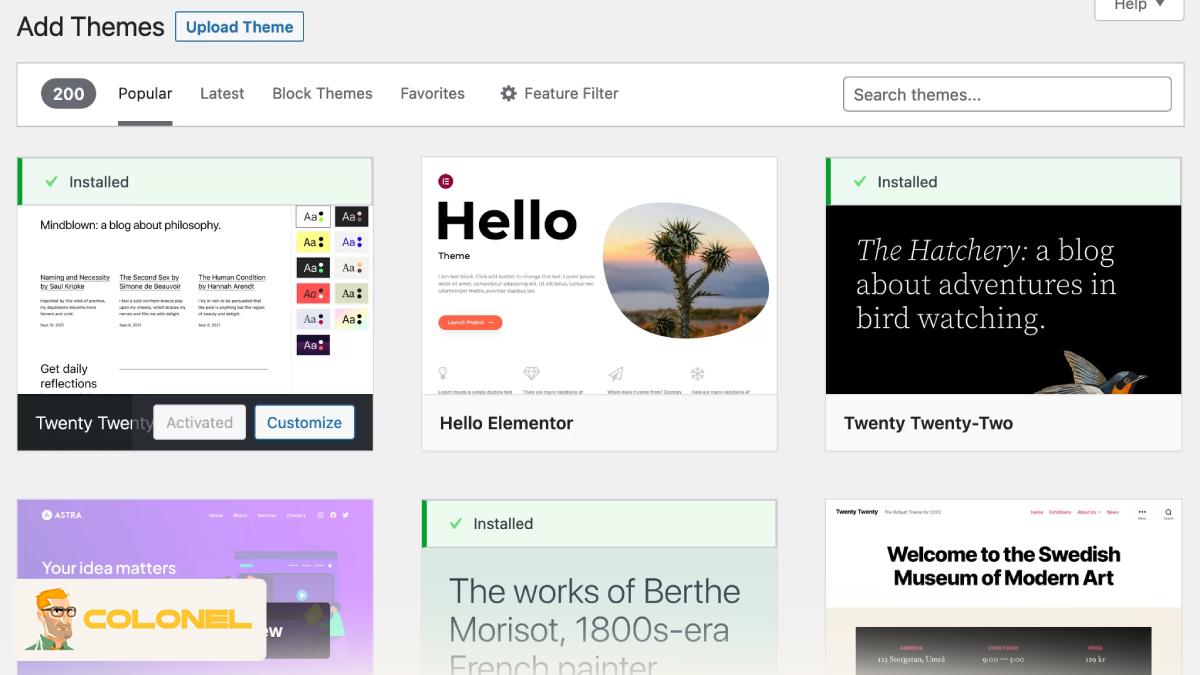
Installing a theme directly from the WordPress dashboard is the easiest and most beginner-friendly method. It is ideal if you are using a free theme from the official WordPress theme repository.

WordPress Web Hosting
Starting From $3.99/Monthly
When to Use This Method:
- You are installing a free theme
- You want the fastest and safest option
- You don’t want to work with files or servers
This method is often recommended when learning How to Install a WordPress Theme for the first time.
Step-by-Step Guide
Step 1: Log in to WordPress Admin Panel
Go to yourwebsite.com/wp-admin and log in with your credentials.
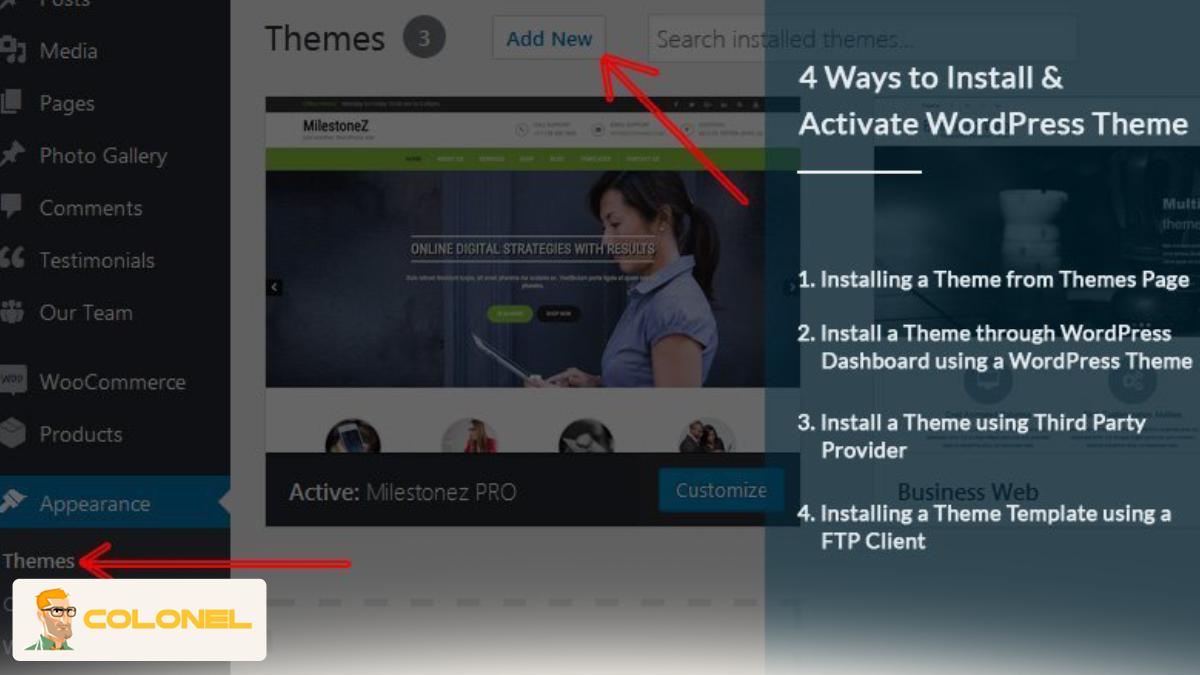
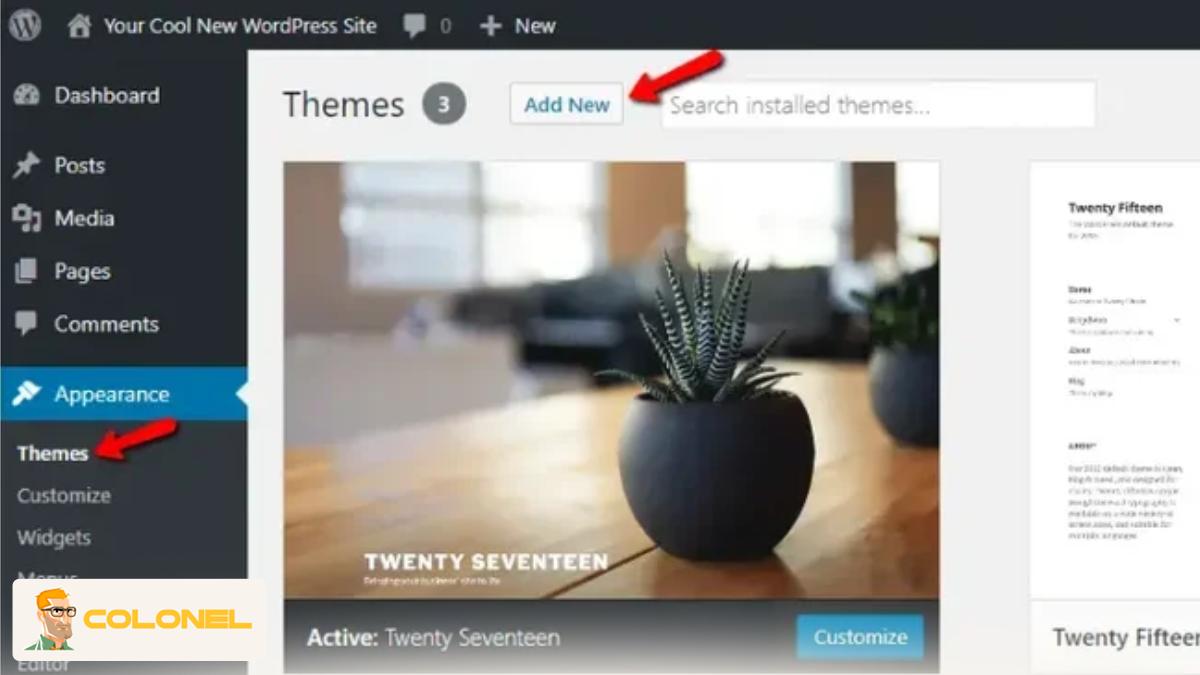
Step 2: Navigate to Themes
From the left menu, go to Appearance → Themes.
Step 3: Click “Add New”
At the top of the page, click the Add New button.

Cheap VPS Server
Starting From $2.99/Monthly
Step 4: Search for a Theme
Use the search bar to find a theme by name or feature.
Step 5: Preview the Theme
Click Preview to see how the theme looks on your site.
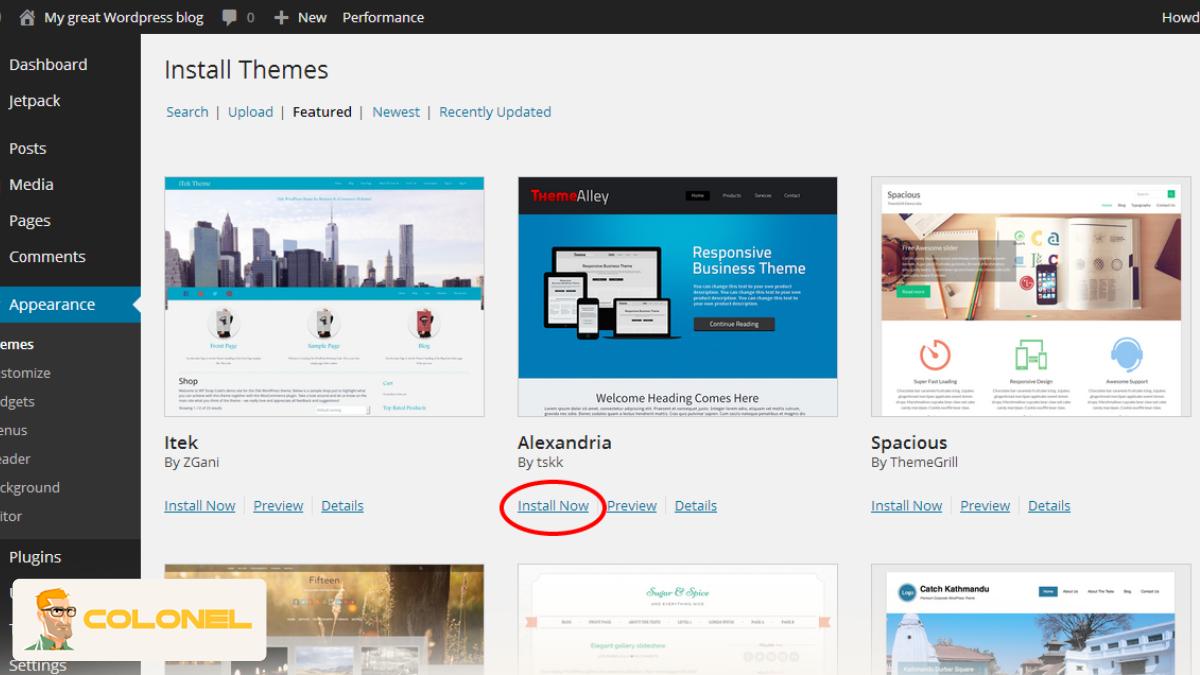
Step 6: Install the Theme
Click Install, then wait for the process to complete.
Step 7: Activate the Theme
After installation, click Activate to apply the theme.
This is the most straightforward way to install theme from dashboard and is perfect for beginners following an Install WordPress Theme Step by Step approach.

Windows VPS Hosting
Remote Access & Full Admin
How to Install a WordPress Theme by Uploading a ZIP File
If you have downloaded a theme from a third-party source or bought a premium theme, you will find that it comes in a ZIP file. In this situation, you will have to use the WordPress theme ZIP upload method.
When to Use This Method:
- You have bought a premium theme
- The theme is not hosted on the WordPress repository
- You want to upload a custom theme
This is another common method of learning How to Install a WordPress Theme without accessing server files.
Step-by-Step Guide
Step 1: Download the Theme ZIP File
Ensure that the ZIP file holds the theme directory, not documentation or other files.
Step 2: Go to Appearance → Themes
Log in to your WordPress site and go to Appearance → Themes.
Step 3: Click “Add New”
Then click Upload Theme.
Step 4: Upload the ZIP File
Click Choose File, choose your ZIP file, and click Install Now.
Step 5: Wait for Installation
WordPress will automatically upload and install the theme.
Step 6: Activate the Theme
After installation, click Activate.
Using the WordPress theme ZIP upload method is safe and fast when done properly. It is a fundamental part of the WordPress theme installation process.
How to Install a WordPress Theme Using FTP
This method of installing a WordPress theme is a bit more advanced but allows for complete control over the process. This method is preferred by developers and power users, especially when troubleshooting issues during installation.
When to Use This Method:
- ZIP upload not working for you?
File size issues causing problems?
Want complete control over the process?
Want to know How to Install a WordPress Theme in all cases?
This method is a must-know for anyone interested in mastering How to Install a WordPress Theme in all cases.
What You Need:
- FTP client like FileZilla or Cyberduck
- FTP access credentials from your web host
- Extracted theme folder
Step-By-Step Instructions
Step 1: Extract the ZIP File
Extract the WordPress theme ZIP file you downloaded earlier.
Step 2: Connect to Server via FTP
Using your FTP client of choice, enter your FTP access credentials. You should be connected to your website via FTP now.
Step 3: Navigate to WordPress Themes Folder
Locate the WordPress themes folder by going to `/wp-content/themes/`.
Step 4: Upload the Extracted Theme Folder
Locate the WordPress theme folder you extracted in Step 1 and upload it to your website via FTP by dragging and dropping the folder into the WordPress themes folder.
Step 5: Wait for Uploading Completion
This process may take a couple of minutes depending on your internet speed and file size.
Step 6: Activate the New Theme
Go to Appearance > Themes and click Activate.
How to Install a WordPress Theme via cPanel
Using cPanel is another approach that’s at the server level and doesn’t require an FTP client. cPanel is offered by many shared web hosting services.
When to Use This Method:
- You like a browser-based file manager
- You have limited FTP access
- You want fast file extraction
Using this approach will nicely complement the other WordPress Theme Installation Methods.
Step-by-Step Guide
Step 1: Log in to cPanel
To use this approach, log in to cPanel from your web hosting dashboard.
Step 2: Open File Manager
From cPanel, open File Manager, then public_html, then wp-content, and finally themes.
Step 3: Upload the ZIP File
Click on Upload and select your theme’s ZIP file.
Step 4: Extract the ZIP File
To extract the ZIP file, right-click on the ZIP file and select Extract.
Step 5: Delete the ZIP File (Optional)
To clean up, delete the ZIP file.
Step 6: Activate the Theme
To activate the theme, log in to your WordPress admin and activate the theme.
Learning about How to Install a WordPress Theme via cPanel will provide an alternative in case FTP is not accessible.
Which WordPress Theme Installation Method Should You Use?
The choice of method for installing a WordPress theme will, therefore, depend on a number of practical factors, although your level of skill is also important. These factors include, but are not limited to, whether you are using a free or paid theme, your hosting restrictions, file size, as well as your need for control over your files.
If you want to learn How to Install a WordPress Theme, you need to learn when and how each method should be applied. Most problems that occur during installation come from using the wrong method for your needs.
The table below outlines a comparison of all WordPress Theme Installation Methods.
Detailed Comparison of WordPress Theme Installation Methods
| Installation Method | Recommended Skill Level | Best Use Case | Advantages | Limitations | Overall Risk |
|---|---|---|---|---|---|
| Dashboard Installation | Beginner | Free themes from WordPress.org | Fast, safe, automatic updates | Limited to repository themes | Very Low |
| ZIP File Upload | Beginner to Intermediate | Premium or custom themes | Easy, no server access needed | File size limits may apply | Low |
| FTP Installation | Advanced | Large themes, failed uploads | Full file control, bypass limits | Requires technical knowledge | Medium |
| cPanel Installation | Intermediate | Hosts with File Manager access | No FTP software needed | Risk of wrong extraction | Medium |
How to Choose the Right Method (Practical Scenarios)
For choosing the right method:
- You are a beginner and this is your first project: You should use the Dashboard Method. This is the safest way of doing it. You can follow this tutorial on how to install a WordPress theme without worrying about messing up your file structure.
- You have purchased a premium theme: You should use the ZIP Upload Method. This method was specifically designed for premium themes. This is part of the standard WordPress theme upload via ZIP workflow.
- You have a large theme or the upload failed: You should use the FTP Method. You should know how to install WordPress theme via FTP because this will help you troubleshoot hosting problems.
- You prefer doing it via your browser: You should use the cPanel Method. This is safe if done properly and doesn’t involve FTP tools.
Common Errors When Installing WordPress Themes (and How to Fix Them)
Even when you know How to Install a WordPress Theme, errors can still happen. Most of these issues are not caused by the theme itself, but by incorrect installation steps or hosting limitations. Below are the most common problems users face, along with precise and tested solutions.
“The Package Could Not Be Installed. The Theme Is Missing the Stylesheet” Error
This error usually occurs when you upload the wrong ZIP file. Many premium themes come bundled with documentation, demo content, and plugins inside a main ZIP file.
How to Fix It:
- Extract the downloaded ZIP file on your computer
- Locate the actual theme folder (it must contain style.css)
- Re-zip only that folder
- Upload it again using the WordPress theme ZIP upload method
This is one of the most common mistakes during WordPress theme installation and does not indicate a broken theme.
Maximum Upload File Size Exceeded
Your hosting provider limits file upload size via PHP settings. Large themes often exceed this limit.
How to Fix It:
- Use FTP to install WordPress theme via FTP
- Or upload and extract the theme using cPanel
- Alternatively, increase upload_max_filesize and post_max_size (advanced users only)
FTP is often the most reliable solution when learning How to Install a WordPress Theme under hosting restrictions.
White Screen of Death After Theme Activation
This usually indicates a PHP error, plugin conflict, or server incompatibility with the theme.
How to Fix It:
- Switch back to a default theme (via dashboard or FTP)
- Disable all plugins and re-enable them one by one
- Enable WordPress debug mode to identify the error
This issue is not rare and does not mean the theme is unusable. It simply requires structured troubleshooting.
Theme Installed but Not Showing in Appearance → Themes
The theme folder is nested incorrectly (for example: /themes/theme-name/theme-name/).
How to Fix It:
- Ensure the theme folder sits directly inside /wp-content/themes/
- The folder must contain style.css and functions.php
- Move files if needed using FTP or cPanel
Correct folder structure is critical for successful WordPress theme installation.
Theme Looks Different Than the Demo
Themes do not automatically include demo content after installation.
How to Fix It:
- Import demo content if provided by the theme developer
- Configure theme options manually
- Install required plugins listed by the theme
This is not an installation error but a setup misunderstanding.
Final Thoughts on WordPress Theme Installation
Learning How to Install a WordPress Theme is a foundational WordPress skill that every site owner should master. Whether you choose to install theme from dashboard, use WordPress theme ZIP upload, or install WordPress theme via FTP, each method has its place.
By following this Install WordPress Theme Step by Step guide, you can confidently handle any theme installation scenario. Proper WordPress theme installation not only ensures a better design but also improves performance, security, and user experience.
If you understand How to Install a WordPress Theme correctly, you’ll save time, avoid errors, and build better websites—every single time.