
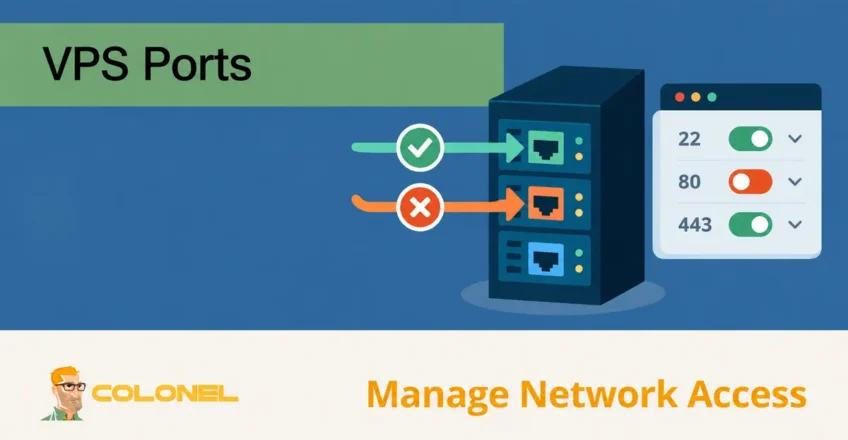
What Is VPS Port Management?
Virtual Private Servers (VPS) offer flexibility, scalability, and full control over server resources, making them a popular choice for hosting websites, applications, databases, and business services.
However, simply deploying a VPS is not enough. Proper network security and performance depend heavily on how server ports are configured and managed.
Port management is the process of controlling which network ports are open, closed, restricted, or monitored on a server. Effective port management helps prevent unauthorized access, reduce security risks, and ensure that services operate efficiently.
By understanding how ports function and implementing proper controls, administrators can significantly improve both security and server reliability.
Understanding Ports and Their Purpose
A port acts as a communication endpoint that allows applications and services to exchange data over a network.
Think of a VPS as a building containing many departments.

WordPress Web Hosting
Starting From $3.99/Monthly
The server’s IP address represents the building’s street address, while individual ports represent the doors leading to specific services inside the building.
Each service listens on a specific port number.
Examples include:
- Web servers
- Mail servers
- Databases
- SSH services
- DNS servers
When network traffic reaches a server, the destination port determines which application should process the request.
Port Number Range
Every IP address supports:
0 - 65535
available ports.

Cheap VPS Server
Starting From $2.99/Monthly
These ports provide thousands of communication channels for different services.
Some ports are reserved for well-known services, while others can be assigned to custom applications.
Why Port Management Is Important
By default, servers often expose ports required for essential services.
While these services must remain accessible, unnecessary open ports create additional attack surfaces.
Poor port management can lead to:
- Unauthorized access
- Service exploitation
- Brute-force attacks
- Malware infections
- Data breaches
Proper port management helps:

Windows VPS Hosting
Remote Access & Full Admin
- Improve security
- Reduce exposure
- Control network traffic
- Simplify monitoring
- Enhance compliance
Administrators should periodically review open ports and close any that are no longer required.
Understanding TCP and UDP
Most network communication relies on two transport-layer protocols:
- TCP (Transmission Control Protocol)
- UDP (User Datagram Protocol)
Both use ports but operate differently.
TCP (Transmission Control Protocol)
TCP is a connection-oriented protocol designed for reliable communication.
Before data transfer begins, TCP establishes a connection between sender and receiver using a process known as the three-way handshake.
Key characteristics:
- Reliable delivery
- Packet ordering
- Error checking
- Retransmission support
TCP is commonly used for:
- Websites
- Email services
- File transfers
- Database connections
- Remote administration
Examples:
HTTP
HTTPS
SSH
SMTP
IMAP
POP3
Because reliability is prioritized, TCP introduces slightly more overhead than UDP.
UDP (User Datagram Protocol)
UDP is a connectionless protocol focused on speed and efficiency.
Unlike TCP, UDP does not:
- Establish connections
- Verify delivery
- Retransmit lost packets
Instead, it sends packets directly to the destination.
Benefits include:
- Lower latency
- Faster transmission
- Reduced overhead
UDP is commonly used for:
- Online gaming
- Video streaming
- Voice communications
- DNS queries
- IoT devices
In these environments, speed is often more important than perfect reliability.
Common Ports and Their Functions
Understanding common ports helps administrators make informed security decisions.
Port 21 (FTP)
Used by:
File Transfer Protocol (FTP)
Risks:
- Unencrypted communication
- Credential exposure
Modern alternatives include:
SFTP
FTPS
Port 22 (SSH)
Used for:
Secure Shell (SSH)
Commonly used for:
- Remote administration
- Secure file transfers
- Automation
Because SSH is frequently targeted by attackers, administrators often:
- Restrict access by IP
- Change the default port
- Implement key-based authentication
Port 25 (SMTP)
Used for:
Simple Mail Transfer Protocol
Many providers restrict this port to reduce spam activity.
Port 80 (HTTP)
Used for:
Hypertext Transfer Protocol
Handles unencrypted web traffic.
Many organizations redirect traffic from:
Port 80
to:
Port 443
to enforce encrypted connections.
Port 110 (POP3)
Used for:
Post Office Protocol 3
Modern environments often prefer encrypted alternatives.
Port 143 (IMAP)
Used for:
Internet Message Access Protocol
Encrypted IMAP implementations are generally recommended instead of exposing plain IMAP services.
Opening Ports on a Windows VPS
Windows Server provides several methods for opening firewall ports.
Method 1: Windows Defender Firewall
Step 1
Open:
Control Panel → System and Security
Step 2
Select:
Windows Defender Firewall
Step 3
Click:
Advanced Settings
Step 4
Navigate to:
Inbound Rules
Step 5
Select:
New Rule
Step 6
Choose:
Port
Step 7
Select:
- TCP
- UDP
depending on the service.
Step 8
Specify the required port number.
Step 9
Select:
Allow the Connection
Step 10
Choose applicable profiles:
- Domain
- Private
- Public
Step 11
Assign a descriptive name and save the rule.
The specified port is now accessible through the Windows firewall.
Method 2: Command Prompt
Display active connections:
netstat -aon
Display firewall profiles:
netsh advfirewall show allprofiles
Create a firewall rule:
netsh advfirewall firewall add rule name="Open Port 8080" dir=in action=allow protocol=TCP localport=8080 profile=Private
Verify the rule:
netsh advfirewall firewall show rule name="Open Port 8080"
This method is particularly useful for automation and server management scripts.
VPS Security Best Practices for Port Management
Opening ports should always be accompanied by appropriate security controls.
Change Default Ports
Attackers commonly scan standard service ports.
For example:
SSH → 22
RDP → 3389
Moving services to non-standard ports reduces exposure to automated attacks.
While this should never replace proper security controls, it can reduce noise from automated scanners.
Restrict Access by IP Address
Whenever possible, allow access only from trusted networks.
Examples include:
- Office IP addresses
- VPN gateways
- Administrative workstations
This significantly reduces exposure to unauthorized users.
Use Encrypted Protocols
Prefer secure alternatives whenever possible.
Examples:
HTTPS instead of HTTP
SFTP instead of FTP
POP3S instead of POP3
IMAPS instead of IMAP
Encryption protects sensitive data during transmission.
Implement Port Knocking
Port knocking adds an additional layer of protection.
Access to a service is granted only after a predefined sequence of connection attempts is made.
Benefits include:
- Reduced service visibility
- Additional authentication layer
- Lower exposure to scans
Monitor Firewall Logs
Regularly review:
- Connection attempts
- Firewall logs
- Authentication logs
- Security alerts
Early detection often prevents larger incidents.
Use Strong Passwords
Weak credentials remain one of the most common causes of compromise.
Administrative services should always use:
- Strong passwords
- Multi-factor authentication
- Key-based authentication when possible
Use VPN Access
Administrative services should ideally be exposed only through:
- VPN tunnels
- Private networks
- Zero-trust access solutions
This greatly reduces public attack exposure.
Common Port Management Mistakes
Several common mistakes weaken server security.
Leaving Unused Ports Open
Unused services should be disabled.
Open ports should exist only when required.
Ignoring Intrusion Detection
Tools such as:
- Fail2Ban
- IDS systems
- IPS solutions
help detect malicious activity.
Failing to Maintain Backups
Even with proper security controls, incidents can occur.
Maintain:
- Regular backups
- Offsite backups
- Recovery procedures
Weak Firewall Policies
Firewalls should follow the principle of least privilege.
Allow only:
- Necessary services
- Authorized sources
- Approved protocols
Everything else should remain blocked.
Troubleshooting Port Issues
When services fail to respond, investigate the following areas.
Verify Port Status
Windows:
netstat -aon
Linux:
ss -tulpn
or:
netstat -tulpn
Review Firewall Rules
Confirm:
- Correct ports are open
- Correct protocols are selected
- Rules are applied to the proper profiles
Check Application Configuration
Ensure the application itself is configured to listen on the desired port.
Identify Port Conflicts
Multiple applications attempting to use the same port can cause failures.
Review active listeners and adjust configurations accordingly.
Test Connectivity
Useful tools include:
ping
traceroute
telnet
nc
These can help identify routing or connectivity issues.
Building a Secure VPS Through Effective Port Management
Effective port management is a critical component of VPS security and performance. By understanding how ports function, properly managing TCP and UDP services, limiting unnecessary exposure, implementing strong firewall policies, and continuously monitoring network activity, administrators can significantly reduce security risks while maintaining reliable server operations. A carefully managed port configuration helps ensure that only the services you intend to expose remain accessible while protecting the rest of your infrastructure from unnecessary threats.