

SSL-Zertifikatfehler auf einem VPS entstehen oft durch Fehlkonfigurationen, abgelaufene Zertifikate, oder Browser-Inkompatibilitäten. Durch die proaktive Behebung dieser Fehler werden nicht nur Benutzerdaten geschützt, sondern auch ein unterbrechungsfreier Zugriff auf die Website sichergestellt, Dies ist entscheidend für die Website-Leistung und SEO.
SSL-Zertifikate sind für die Sicherung von Websites, die auf VPS-Servern gehostet werden, unerlässlich. Wenn Sie verstehen, was SSL-Zertifikatfehler sind und wie Sie sie beheben können, können Sie eine sichere und zuverlässige Website-Umgebung aufrechterhalten.
SSL-Zertifikatfehler verstehen
SSL-Zertifikatfehler treten auf, wenn Browser oder Clients das auf Ihrem Server installierte SSL-Zertifikat nicht überprüfen können. Dieser Fehler kann dazu führen, dass Benutzer nicht sicher auf Ihre Website zugreifen können, und kann Warnungen wie z. B. anzeigen „Nicht sicher“ oder „Ihre Verbindung ist nicht privat.“
Das Erkennen der verschiedenen Arten von SSL-Zertifikatfehlern ist der erste Schritt bei der Fehlerbehebung. Zu den häufigsten Fehlern bei SSL-Zertifikaten gehören::
- Zertifikat nicht vertrauenswürdig: Dies tritt auf, wenn das Zertifikat von einer nicht vertrauenswürdigen Quelle stammt oder selbstsigniert ist
- Abgelaufenes Zertifikat: Wenn ein Zertifikat seine Gültigkeitsdauer überschritten hat
- Namenskonflikt: Wenn die Domäne im Zertifikat nicht mit der Domäne übereinstimmt, auf die zugegriffen wird
- Gemischter Inhalt: Wenn einige Website-Elemente über HTTP statt über HTTPS geladen werden
Jeder dieser Fehler wirkt sich unterschiedlich auf die Site-Sicherheit aus, Daher ist es wichtig, die Art des Fehlers zu identifizieren, bevor versucht wird, ihn zu beheben.


WordPress-Webhosting
Ab 3,99 $/Monat
Ursachen für SSL-Zertifikatfehler
SSL-Zertifikatsfehler können auf verschiedene Server- und Clientprobleme zurückzuführen sein, wie:
- Selbstsignierte Zertifikate: Von Ihrem Server ausgestellte Zertifikate und nicht von einer vertrauenswürdigen Zertifizierungsstelle (CA) kann Browserwarnungen auslösen
- Falsche Installation: Fehlende Zwischenzertifikate oder eine falsche Konfiguration können dazu führen, dass Browser Ihr SSL-Zertifikat ablehnen
- Abgelaufene Zertifikate: Wenn Sie vergessen, ein Zertifikat zu erneuern, führt dies sofort zu Validierungsfehlern
- Probleme bei der Domänenkonfiguration: Falsch konfigurierte DNS-Einträge oder nicht verbreitete Domänen können zu Namenskonfliktfehlern führen
- Protokoll- und Verschlüsselungsprobleme: Veraltete SSL/TLS-Protokolle oder inkompatible Cipher Suites verhindern sichere Verbindungen
Regelmäßige Überwachung und proaktives Zertifikatsmanagement sind wesentliche Strategien, um diese häufigen SSL-Probleme auf VPS-Servern zu vermeiden.
So überprüfen Sie Ihr SSL-Zertifikat auf einem VPS
Bevor Sie SSL-Zertifikatsfehler beheben, Sie sollten bestätigen, dass das Zertifikat korrekt installiert und konfiguriert ist. Diese Überprüfung stellt sicher, dass Ihre Fehlerbehebungsbemühungen effektiv und effizient sind.
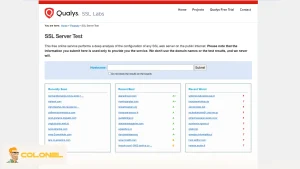
Rufen Sie zunächst Ihre Website in einem Browser auf, um zu sehen, ob die URL mit https beginnt://, Zeigt ein aktives SSL-Zertifikat an. Wenn Sie auf Fehler stoßen, Online-SSL-Prüfer wie Qualys SSL Labs oder Comodo SSL-Checker Bereitstellung detaillierter Diagnoseinformationen.
Zusätzlich, Durch Überprüfen der Servereinstellungen in WHM oder Ihrem VPS-Verwaltungspanel wird dieses Zertifikat bestätigt, Schlüssel, und Zwischendateien werden korrekt installiert.
Notiz: SSL-Zertifikate von Colonel Server bieten die Verschlüsselung, die zum Sichern des Datenaustauschs auf Ihrem VPS oder dedizierten Server erforderlich ist. Mit bewährter Verschlüsselung schon zu günstigen Preisen, Sie können HTTPS aktivieren, Steigern Sie die SEO Ihrer Website, und vollständiges Benutzervertrauen aufbauen.

Günstiger VPS-Server
Ab 2,99 $/Monat
Behebung häufiger SSL-Zertifikatfehler
Sobald Sie die SSL-Einrichtung bestätigt haben, Spezifische Aktionen können jeden Fehlertyp beheben. Das Verständnis sowohl der Ursache als auch der Lösung stellt sicher, dass das Problem dauerhaft behoben wird und weitere Störungen verhindert werden.
Zertifikat nicht vertrauenswürdig
Der Fehler „Zertifikat nicht vertrauenswürdig“ weist darauf hin, dass der Browser die Zertifizierungsstelle nicht erkennt oder dass das Zertifikat selbstsigniert ist.
Bevor Sie eine technische Lösung versuchen, Überprüfen Sie, ob das Zertifikat von einer seriösen Zertifizierungsstelle ausgestellt wurde, und bestätigen Sie, dass Zwischenzertifikate korrekt installiert sind. Durch diese Überprüfung wird sichergestellt, dass der Browser eine sichere Verbindung aufbauen kann.
Hier erfahren Sie, wie Sie das Problem beheben können:
- Installieren Sie die von Ihrer Zertifizierungsstelle bereitgestellten Zwischenzertifikate
- Ersetzen Sie selbstsignierte Zertifikate durch ein von einer Zertifizierungsstelle ausgestelltes SSL-Zertifikat
- Weisen Sie Browser vorübergehend an, dem Zertifikat zu Testzwecken zu vertrauen

Windows VPS-Hosting
Remote Access & Full Admin
Abgelaufenes SSL-Zertifikat
Ein abgelaufenes SSL-Zertifikat unterbricht sichere Verbindungen und löst Browserwarnungen aus, Dies kann das Vertrauen der Besucher erheblich verringern.
Überwachen Sie immer das Ablaufdatum Ihres SSL-Zertifikats und planen Sie Verlängerungen im Voraus. Viele Hosting-Anbieter bieten automatische Verlängerungsdienste an, wie AutoSSL in WHM, um Ausfallzeiten durch abgelaufene Zertifikate zu verhindern.
Zu den Schritten zur Behebung dieses Fehlers gehören::
- Erneuern Sie das Zertifikat über Ihre Zertifizierungsstelle
- Sofern verfügbar, Aktivieren Sie AutoSSL, um Verlängerungen für alle gehosteten Domänen zu automatisieren
- Überprüfen Sie die Installation und Zugänglichkeit nach der Erneuerung
Fehler bei Namenskonflikt
Dieser Fehler tritt auf, wenn die SSL-Zertifikatdomäne nicht mit der Domäne übereinstimmt, auf die Benutzer zugreifen möchten. Namenskonflikte treten häufig bei Websites auf, die gemeinsam genutzte IP-Adressen verwenden, oder wenn Wildcard-Zertifikate falsch konfiguriert sind.
Vor dem Anwenden von Korrekturen, Stellen Sie sicher, dass alle Domänenvarianten in den alternativen Antragstellernamen des Zertifikats enthalten sind (SANs). Für mehrere Subdomains, Ein Wildcard-Zertifikat kann die effektivste Lösung sein.
Um diese Art von SSL-Zertifikatfehler zu beheben, Du solltest:
- Verwenden Sie ein Wildcard-SSL-Zertifikat, um mehrere Subdomains abzudecken
- Stellen Sie sicher, dass alle Domänennamen, auf die Benutzer zugreifen, in der SAN-Liste enthalten sind
- Stellen Sie sicher, dass das Zertifikat auf dem richtigen Server und der richtigen Domäne installiert ist
Häufige SSL-Zertifikatfehler und deren Behebung
Wenn auf Ihrem VPS SSL-Zertifikatfehler auftreten, Dies weist in der Regel auf ein Problem bei der Ausstellung des Zertifikats hin, installiert, oder Ihrer Domain zugeordnet. Es ist wichtig, den genauen Fehler zu identifizieren, da jeder Typ eine andere Lösung erfordert.
Unten, Wir bieten eine detaillierte Anleitung zu den häufigsten SSL-Zertifikatfehlern, ihre Ursachen, und präzise Schritte, die Sie ergreifen können, um sie sofort zu lösen, Stellen Sie sicher, dass Ihre Website sichere HTTPS-Verbindungen für Ihre Besucher aufrechterhält.
| SSL-Fehlertyp | Ursache | Empfohlener Fix |
| Zertifikat nicht vertrauenswürdig | Selbstsignierte oder nicht vertrauenswürdige Zertifizierungsstelle | Installieren Sie das von der Zertifizierungsstelle ausgestellte Zertifikat, inklusive Zwischenzertifikat |
| Abgelaufenes Zertifikat | Die Gültigkeit des Zertifikats ist abgelaufen | Zertifikat erneuern, Aktivieren Sie AutoSSL |
| Namenskonflikt | Domänenkonflikt oder fehlendes SAN | Verwenden Sie Wildcard-SSL, Alle Domänen im SAN einschließen |
| Gemischter Inhalt | HTTP-Ressourcen auf der HTTPS-Seite | Aktualisieren Sie alle URLs auf HTTPS, Vermögenswerte überprüfen |
Erweiterte Korrekturen für SSL-Zertifikatfehler auf VPS
Wenn die grundlegende Fehlerbehebung SSL-Zertifikatfehler nicht behebt, Fortschrittliche Lösungen auf Ihrem VPS-Server können dabei helfen, sichere Verbindungen wiederherzustellen. Der Schwerpunkt dieser Schritte liegt auf der Automatisierung, systemspezifische Korrekturen, und ordnungsgemäße Zertifikatkonfiguration, um wiederholte Fehler zu verhindern.
Die korrekte Verwaltung von SSL-Zertifikaten gewährleistet unterbrechungsfreie HTTPS-Verbindungen, schützt Besucherdaten, und erhält die Glaubwürdigkeit Ihrer Website. Durch die Anwendung dieser fortschrittlichen Methoden, Sie können potenzielle SSL-Probleme proaktiv angehen, bevor sie das Benutzererlebnis beeinträchtigen.
Aktivieren von AutoSSL in WHM
AutoSSL ist eine Funktion in WHM, die automatisch kostenlose SSL-Zertifikate für alle gehosteten Domänen ausstellt und installiert. Diese Automatisierung reduziert das Risiko abgelaufener Zertifikate und stellt sicher, dass Ihr VPS ohne ständige manuelle Eingriffe sicher bleibt.
Bevor Sie AutoSSL aktivieren, Stellen Sie sicher, dass Ihr Server cPanel/WHM unterstützt und dass alle Domänen über ordnungsgemäße DNS-Einträge verfügen. AutoSSL funktioniert am besten, wenn Zertifikate von vertrauenswürdigen Anbietern ausgestellt werden, Minimierung von Browserwarnungen und Verbesserung der Website-Zuverlässigkeit.
Hier sind allgemeine Schritte zum Aktivieren von AutoSSL:
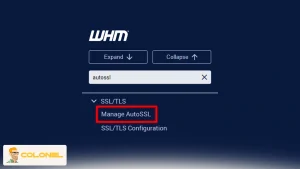
- Melden Sie sich bei WHM an und suchen Sie nach „AutoSSL verwalten“.
- Wählen Sie einen Anbieter aus (cPanel wird empfohlen) und Einstellungen speichern
- AutoSSL plant automatisch Cron-Jobs zum Herunterladen und Installieren von Zertifikaten für alle Konten
- Optional, Klicken Sie auf „AutoSSL für alle Benutzer ausführen“, um die Anwendung sofort anzuwenden
Durch die Aktivierung von AutoSSL wird sichergestellt, dass alle gehosteten Domänen auf Ihrem VPS über gültige SSL-Zertifikate verfügen, Reduzierung der manuellen Wartung und Minimierung von Fehlern wie abgelaufenen oder fehlenden Zertifikaten.
Behebung von SSL-Fehlern auf Mac und PC
Manchmal, SSL-Fehler stammen vom Clientgerät und nicht vom Server. Desktop-Systeme wie Mac und Windows können ungültige SSL-Status zwischenspeichern oder falsch konfigurierte Datums-/Uhrzeiteinstellungen haben, die die Zertifikatsvalidierung beeinträchtigen.
Bevor Sie Serveränderungen vornehmen, Überprüfen Sie die SSL-Einrichtung Ihres Computers. Gewährleistung genauer Zeiteinstellungen, Browser-Cache leeren, Durch die Aktualisierung Ihres Betriebssystems und Browsers werden häufige SSL-Fehler häufig ohne Eingreifen des Servers behoben.
Allgemeine clientseitige Korrekturen:
- Stellen Sie Datum und Uhrzeit in den Systemeinstellungen auf automatisch ein
- Löschen Sie den Browser-Cache und die Cookies, um beschädigte SSL-Sitzungen zu entfernen
- Aktualisieren Sie den Browser und das Betriebssystem, um moderne TLS-Protokolle zu unterstützen
- Auf dem Mac, Verwenden Sie den Schlüsselbundzugriff, um ungültige Zertifikate zu entfernen
- Starten Sie den Browser neu, um die neue SSL-Validierung anzuwenden
Notiz: Diese Schritte helfen, Fehler wie NET zu beseitigen::ERR_CERT_AUTHORITY_INVALID oder ERR_SSL_VERSION_OR_CIPHER_MISMATCH verursacht durch Client-Fehlkonfigurationen.
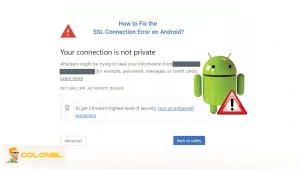
Beheben von SSL-Fehlern auf Android
Auch bei Mobilgeräten können SSL-Fehler auftreten, insbesondere beim Surfen über WLAN oder bei der Verwendung veralteter Zertifikate. Android zeigt Meldungen wie „Ihre Verbindung ist nicht privat“ an,” was die Benutzererfahrung beeinträchtigen kann.
Die Behebung von SSL-Fehlern unter Android umfasst sowohl Geräteeinstellungen als auch die Ressourcenverwaltung der Website. Stellen Sie sicher, dass die Systemzeit korrekt ist, und stellen Sie sicher, dass alle Ressourcen auf Ihrer Website über HTTPS bereitgestellt werden, um Fehler durch gemischte Inhalte zu vermeiden.
Sie können Android-SSL-Zertifikatfehler wie folgt beheben:
- Automatisches Datum und Uhrzeit aktivieren.
- Löschen Sie Chrome- oder andere Browserdaten in den Datenschutzeinstellungen
- Testen Sie die Konnektivität über ein anderes Netzwerk (mobile Daten oder ein anderes WLAN)
- Deaktivieren Sie vorübergehend Antiviren- oder Sicherheits-Apps, die den SSL-Verkehr blockieren könnten
- Als letztes, Setzen Sie das Gerät zurück, während Sie wichtige Daten sichern
Indem Sie diese Schritte befolgen, Sie können sicherstellen, dass mobile Benutzer sicher auf Ihre Website zugreifen, Reduzierung der Absprungraten und Schutz der über HTTPS ausgetauschten Daten.
Verhindern zukünftiger SSL-Zertifikatfehler
Eine proaktive SSL-Verwaltung ist entscheidend, um wiederkehrende Fehler zu verhindern. Regelmäßige Überwachung, richtige Zertifikatsauswahl, und eine ordnungsgemäße Serverkonfiguration gewährleisten unterbrechungsfreie sichere Verbindungen. Du kannst:
- Planen Sie Zertifikatsverlängerungen und überwachen Sie Ablaufdaten
- Wählen Sie den entsprechenden SSL-Typ (Einzeldomäne, Platzhalter, Multi-Domain)
- Stellen Sie sicher, dass alle Domänenvarianten im Zertifikat-SAN enthalten sind
- Überprüfen Sie regelmäßig die SSL/TLS-Einstellungen des Servers, um starke Protokolle zu verwenden (TLS 1.2+) und Verschlüsselungssammlungen
- Führen Sie regelmäßige SSL-Audits mit Tools wie Qualys SSL Labs durch
Die Implementierung dieser Strategien verringert die Wahrscheinlichkeit von SSL-Warnungen, verbessert das Vertrauen der Benutzer, und trägt positiv zum SEO-Ranking bei.
Häufig gestellte Fragen (FAQ)
Was ist ein SSL-Zertifikatfehler??
Ein SSL-Zertifikatfehler tritt auf, wenn ein Browser das Zertifikat auf Ihrem VPS nicht überprüfen kann, oft wegen abgelaufen, falsch konfiguriert, oder nicht vertrauenswürdige Zertifikate, was sichere Verbindungen verhindert.
Wie behebe ich einen Namenskonfliktfehler auf meinem VPS??
Stellen Sie sicher, dass Ihr Zertifikat alle Domänen und Subdomänen über SAN-Einträge oder ein Wildcard-SSL abdeckt, und bestätigen Sie, dass es auf dem richtigen Server installiert ist.
Kann ich SSL-Warnungen sicher umgehen??
Bei selbstsignierten Zertifikaten ist es zwar möglich, Warnungen vorübergehend zu umgehen, Es wird nicht für öffentliche Websites empfohlen. Der beste Ansatz besteht darin, ein von einer vertrauenswürdigen Zertifizierungsstelle ausgestelltes SSL-Zertifikat zu installieren.
Wie verhindere ich abgelaufene SSL-Zertifikate??
Aktivieren Sie AutoSSL oder planen Sie manuelle Verlängerungen und überwachen Sie Ablaufdaten, um sicherzustellen, dass Ihre Zertifikate gültig bleiben und Browser Ihrer Website vertrauen.
Warum treten Mixed-Content-Fehler auch nach der Installation von SSL auf??
Gemischte Inhalte treten auf, wenn einige Elemente auf Ihrer Website vorhanden sind, wie Bilder oder Skripte, werden weiterhin über HTTP geladen. Durch die Aktualisierung aller URLs auf HTTPS wird dieses Problem behoben.