
Install PhpMyAdmin In LAMPE With AlmaLinux OS is a tutorial designed to help users install one of the most popular database management applications in a LAMP (Linux, Apache, MySQL/MariaDB, PHP) Plattform. The phpMyAdmin application offers a straightforward and easy-to-use web-based interface that enables users to perform database management tasks using MySQL or MariaDB databases without having to work through the command line interface. This article will provide an exhaustive guide on how to install the PhpMyAdmin application on AlmaLinux OS.

Install PhpMyAdmin In LAMP With AlmaLinux OS
Voraussetzungen:
- A server that uses AlmaLinux 20.04 as its operating system
- An active domain name that should be pointing to the IP address of the server
- Access with administrative privileges (root) or access with sudo privileges
Schritt 1 Installieren Sie phpMyAdmin in LAMP mit AlmaLinux OS: Upgrading the System
Before installing the LAMP stack, it is recommended to upgrade all system packages to the most recent version. This improves stability and compatibility with other software.
sudo dnf update -y && sudo dnf upgrade -y
Schritt 2: Installation of Apache2 Web Server
Installation of the Apache2 can be achieved by executing the following command:

WordPress-Webhosting
Ab 3,99 $/Monat
sudo dnf install httpd -y
The apache server can be started and enabled using the commands below:
sudo systemctl start httpd && sudo systemctl enable httpd
Status of the Apache service can be viewed using the commands below:
sudo systemctl status httpd
You will receive an output similar to the one shown below:

Günstiger VPS-Server
Ab 2,99 $/Monat
[root@host ~]# sudo systemctl status httpd

● httpd.service - The Apache HTTP Server

Loaded: loaded (/usr/lib/systemd/system/httpd.service; enabled; vendor preset: disabled)

Drop-In: /usr/lib/systemd/system/httpd.service.d

└─php-fpm.conf

Active: active (running) since Sun 2022-07-03 11:11:13 CDT; 8min ago

Docs: man:httpd.service(8)

Main PID: 4665 (httpd)

Status: "Total requests: 2; Idle/Busy workers 100/0;Requests/sec: 0.00409; Bytes served/sec: 20 B/sec"

Tasks: 213 (limit: 23674)

Memory: 38.0M

CGroup: /system.slice/httpd.service

├─4665 /usr/sbin/httpd -DFOREGROUND

├─4670 /usr/sbin/httpd -DFOREGROUND

├─4671 /usr/sbin/httpd -DFOREGROUND

├─4672 /usr/sbin/httpd -DFOREGROUND

└─4673 /usr/sbin/httpd -DFOREGROUND
Jul 03 11:11:12 host.test.vps systemd[1]: Starting The Apache HTTP Server...
Schritt 3: Installing PHP8.0 with extensions
In order to install PHP8.0, the following command must be executed first:
sudo dnf install -y https://rpms.remirepo.net/enterprise/remi-release-8.rpm
Dann, update the system and display the php modules list using the commands below:
sudo dnf update

Windows VPS-Hosting
Fernzugriff und vollständige Verwaltung
sudo dnf module list php
The expected output is:
Last metadata expiration check: 0:00:33 ago on Sun 03 Jul 2022 07:22:57 AM CDT.

AlmaLinux 8 - AppStream

Name Stream Profiles Summary

php 7.2 [d][e] common [d], devel, minimal PHP scripting language

php 7.3 common [d], devel, minimal PHP scripting language

php 7.4 common [d], devel, minimal PHP scripting language

php 8.0 common [d], devel, minimal PHP scripting language
Remi's Modular repository for Enterprise Linux 8 - x86_64

Name Stream Profiles Summary

php remi-7.2 common [d], devel, minimal PHP scripting language

php remi-7.3 common [d], devel, minimal PHP scripting language

php remi-7.4 common [d], devel, minimal PHP scripting language

php remi-8.0 common [d], devel, minimal PHP scripting language

php remi-8.1 common [d], devel, minimal PHP scripting language
Hint: [d]efault, [e]nabled, [x]disabled, [i]nstalled
To choose PHP 8.0 with the commands shown below:
sudo dnf module reset php
sudo dnf module enable php:remi-8.0
sudo dnf install php -y
In case of successful installation, it will be possible to view the installed PHP version with the command php -v, which will show output such as the following:
[root@host ~]# php -v

PHP 8.0.20 (cli) (built: Jun 8 2022 00:33:06) ( NTS gcc x86_64 )

Copyright (c) The PHP Group

Zend Engine v4.0.20, Copyright (c) Zend Technologies

with Zend OPcache v8.0.20, Copyright (c), by Zend Technologies
Schritt 4: Installation of MySQL Database Server
Installation of MySQL database server can be done by running the following command lines:
sudo dnf install mysql-server mysql
The mysqld.service can be started and enabled using the following command lines:
sudo systemctl start mysqld && sudo systemctl enable mysqld
The status of the mysqld.service can be checked using the following command:
sudo systemctl status mysqld
The following result should be obtained:
[root@host ~]# sudo systemctl status mysqld

● mysqld.service - MySQL 8.0 database server

Loaded: loaded (/usr/lib/systemd/system/mysqld.service; enabled; vendor preset: disabled)

Active: active (running) since Sun 2022-07-03 07:53:36 CDT; 2s ago

Main PID: 39835 (mysqld)

Status: "Server is operational"

Tasks: 38 (limit: 23674)

Memory: 467.1M

CGroup: /system.slice/mysqld.service

└─39835 /usr/libexec/mysqld --basedir=/usr
Jul 03 07:53:23 host.test.vps systemd[1]: Starting MySQL 8.0 database server...
Schritt 5 Installieren Sie phpMyAdmin in LAMP mit AlmaLinux OS: Install PhpMyAdmin
Change into the Apache default web root folder and download the PHPMyAdmin:
cd /var/www/html
wget https://files.phpmyadmin.net/phpMyAdmin/5.2.0/phpMyAdmin-5.2.0-all-languages.zip
After downloading, unzip the package and rename it to phpmyadmin.
unzip phpMyAdmin-5.2.0-all-languages.zip
mv phpMyAdmin-5.2.0-all-languages/ phpmyadmin/
Set up the proper permissions:
chown -R apache:apache /var/www/html/
We now have phpMyAdmin running at http://YOURSERVERIPADDRESS/phpmyadmin/ Unfortunately, it is not possible to secure the URL because it is an IP address, and therefore, Die SSL-Zertifikat cannot be added to it. We will elaborate more on that in our upcoming steps.
Schritt 6: Configure Apache Virtual Host
We first need to configure Apache virtual host so that we can access phpMyAdmin using our domain name.
touch /etc/httpd/sites-available/phpmyadmin.conf
Edit the above file with your preferred text editor and copy-paste the following lines into the file.
<VirtualHost *:80>

ServerName yourdomain.com

DocumentRoot /var/www/html/phpmyadmin

ErrorLog /var/log/httpd/phpmyadmin_error.log

</VirtualHost>
After saving and closing the file, enable the Apache virtual host.
ln -s /etc/httpd/sites-available/phpmyadmin.conf /etc/httpd/sites-enabled/
Check Apache configuration by running the following command.
httpd -t
A proper configuration will display the output as shown below.
[root@host html]# httpd -t

Syntax OK
You can now restart Apache and open your web application on http://yourdomain.com
Schritt 7: SSL Encryption using Let’s Encrypt for fre
Now install the module mod_ssl along with the python certbot in order to generate the SSL certificate.
sudo dnf install epel-release mod_ssl -y
sudo dnf install python3-certbot-apache -y
Then install the free SSL certificate using the following command:
sudo certbot --apache --agree-tos --redirect --hsts --staple-ocsp --email [email protected] -d yourdomain.com
The above output will be shown after successfully installing the SSL certificate.
After successful installation you should see the following output:
Successfully received certificate.

Certificate is saved at: /etc/letsencrypt/live/yourdomain.com/fullchain.pem

Key is saved at: /etc/letsencrypt/live/yourdomain.com/privkey.pem

This certificate expires on 2022-10-01.

These files will be updated when the certificate renews.

Certbot has set up a scheduled task to automatically renew this certificate in the background.
Deploying certificate

Successfully deployed certificate for yourdomain.com to /etc/httpd/sites-available/phpmyadmin-le-ssl.conf

Congratulations! You have successfully enabled HTTPS on https://yourdomain.com
- - - - - - - - - - - - - - - - - - - - - - - - - - - - - - - - - - - - - - - -

If you like Certbot, please consider supporting our work by:

* Donating to ISRG / Let's Encrypt: https://letsencrypt.org/donate

* Donating to EFF: https://eff.org/donate-le

- - - - - - - - - - - - - - - - - - - - - - - - - - - - - - - - - - - - - - - -
Jetzt, you can access your website securely at https://yourdomain.com
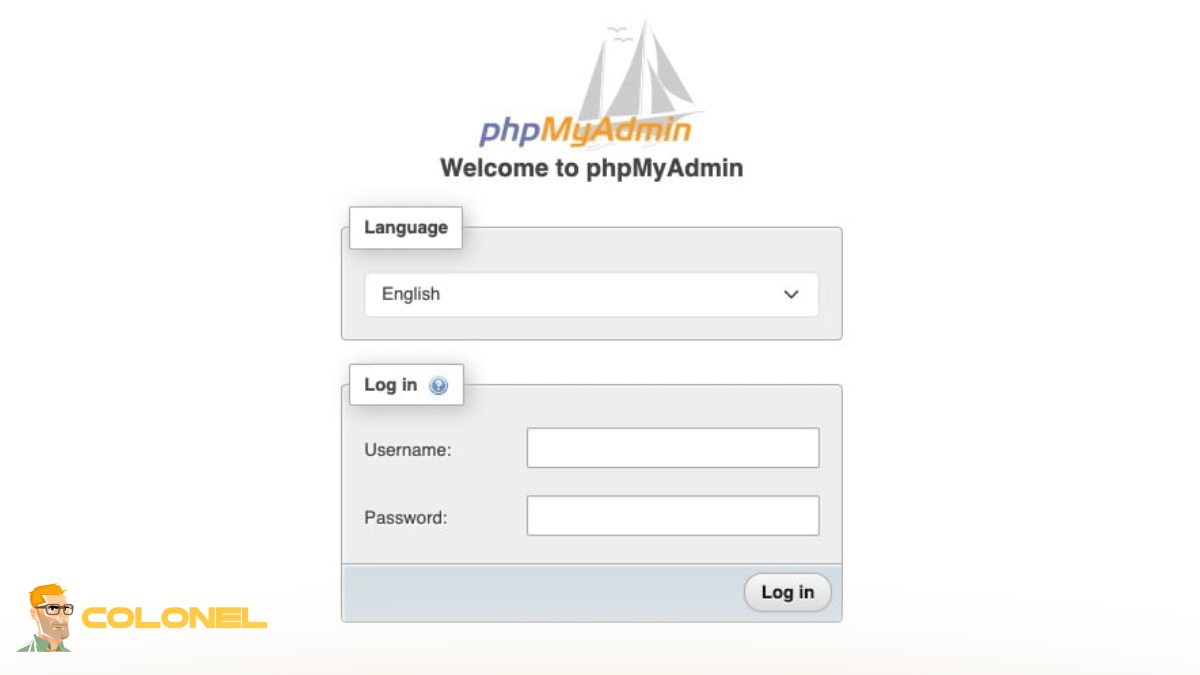
Concluding Remarks: A Seamless Process to Install phpMyAdmin on AlmaLinux LAMP Platform
Install phpMyAdmin in LAMP with AlmaLinux OS is quite easy as long as the steps are followed carefully. Through the installation of the fundamental elements that include Apache, MariaDB, und PHP, along with the configuration of phpMyAdmin, one acquires a highly efficient tool to manage their databases effortlessly. This installation proves to be quite effective in streamlining database management activities, thus boosting the efficiency of developers and system administrators alike.
