
Installeer PhpMyAdmin in LAMP Met AlmaLinux OS is een tutorial ontworpen om gebruikers te helpen een van de meest populaire databasebeheerapplicaties in een LAMP te installeren (Linux, Apache, MySQL/MariaDB, PHP) platform. De phpMyAdmin-applicatie biedt een eenvoudige en gebruiksvriendelijke webgebaseerde interface waarmee gebruikers databasebeheertaken kunnen uitvoeren met behulp van MySQL- of MariaDB-databases zonder via de opdrachtregelinterface te hoeven werken. Dit artikel biedt een uitgebreide handleiding voor het installeren van de PhpMyAdmin-applicatie op AlmaLinux OS.

Installeer PhpMyAdmin in LAMP met AlmaLinux OS
Vereisten:
- Een server die AlmaLinux gebruikt 20.04 als zijn besturingssysteem
- Een actieve domeinnaam die naar het IP-adres van de server moet verwijzen
- Toegang met beheerdersrechten (wortel) of toegang met sudo-rechten
Stap 1 Installeer phpMyAdmin in LAMP met AlmaLinux OS: Het systeem upgraden
Voordat u de LAMP-stack installeert, het wordt aanbevolen om alle systeempakketten te upgraden naar de meest recente versie. Dit verbetert de stabiliteit en compatibiliteit met andere software.
sudo dnf update -y && sudo dnf upgrade -y
Stap 2: Installatie van Apache2-webserver
Installatie van Apache2 kan worden bereikt door de volgende opdracht uit te voeren:

WordPress-webhosting
Vanaf $ 3,99/maandelijks
sudo dnf install httpd -y
De Apache-server kan worden gestart en ingeschakeld met behulp van de onderstaande opdrachten:
sudo systemctl start httpd && sudo systemctl enable httpd
De status van de Apache-service kan worden bekeken met behulp van de onderstaande opdrachten:
sudo systemctl status httpd
U ontvangt een uitvoer die lijkt op de onderstaande afbeelding:

Goedkope VPS-server
Vanaf $ 2,99/maandelijks
[root@host ~]# sudo systemctl status httpd

● httpd.service - The Apache HTTP Server

Loaded: loaded (/usr/lib/systemd/system/httpd.service; enabled; vendor preset: disabled)

Drop-In: /usr/lib/systemd/system/httpd.service.d

└─php-fpm.conf

Active: active (running) since Sun 2022-07-03 11:11:13 CDT; 8min ago

Docs: man:httpd.service(8)

Main PID: 4665 (httpd)

Status: "Total requests: 2; Idle/Busy workers 100/0;Requests/sec: 0.00409; Bytes served/sec: 20 B/sec"

Tasks: 213 (limit: 23674)

Memory: 38.0M

CGroup: /system.slice/httpd.service

├─4665 /usr/sbin/httpd -DFOREGROUND

├─4670 /usr/sbin/httpd -DFOREGROUND

├─4671 /usr/sbin/httpd -DFOREGROUND

├─4672 /usr/sbin/httpd -DFOREGROUND

└─4673 /usr/sbin/httpd -DFOREGROUND
Jul 03 11:11:12 host.test.vps systemd[1]: Starting The Apache HTTP Server...
Stap 3: PHP8.0 installeren met extensies
Om PHP8.0 te installeren, het volgende commando moet eerst worden uitgevoerd:
sudo dnf install -y https://rpms.remirepo.net/enterprise/remi-release-8.rpm
Dan, update het systeem en geef de lijst met php-modules weer met behulp van de onderstaande opdrachten:
sudo dnf update

Windows VPS-hosting
Toegang op afstand en volledig beheer
sudo dnf module list php
De verwachte opbrengst is:
Last metadata expiration check: 0:00:33 ago on Sun 03 Jul 2022 07:22:57 AM CDT.

AlmaLinux 8 - AppStream

Name Stream Profiles Summary

php 7.2 [d][e] common [d], devel, minimal PHP scripting language

php 7.3 common [d], devel, minimal PHP scripting language

php 7.4 common [d], devel, minimal PHP scripting language

php 8.0 common [d], devel, minimal PHP scripting language
Remi's Modular repository for Enterprise Linux 8 - x86_64

Name Stream Profiles Summary

php remi-7.2 common [d], devel, minimal PHP scripting language

php remi-7.3 common [d], devel, minimal PHP scripting language

php remi-7.4 common [d], devel, minimal PHP scripting language

php remi-8.0 common [d], devel, minimal PHP scripting language

php remi-8.1 common [d], devel, minimal PHP scripting language
Hint: [d]efault, [e]nabled, [x]disabled, [i]nstalled
Om PHP te kiezen 8.0 met de onderstaande opdrachten:
sudo dnf module reset php
sudo dnf module enable php:remi-8.0
sudo dnf install php -y
In geval van succesvolle installatie, het is mogelijk om de geïnstalleerde PHP-versie te bekijken met het commando php -v, die uitvoer zoals de volgende zal tonen:
[root@host ~]# php -v

PHP 8.0.20 (cli) (built: Jun 8 2022 00:33:06) ( NTS gcc x86_64 )

Copyright (c) The PHP Group

Zend Engine v4.0.20, Copyright (c) Zend Technologies

with Zend OPcache v8.0.20, Copyright (c), by Zend Technologies
Stap 4: Installatie van MySQL-databaseserver
Installatie van de MySQL-databaseserver kan worden uitgevoerd door de volgende opdrachtregels uit te voeren:
sudo dnf install mysql-server mysql
De mysqld.service kan worden gestart en ingeschakeld met behulp van de volgende opdrachtregels:
sudo systemctl start mysqld && sudo systemctl enable mysqld
De status van mysqld.service kan worden gecontroleerd met behulp van de volgende opdracht:
sudo systemctl status mysqld
Het volgende resultaat zou moeten worden verkregen:
[root@host ~]# sudo systemctl status mysqld

● mysqld.service - MySQL 8.0 database server

Loaded: loaded (/usr/lib/systemd/system/mysqld.service; enabled; vendor preset: disabled)

Active: active (running) since Sun 2022-07-03 07:53:36 CDT; 2s ago

Main PID: 39835 (mysqld)

Status: "Server is operational"

Tasks: 38 (limit: 23674)

Memory: 467.1M

CGroup: /system.slice/mysqld.service

└─39835 /usr/libexec/mysqld --basedir=/usr
Jul 03 07:53:23 host.test.vps systemd[1]: Starting MySQL 8.0 database server...
Stap 5 Installeer phpMyAdmin in LAMP met AlmaLinux OS: Installeer PhpMyAdmin
Ga naar de standaard webhoofdmap van Apache en download PHPMyAdmin:
cd /var/www/html
wget https://files.phpmyadmin.net/phpMyAdmin/5.2.0/phpMyAdmin-5.2.0-all-languages.zip
Na het downloaden, Pak het pakket uit en hernoem het naar phpmyadmin.
unzip phpMyAdmin-5.2.0-all-languages.zip
mv phpMyAdmin-5.2.0-all-languages/ phpmyadmin/
Stel de juiste machtigingen in:
chown -R apache:apache /var/www/html/
We hebben nu phpMyAdmin draaiend op http://UWSERVERIPADDRESS/phpmyadmin/ Helaas, het is niet mogelijk om de URL te beveiligen omdat het een IP-adres is, en daarom, de SSL-certificaat kan er niet aan worden toegevoegd. We zullen daar in onze komende stappen meer op ingaan.
Stap 6: Configureer Apache Virtual Host
We moeten eerst de virtuele Apache-host configureren zodat we toegang kunnen krijgen tot phpMyAdmin via onze domeinnaam.
touch /etc/httpd/sites-available/phpmyadmin.conf
Bewerk het bovenstaande bestand met de teksteditor van uw voorkeur en kopieer en plak de volgende regels in het bestand.
<VirtualHost *:80>

ServerName yourdomain.com

DocumentRoot /var/www/html/phpmyadmin

ErrorLog /var/log/httpd/phpmyadmin_error.log

</VirtualHost>
Na het opslaan en sluiten van het bestand, schakel de virtuele Apache-host in.
ln -s /etc/httpd/sites-available/phpmyadmin.conf /etc/httpd/sites-enabled/
Controleer de Apache-configuratie door de volgende opdracht uit te voeren.
httpd -t
Bij een juiste configuratie wordt de uitvoer weergegeven zoals hieronder weergegeven.
[root@host html]# httpd -t

Syntax OK
U kunt Apache nu opnieuw opstarten en uw webapplicatie openen op http://jouwdomein.com
Stap 7: SSL-codering met gratis Let's Encrypt
Installeer nu de module mod_ssl samen met de python certbot om het SSL-certificaat te genereren.
sudo dnf install epel-release mod_ssl -y
sudo dnf install python3-certbot-apache -y
Installeer vervolgens het gratis SSL-certificaat met behulp van de volgende opdracht:
sudo certbot --apache --agree-tos --redirect --hsts --staple-ocsp --email [email protected] -d yourdomain.com
De bovenstaande uitvoer wordt weergegeven nadat het SSL-certificaat succesvol is geïnstalleerd.
Na een succesvolle installatie zou u de volgende uitvoer moeten zien:
Successfully received certificate.

Certificate is saved at: /etc/letsencrypt/live/yourdomain.com/fullchain.pem

Key is saved at: /etc/letsencrypt/live/yourdomain.com/privkey.pem

This certificate expires on 2022-10-01.

These files will be updated when the certificate renews.

Certbot has set up a scheduled task to automatically renew this certificate in the background.
Deploying certificate

Successfully deployed certificate for yourdomain.com to /etc/httpd/sites-available/phpmyadmin-le-ssl.conf

Congratulations! You have successfully enabled HTTPS on https://yourdomain.com
- - - - - - - - - - - - - - - - - - - - - - - - - - - - - - - - - - - - - - - -

If you like Certbot, please consider supporting our work by:

* Donating to ISRG / Let's Encrypt: https://letsencrypt.org/donate

* Donating to EFF: https://eff.org/donate-le

- - - - - - - - - - - - - - - - - - - - - - - - - - - - - - - - - - - - - - - -
Nu, Via https heeft u veilig toegang tot uw website://jouwdomein.com
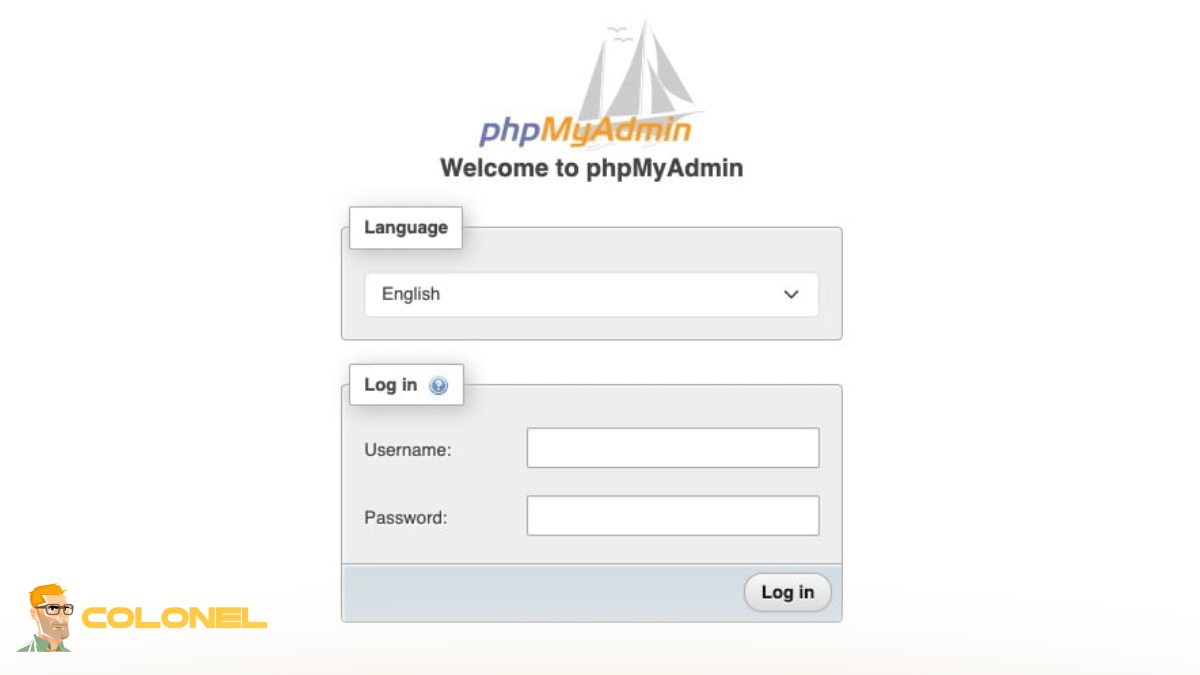
Slotopmerkingen: Een naadloos proces om phpMyAdmin op het AlmaLinux LAMP-platform te installeren
Het installeren van phpMyAdmin in LAMP met AlmaLinux OS is vrij eenvoudig, zolang de stappen zorgvuldig worden gevolgd. Door de installatie van de fundamentele elementen waaronder Apache, MariaDB, en PHP, samen met de configuratie van phpMyAdmin, men verkrijgt een zeer efficiënt hulpmiddel om hun databases moeiteloos te beheren. Deze installatie blijkt behoorlijk effectief te zijn bij het stroomlijnen van databasebeheeractiviteiten, waardoor de efficiëntie van zowel ontwikkelaars als systeembeheerders wordt vergroot.
