
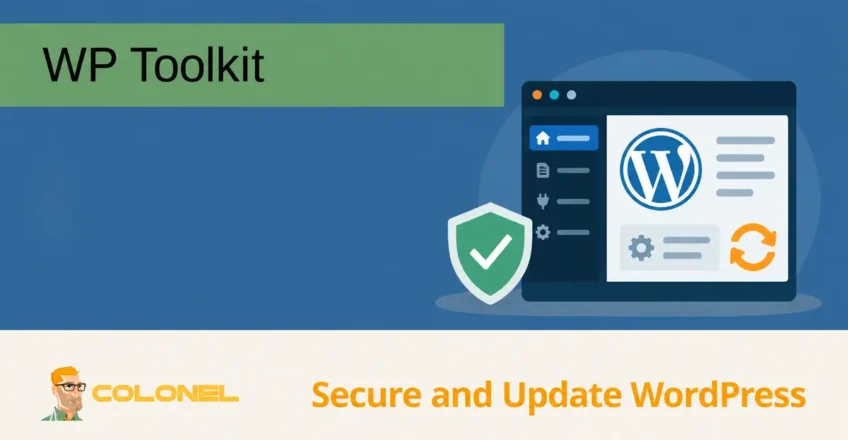
What Is WP Toolkit?
Features and interface labels vary between cPanel, Bitte, hosting plans and WP Toolkit editions. Smart Update, PHP testing, vulnerability protection and backup integration may need an additional license or provider support. Check which controls your installation actually offers.
WP Toolkit is an integrated WordPress management solution available within hosting control panels such as cPanel and Plesk. It provides administrators and website owners with a centralized interface for managing WordPress installations without needing to log into the WordPress dashboard for every task.
WP Toolkit simplifies many routine administrative tasks, einschließlich:
- WordPress core updates
- Plugin updates
- Theme updates
- Security hardening
- Vulnerability monitoring
- Backup-Management
- Website-Klonen
- PHP version testing
- Leistungsoptimierung
By consolidating these tools into a single interface, WP Toolkit helps streamline WordPress administration while improving security and maintenance efficiency.
Why Use WP Toolkit?
Managing WordPress manually can become time-consuming, especially when maintaining multiple websites.
WP Toolkit helps administrators:
WordPress-Webhosting
Ab 3,99 $/Monat
- Improve WordPress security
- Reduce maintenance effort
- Detect vulnerabilities faster
- Automate updates
- Verify core file integrity
- Create backups before changes
- Test upgrades safely
This makes it particularly useful for hosting customers, Agenturen, Entwickler, and system administrators managing multiple WordPress installations.
Accessing WP Toolkit
WP Toolkit can be accessed directly from your hosting control panel.
Depending on your hosting environment, lokalisieren:
WP Toolkit
within:
- cPanel
- Bitte
Once opened, all detected WordPress installations will appear within the WP Toolkit dashboard.
Securing WordPress with WP Toolkit
One of the most valuable features of WP Toolkit is its built-in security hardening system.
Günstiger VPS-Server
Ab 2,99 $/Monat
The Security section provides a collection of recommended security settings that can be applied with only a few clicks.
Schritt 1: Review Security Hardening Options
Navigate to the Security section for your WordPress installation.
Each security option includes a tooltip that explains:
- What the setting does
- Why it is recommended
- Potential compatibility considerations
Review each recommendation carefully before applying changes.
Schritt 2: Apply Security Hardening
Select the hardening options you wish to enable.
Examples of commonly available protections include:
Windows VPS-Hosting
Fernzugriff und vollständige Verwaltung
- Restricting access to sensitive files
- Disabling file editing from the dashboard
- Protecting configuration files
- Improving directory permissions
- Preventing information disclosure
After selecting the desired options, klicken:
Secure
WP Toolkit will automatically apply the selected security settings.
Schritt 3: Verify Security Status
Once the changes have been applied, klicken:
Check Security
WP Toolkit will verify that all selected protections remain active.
This provides a quick overview of the site’s current security posture.
Checking WordPress Core Integrity
WP Toolkit includes a checksum verification feature that validates WordPress core files.
Why Checksum Verification Matters
WordPress core files should match the official release version.
Unexpected file modifications may indicate:
- Malware infections
- Unauthorized changes
- Corrupted files
- Failed updates
Running a checksum scan helps identify discrepancies.
Running a Checksum Verification
Open the WordPress installation inside WP Toolkit and select the checksum verification option.
WP Toolkit compares local files against official WordPress release checksums.
The scan can identify:
- Modified files
- Missing files
- Unexpected files
Review differences and preserve a backup before reinstalling core files. Core checksum verification does not audit every plugin, theme, upload or database entry, and a reinstall does not remove every form of compromise.
Monitoring WordPress Vulnerabilities
WP Toolkit integrates vulnerability intelligence to identify known WordPress security issues.
The vulnerability database is continuously updated and can highlight risks associated with:
- WordPress core
- Installed plugins
- Installed themes
Navigieren Sie zu:
Security Status → Vulnerabilities
to review detected issues.
This helps administrators identify and address security problems before they can be exploited.
Keeping WordPress Core Updated
WordPress releases regular updates that include:
- Sicherheitskorrekturen
- Bug fixes
- Leistungsverbesserungen
- Neue Funktionen
Keeping WordPress core updated is one of the most important security practices.
Configure Automatic Core Updates
WP Toolkit allows administrators to define how updates should be handled.
Available options typically include:
- Disable automatic updates
- Install minor updates automatically
- Install major and minor updates automatically
Minor updates often contain security fixes and are generally recommended for automatic installation.
Managing New Installations
When creating a new WordPress installation, update policies can be configured immediately to ensure future maintenance is handled automatically.
Updating WordPress Plugins
Outdated plugins remain one of the most common causes of WordPress compromises.
Regular plugin updates help:
- Patch vulnerabilities
- Improve compatibility
- Enhance performance
- Resolve bugs
Standard Plugin Updates
WP Toolkit provides a centralized list of installed plugins.
Administratoren können:
- Update plugins individually
- Update multiple plugins simultaneously
- Remove unused plugins
- Enable automatic updates
Intelligente Updates
One of the most valuable WP Toolkit features is Smart Update.
Instead of immediately updating the production website, Smart Update:
- Creates a temporary clone of the site.
- Applies the update to the cloned environment.
- Tests for visual and functional issues.
- Compares results before and after the update.
- Presents findings for review.
A clean automated test lowers uncertainty but does not prove every workflow works. Test checkout, Formen, logins and scheduled jobs, and keep a rollback copy before updating production.
This significantly reduces the risk of updates breaking site functionality.
Managing WordPress Themes
Themes should also be maintained regularly.
WP Toolkit allows administrators to:
- Update themes
- Remove unused themes
- Enable automatic updates
- Review installed versions
Unused themes should generally be removed to reduce the attack surface and simplify maintenance.
Keeping active themes updated ensures compatibility with current WordPress releases and plugins.
Using Smart PHP Updates
PHP version upgrades often provide:
- Better performance
- Improved security
- Neue Funktionen
- Long-term support
Jedoch, compatibility concerns sometimes make administrators hesitant to upgrade.
How Smart PHP Updates Work
WP Toolkit includes a Smart PHP Update feature that tests PHP version compatibility automatically.
The process:
- Creates a clone of the website.
- Switches the clone to the target PHP version.
- Performs automated checks.
- Reports any detected issues.
- Recommends whether the upgrade is safe.
This allows administrators to test PHP upgrades with minimal risk.
Where this feature is available, use it as part of testing. Otherwise test the intended PHP version on staging, including application workflows that automated checks may miss.
Managing Backups
Confirm what the backup contains, its retention and where it is stored. A local restore point can be lost with the server. Keep an independent off-server copy and test file and database recovery before relying on it.
Backups should always be created before making significant changes.
WP Toolkit includes integrated backup functionality.
Administrators can create backups before:
- Plugin updates
- Theme updates
- PHP upgrades
- WordPress updates
- Configuration changes
If a problem occurs, backups can be restored directly from the WP Toolkit interface.
Backup Benefits
Backups provide protection against:
- Failed updates
- Human error
- Malware infections
- Accidental file deletion
Maintaining recent backups is an essential part of WordPress administration.
Improving WordPress Performance
WP Toolkit includes several performance-related features.
One commonly recommended optimization is replacing the default WordPress cron system with a server-level cron job.
Zu den Vorteilen gehören::
- More reliable scheduled tasks
- Reduced page load impact
- Better resource efficiency
This approach is particularly beneficial for busy WordPress websites.
Hotlink Protection
WP Toolkit can also assist with hotlink protection.
Hotlinking occurs when external websites directly load images and files from your server.
Potential consequences include:
- Increased bandwidth usage
- Higher server load
- Reduced performance
Enabling hotlink protection helps prevent unauthorized use of your website resources.
Best Practices for WP Toolkit
Enable Security Hardening
Apply all recommended hardening options that are compatible with your environment.
Verify Core Integrity Regularly
Run checksum verification periodically to detect unexpected file modifications.
Keep Everything Updated
Maintain current versions of:
- WordPress core
- Plugins
- Themen
- PHP
Use Smart Updates
Wann immer möglich, use Smart Update for plugin, theme, and PHP upgrades.
Create Backups Before Changes
Always generate a backup before applying major modifications.
Monitor Vulnerabilities
Review vulnerability reports regularly and address issues promptly.
Simplifying WordPress Management with WP Toolkit
WP Toolkit provides a comprehensive set of tools for securing, updating, and maintaining WordPress websites directly from cPanel and Plesk. By combining security hardening, Überwachung von Schwachstellen, checksum verification, Intelligente Updates, PHP compatibility testing, Backups, and update management into a single interface, it significantly simplifies WordPress administration while helping reduce security risks and maintenance overhead.
For website owners managing one site or dozens of installations, WP Toolkit offers an efficient way to keep WordPress environments secure, aktualisiert, and running reliably.