
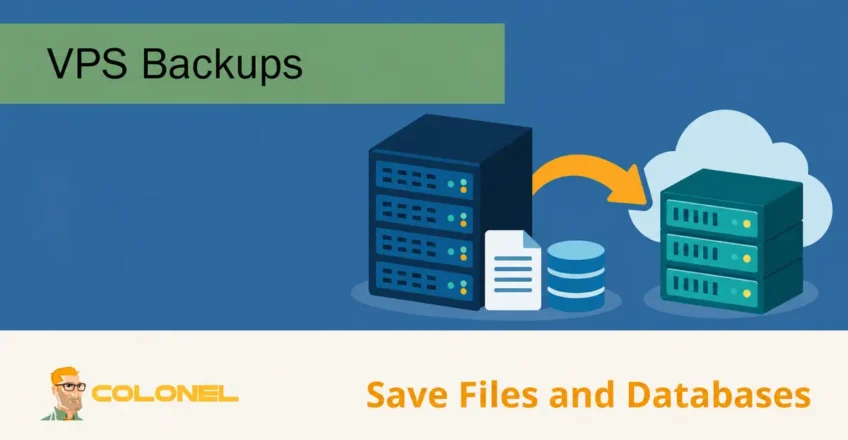
Why VPS Backups Are Essential
A reliable backup strategy is one of the most important parts of server administration. Whether you run websites, toepassingen, databases, e-maildiensten, or development environments, backups protect you against accidental deletions, hardware failures, software corruption, cyberattacks, and human error.
Without backups, recovering from data loss can be expensive, time-consuming, or even impossible. A well-designed VPS backup plan ensures that your data can be restored quickly with minimal downtime.
Understanding VPS Backup Types
Before implementing backups, it is important to understand the different backup methods available.
Full Backups
A full backup copies every file, configuration, database, and application from the VPS.
Voordelen:
- Simplified restoration
- Complete recovery point
- Easy backup management
Disadvantages:

WordPress-webhosting
Vanaf $ 3,99/maandelijks
- Larger storage requirements
- Longer backup times
Incremental Backups
Incremental backups only store changes made since the previous backup.
Voordelen:
- Reduced storage usage
- Faster backup operations
Disadvantages:
- More complex restoration process
- Dependency on previous backup chains
Most production environments use a combination of full and incremental backups to balance storage efficiency and recovery speed.
Snapshot Backups
A snapshot on the same storage is not an independent backup. Confirm whether the provider exports recoverable copies to another failure domain and whether database state is application-consistent.
Snapshots capture the complete state of a VPS at a specific moment.

Goedkope VPS-server
Vanaf $ 2,99/maandelijks
Snapshots typically include:
- Operating system
- Applications
- Configuration files
- Data
Voordelen:
- Very fast creation
- Rapid rollback capability
Disadvantages:
- Often tied to a specific virtualization platform
- Less portable than file-based backups
File-Level Backups
File-level backups focus on selected directories, databases, and application data.
Voordelen:
- Flexible restoration options
- Easy migration between servers
- Lower storage requirements
Disadvantages:
Windows VPS-hosting
Toegang op afstand en volledig beheer
- Does not automatically include the entire system state
Choosing a Backup Storage Location
The location of your backups is just as important as the backup itself.
Local Backups
Backups stored on the same VPS or server.
Voordelen:
- Fast backup creation
- Fast recovery
Disadvantages:
- Vulnerable to hardware failures
- Vulnerable to ransomware attacks
- Not suitable as the only backup method
Remote Backups
Backups stored on another server.
Voordelen:
- Protection against server failures
- Better disaster recovery
Common destinations include:
- Secondary VPS
- Dedicated backup server
- NAS systems
Cloudopslag
Cloud storage offers excellent reliability and scalability.
Popular options include:
- Amazon S3
- Backblaze B2
- Google Drive
- Microsoft Azure Storage
- Dropbox
Cloud backups provide excellent offsite protection while requiring minimal maintenance.
Backing Up a VPS Using cPanel
If your VPS uses cPanel, the Backup Wizard provides a straightforward backup solution.
Creating a Backup in cPanel
- Log in to cPanel.
- Open Backup Wizard.
- Selecteer Back-up.
- Choose either:
- Full Backup
- Partial Backup
- Generate the backup archive.
- Download and store the backup safely.
Partial backups can include:
- Home directory
- MySQL databases
- Email accounts
- Email forwarders
Full backups are recommended for complete disaster recovery scenarios.
Configuring Automated Backups in WHM
WHM provides advanced backup management for server administrators.
Enable Backup System
- Log in to WHM.
- Navigate to:
WHM → Backup Configuration
- Enable backups.
Configure Backup Settings
Recommended settings:
- Backup Type: Compressed
- Daily Backups: Enabled
- Weekly Backups: Enabled
- Monthly Backups: Enabled
- Retention Period: 7–30 days
Configure Remote Destinations
WHM supports:
- SFTP
- FTP
- SCP
- Amazon S3
- Additional custom storage providers
Remote backups greatly improve disaster recovery readiness.
Automating Linux VPS Backups with rsync
rsync is one of the most powerful Linux backup tools.
Basic rsync Backup
This example keeps a synchronized copy, not versioned history. Add dated snapshots or a versioned backup repository so corrupted or deleted data does not replace your only recovery point. Use a restricted SSH key, verify host keys and alert on job failures.
rsync -avz /var/www/ backupuser@backupserver:/backups/myvps/
Options explained:
- a = archive mode
- v = verbose
- z = compression
This command synchronizes website files to a remote backup server.
Automating with Cron
Edit cron:
crontab -e
Example nightly backup:
0 2 * * * rsync -avz /var/www/ backupuser@backupserver:/backups/myvps/
This runs every day at 2:00 AM.
Creating VPS Backups with tar
tar is ideal for creating compressed archives.
Backup a Website Directory
tar -czf /backups/website-$(date +%F).tar.gz /var/www/
Example output:
website-2026-06-17.tar.gz
Backup Multiple Directories
tar -czf /backups/full-backup.tar.gz \
/var/www \
/etc \
/home
This method is simple and works on virtually every Linux distribution.
Backing Up MySQL and MariaDB Databases
Databases require dedicated backup procedures.
Single Database Backup
mysqldump -u root -p database_name > database_name.sql
Compressed Database Backup
mysqldump -u root -p database_name | gzip > database_name.sql.gz
Backup All Databases
mysqldump -u root -p --all-databases > all_databases.sql
Database backups should always be included in any VPS backup strategy.
Automating Database Backups
Store a dedicated backup account in /root/.my-backup.cnf with mode 600. Grant the privileges required by your database version and selected objects. Do not put the password in the process command line.
[client]
user=backupuser
password=REPLACE_WITH_SECRET
For InnoDB databases, an example script is:
#!/bin/bash
set -euo pipefail
umask 077
install -d -m 700 /backups
backup_file="/backups/mysql-$(date +%F-%H%M%S).sql.gz"
trap 'rm -f "$backup_file.tmp"' EXIT
mysqldump --defaults-extra-file=/root/.my-backup.cnf --single-transaction --routines --events --all-databases | gzip > "$backup_file.tmp"
mv "$backup_file.tmp" "$backup_file"
Schedule the script as root, capture errors and alert on failure. Avoid schema changes during the dump. Nontransactional tables need a separate consistency plan. On MariaDB, use the matching mariadb-dump client where appropriate.
Backing Up a Windows VPS
Windows Server includes built-in backup functionality.
Install Windows Server Backup
- Open Server Manager.
- Selecteer Add Roles and Features.
- Install Windows Server Backup.
Configure Scheduled Backups
- Launch Windows Server Backup.
- Selecteer Backup Schedule.
- Choose:
- Full Server
- Custom Files and Folders
- Select destination:
- Additional disk
- Network share
- Remote storage
Scheduled backups can run daily without manual intervention.
Using rclone for Cloud Backups
rclone allows synchronization with cloud providers.
Install rclone
curl -fsSLo rclone-install.sh https://rclone.org/install.sh
less rclone-install.sh
sudo bash rclone-install.sh
Configure Cloud Storage
rclone config
Follow the setup wizard for your provider.
Upload Backups
rclone copy /backups gdrive:vps-backups
Supported providers include:
- Google Drive
- Amazon S3
- Backblaze B2
- OneDrive
- Dropbox
Encrypting Backups
Backups often contain sensitive information.
Encrypt with GPG
gpg -c backup.tar.gz
This creates:
backup.tar.gz.gpg
Only users with the password can access the backup.
rclone Encryption
rclone also supports encrypted cloud storage remotes for additional protection.
The 3-2-1 Backup Rule
A proven backup strategy follows the 3-2-1 principle:
- Keep 3 copies of your data
- Store backups on 2 different storage types
- Maintain 1 copy offsite
Example:
- Production VPS
- Remote backup server
- Cloud storage repository
This approach minimizes the risk of permanent data loss.
Testing Backup Restores
Backups are only useful if they can be restored successfully.
Verify File Backups
Restore archives to a staging environment:
tar -xzf backup.tar.gz
Verify:
- File permissions
- Symlinks
- Configuration files
Verify Database Backups
Create a test database:
mysql -u root -p test_restore
Import backup:
mysql -u root -p test_restore < backup.sql
Confirm all tables and records exist.
Regular restore testing helps ensure backups remain reliable.
Backup Retention Policies
A retention policy determines how long backups remain available.
Recommended retention:
Small Websites
- Daily backups: 7 dagen
- Weekly backups: 4 weeks
- Monthly backups: 3 months
Business Applications
- Daily backups: 30 dagen
- Weekly backups: 12 weeks
- Monthly backups: 12 months
Compliance-Sensitive Data
Follow any legal or industry-specific retention requirements.
Automating Backup Cleanup
Preview files matching the retention rule before deleting anything:
find /backups -maxdepth 1 -type f -name 'mysql-*.sql.gz' -mtime +30 -printOnly replace -print with -delete after confirming the matches, successful offsite copies and the retention policy. This example applies to independent full database dumps; do not delete individual files from an incremental chain. Prefer the backup tool’s retention mechanism for managed repositories.
Common VPS Backup Mistakes
Avoid these common issues:
- Storing backups only on the VPS
- Never testing restores
- Keeping a single backup copy
- Ignoring database backups
- Failing to encrypt sensitive backups
- Not monitoring backup failures
Any of these mistakes can compromise recovery efforts during an outage.
Final Thoughts
A dependable VPS backup strategy is essential for protecting websites, toepassingen, databases, and business-critical data. Whether you use cPanel, WHM, rsync, tar, Windows Server Backup, or cloud-based solutions, the key is consistency, automatisering, and offsite storage.
By combining scheduled backups, remote storage, encryption, retention policies, and regular restore testing, you can dramatically reduce the risk of data loss and ensure fast recovery when unexpected issues occur.