
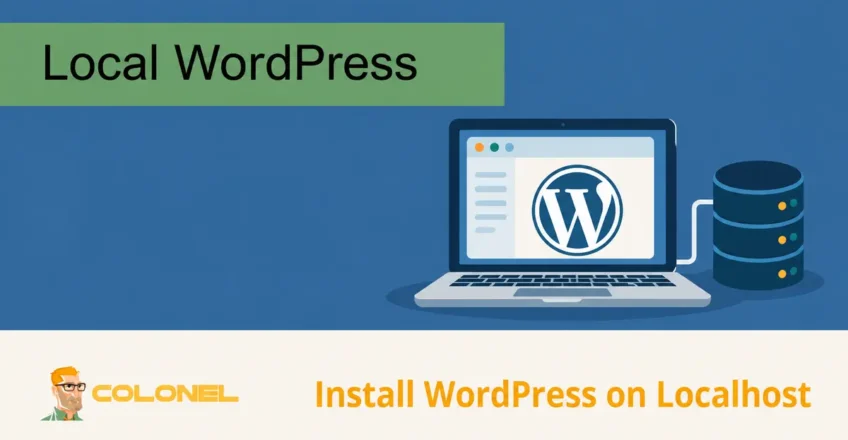
What Does Installing WordPress on Localhost Mean?
A localhost installation allows WordPress to run directly on your own computer instead of a public web server.
Normaal gesproken, websites are hosted on servers connected to the internet and accessible to visitors worldwide. With a localhost installation, alle websitebestanden, databases, and services run entirely on your local machine.
Because the website exists only on your computer:
- No hosting account is required
- No domain name is necessary
- No internet connection is needed after setup
- Other users cannot access the site
Local WordPress installations are commonly used for:
- Website development
- Theme testing
- Plugin testing
- Training environments
- Staging projects
- Learning WordPress
This approach allows developers and site owners to build websites privately before deploying them to a live server.
Benefits of Running WordPress Locally
Using WordPress on localhost offers several advantages during development.
WordPress-webhosting
Starting From €2.99/Maandelijks
Faster Development
Since files are stored on your local machine, changes appear immediately without uploading files to a remote server.
Safe Testing Environment
You can safely test:
- Thema's
- Plug-ins
- PHP code
- WordPress updates
without affecting a production website.
No Hosting Costs
A local environment allows you to build and test projects before purchasing hosting services.
Offline Development
Eenmaal geïnstalleerd, WordPress can run without an active internet connection.
Complete Control
Developers have direct access to:

Goedkope VPS-server
Starting From €8/Maandelijks
- Bestanden
- Databases
- PHP configuration
- Server settings
making troubleshooting much easier.
Can You Run Multiple Local WordPress Sites?
Ja.
You can run multiple WordPress installations on the same computer.
Each website simply requires:
- Its own folder
- Its own database
Bijvoorbeeld:
site-one
site-two
site-three
Each WordPress installation remains completely independent.
Windows VPS-hosting
Toegang op afstand en volledig beheer
This makes localhost environments ideal for agencies, ontwikkelaars, and designers working on multiple projects simultaneously.
What Does WordPress Need to Run Locally?
Before WordPress can function, several server components must be available.
Apache
A web server that delivers website content.
MySQL of MariaDB
A database system used to store:
- Posts
- Pagina's
- Users
- Instellingen
PHP
The programming language that powers WordPress.
Web Browser
Used to access and manage the local website.
Rather than installing each component individually, most users install a local development stack that includes everything needed.
Choosing a Local Development Environment
Several local server packages are available depending on your operating system.
XAMPP
XAMPP stands for:
Cross Platform
Apache
MySQL
PHP
Perl
Supported Platforms
- Ramen
- Linux
- macOS
Beste voor
- Beginners
- Cross-platform users
- General WordPress development
XAMPP remains one of the most popular WordPress localhost solutions.
WAMP
WAMP stands for:
Windows
Apache
MySQL
PHP
Supported Platforms
- Windows only
Beste voor
- Windows users
- Simple local WordPress installations
MAMP
MAMP stands for:
Macintosh
Apache
MySQL
PHP
Modern versions may also support:
- MariaDB
- Python
- Perl
Supported Platforms
- macOS
- Ramen
Beste voor
- Mac users
- Professional developers
LAMP
LAMP stands for:
Linux
Apache
MySQL
PHP
Supported Platforms
- Linux
Beste voor
- Linux administrators
- Geavanceerde gebruikers
Unlike XAMPP or MAMP, LAMP components are typically installed separately.
Stap 1: Install Local Server Software
Begin by installing your preferred localhost environment.
Populaire opties zijn onder meer:
- XAMPP
- WAMP
- MAMP
- LAMP
Na installatie, verify that:
Apache
MySQL
are both running successfully.
Most environments provide a control panel where services can be started and stopped easily.
Stap 2: Download WordPress
Download the latest version of WordPress from the official WordPress website.
The package will typically be provided as a ZIP archive.
Voorbeeld:
wordpress.zip
Extract the archive after downloading.
You should now have a folder containing all WordPress files.
Stap 3: Maak een database
WordPress requires a database before installation can begin.
Open phpMyAdmin
Most local server environments include phpMyAdmin.
Open your browser and visit:
http://localhost/phpmyadmin
Create a New Database
Klik:
New
Enter a database name.
Voorbeeld:
wordpress_local
Kiezen:
utf8_unicode_ci
for the collation.
Klik:
Create
Create a Database User
Navigeer naar:
Users
→ Add User
Creëren:
- Gebruikersnaam
- Wachtwoord
Grant all privileges to the new user.
Record:
- Databasenaam
- Gebruikersnaam
- Wachtwoord
You will need these values during installation.
Stap 4: Copy WordPress Files
Locate your local web root directory.
Voorbeelden:
XAMPP
htdocs
WAMP
www
MAMP
htdocs
Copy the extracted WordPress folder into the appropriate web root directory.
Voorbeeld:
htdocs/mywebsite
Your local site URL will become:
http://localhost/mywebsite
Stap 5: Run the WordPress Installer
Open your browser and navigate to:
http://localhost/mywebsite
The WordPress setup wizard will appear.
Select Language
Choose your preferred language and continue.
Enter Database Details
Provide:
Database Name
Database User
Database Password
Gebruik:
localhost
as the database host.
For the table prefix, leave the default value:
wp_
or customize it if desired.
Start Installation
Klik:
Submit
Dan:
Run the Installation
Configure Website Settings
Binnenkomen:
- Site title
- Gebruikersnaam beheerder
- Strong password
- E-mailadres
Because the website is local, search engine visibility settings are generally irrelevant.
Klik:
Install WordPress
When installation completes, log in using your newly created administrator account.
Testing Your Local WordPress Website
Eenmaal geïnstalleerd, you can begin working with WordPress normally.
Common activities include:
- Creating pages
- Publishing posts
- Installing themes
- Installing plugins
- Testing custom code
- Performing updates
Since everything runs locally, changes can be tested safely before deployment.
Installing Themes on Localhost
To install a WordPress theme:
Navigeer naar:
Appearance
→ Themes
Install Repository Themes
Klik:
Add New
Search for a theme and click:
Install
Dan:
Activate
Install Premium Themes
If you have downloaded a premium theme:
Klik:
Upload Theme
Select the ZIP file and install it.
Activate the theme after installation.
Local environments are ideal for testing themes before using them on production websites.
Common Local Development Tasks
Many WordPress professionals use localhost installations for:
Plugin Development
Build and test plugins safely.
Theme Development
Customize themes without affecting live visitors.
Update Testing
Verify compatibility before applying updates.
Performance Optimization
Experiment with caching and optimization settings.
Learning WordPress
Practice administration and development skills without risk.
Moving a Local WordPress Site to Live Hosting
Once development is complete, the site can be migrated to a public server.
Typical migration steps include:
Export Files
Compress the WordPress directory.
Upload Files
Transfer files to:
public_html
or the appropriate web root on the hosting server.
Create a Production Database
Generate:
- Database
- Gebruiker
- Wachtwoord
on the hosting platform.
Import Database
Use phpMyAdmin to import the local database.
Update Configuration
Bewerken:
wp-config.php
with the production database credentials.
Test Functionality
Verifiëren:
- Pagina's
- Afbeeldingen
- Formulieren
- Plug-ins
- Thema's
before launching the website publicly.
Common Localhost Installation Issues
Apache Not Starting
Potential causes:
- Havenconflicten
- Existing web servers
- Firewall-beperkingen
Database Connection Errors
Verifiëren:
- Databasenaam
- Gebruikersnaam
- Wachtwoord
- Database host
Missing PHP Extensions
Some WordPress plugins require additional PHP modules.
File Permission Issues
Ensure WordPress directories are accessible by the local web server.
Most issues can be resolved through the local environment’s control panel and logs.
Building WordPress Projects Faster with Local Development
Installing WordPress on localhost provides a fast, flexibele, and secure environment for building websites before deploying them online. By using local development stacks such as XAMPP, WAMP, MAMP, or LAMP, developers can create, test, troubleshoot, and optimize WordPress websites without incurring hosting costs or risking changes on a live site.
Whether you’re learning WordPress, developing custom themes, testing plugins, or building client projects, a localhost installation remains one of the most effective ways to streamline development and ensure a smoother deployment process when it’s time to move your website into production.