
Websitebeveiliging is niet langer een optie maar een absolute noodzaak om de gegevens van de gebruikers te beveiligen en een gevoel van vertrouwen te creëren binnen de internetgemeenschap. Door SSL in te schakelen op WHM/cPanel, u zorgt ervoor dat alle gegevens die tussen uw webserver en uw sitebezoekers worden verzonden, beveiligd zijn. Het gebruik van SSL verbetert bovendien de reputatie van uw website en kan een positief effect hebben op de ranking van uw website in zoekmachines.
Wat is SSL en waarom zou u zich er zorgen over moeten maken??
Als eigenaar van welke website dan ook tegenwoordig, u moet nadenken over de veiligheid van uw sitegebruikers. SSL is een speciaal protocol dat helpt bij het coderen van het gegevensoverdrachtproces van de computer via de webserver naar een andere persoon. In eenvoudige woorden, het is voor niemand mogelijk om informatie te verkrijgen, inclusief gebruikersnamen, wachtwoorden, creditcardgegevens, enz., uit de verzonden stroom. Anders, hackers kunnen gemakkelijk verschillende aanvallen op uw website uitvoeren, inclusief gegevensdiefstal.
Bovendien, Door SSL te implementeren, kunt u een goede reputatie opbouwen onder de bezoekers van de site, aangezien moderne webbrowsers waarschuwingen weergeven wanneer u onveilige sites gebruikt. Bijvoorbeeld, De Chrome-browser laat gebruikers zien dat op de huidige webpagina geen SSL-beveiliging is geïmplementeerd. Daarom, SSL-configuratie in WHM/cPanel is cruciaal voor het creëren van een beeld van een betrouwbare site-eigenaar.
Eindelijk, dergelijke diensten zijn nodig omdat zoekmachines sites die extra beveiliging bieden aan hun gebruikers zeer waarderen. Daarom, SSL-configuratie in WHM/cPanel kan uw SEO-posities verbeteren.
Vereisten voordat u een SSL-certificaat installeert
Voordat u begint met het installeren van een SSL-certificaat, het is belangrijk om ervoor te zorgen dat uw server en domein goed zijn voorbereid. Het overslaan van deze vereisten kan leiden tot installatiefouten of verkeerde configuraties.

WordPress-webhosting
Vanaf $ 3,99/maandelijks
- Eerst, u heeft een geldige domeinnaam nodig die verwijst naar het IP-adres van uw server. DNS-instellingen moeten correct zijn geconfigureerd, aangezien SSL-certificaten worden uitgegeven op basis van domeinvalidatie. Als uw domein niet correct is aangewezen, de certificeringsinstantie (CA) kan het eigendom niet verifiëren.
- Seconde, zorg ervoor dat uw serveromgeving SSL ondersteunt. De meeste moderne hostingopstellingen met WHM/cPanel zijn al compatibel, maar het is altijd een goed idee om de benodigde poorten te bevestigen (leuk vinden 443 voor HTTPS) open en correct geconfigureerd zijn.
- Je hebt ook toegang nodig tot je hostingcontrolepaneel. Als u een beheerder bent, u gebruikt SSL-instellingen in WHM. Als u een standaardgebruiker bent, u vertrouwt op SSL-installatie in cPanel. Voordat u verdergaat, is het van cruciaal belang dat u begrijpt welk toegangsniveau u heeft.
- Een andere vereiste is het verkrijgen van een SSL-certificaat van een vertrouwde certificeringsinstantie. Dit certificaat wordt doorgaans uitgegeven na het genereren van een CSR (Certificaatondertekeningsverzoek). Daarnaast ontvang je een CA-bundel en eventueel tussencertificaten.
Ten slotte, Zorg ervoor dat uw privésleutel beschermd en toegankelijk is. Deze sleutel is essentieel voor het installatieproces. Of u nu SSL-installatie in WHM of SSL-installatie in cPanel gebruikt, Ontbrekende of niet-overeenkomende sleutels zijn een van de meest voorkomende oorzaken van fouten.
Stap voor stap een SSL-certificaat installeren via WHM
Het installeren van een SSL-certificaat via WHM wordt doorgaans afgehandeld door serverbeheerders of resellers. Deze methode maakt gecentraliseerde controle over meerdere domeinen en hostingaccounts mogelijk.
Stapsgewijs proces:
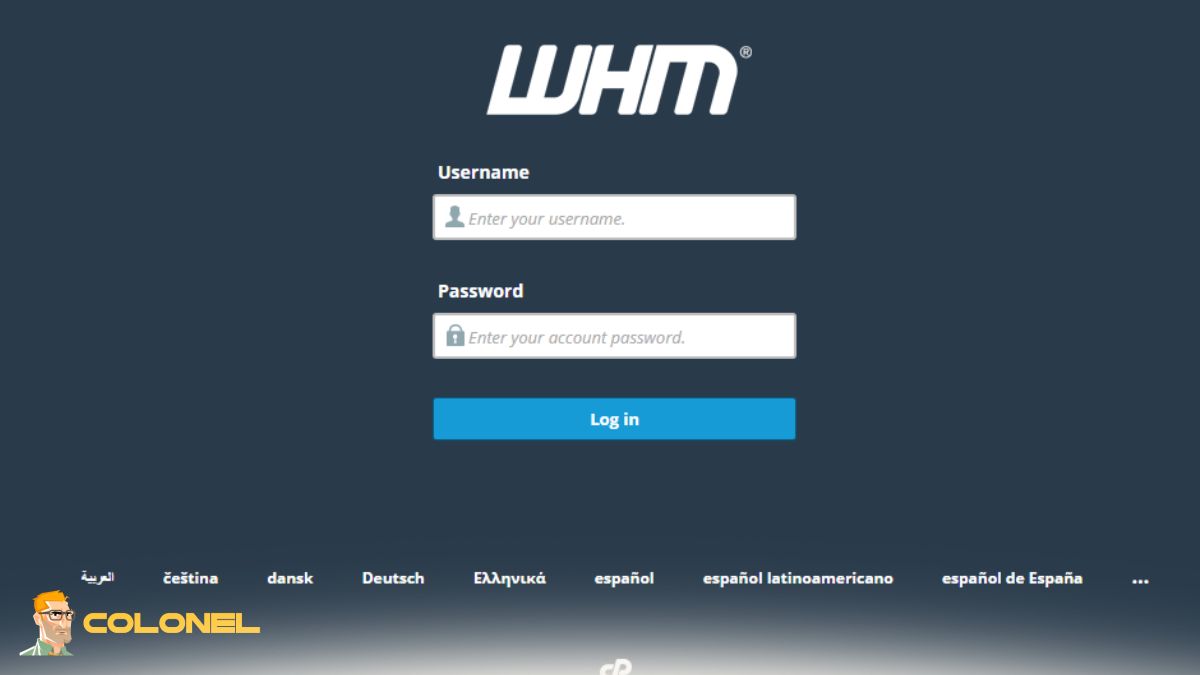
- Log in op WHM.
- In de linkerzijbalk, navigeren naar: Home » SSL/TLS » Installeer een SSL-certificaat op een domein
- Plak uw certificaatgegevens of gebruik de optie voor het uploaden van bestanden (.krt, .sleutel, .ca-bundel).
- Certificaat (CRT): Plak het SSL-certificaat dat door uw CA is verstrekt.
- Privésleutel (SLEUTEL): Dit kan automatisch worden ingevuld als de CSR is gegenereerd in WHM of cPanel. Anders, plak het handmatig.
- Certificaatautoriteitbundel (CABUNDEL): Plak de CA-bundel die door uw SSL-provider is verstrekt.
- Selecteer het domein (het kan automatisch automatisch worden gedetecteerd).
- Klik op Installeren.
Eenmaal voltooid, uw SSL-configuratie in WHM is actief, en uw domein zou inhoud via HTTPS moeten gaan aanbieden. Deze methode is zeer efficiënt voor beheerders die meerdere domeinen beheren.
Als u geïnteresseerd bent in het verder verbeteren van uw serverinfrastructuur, misschien wil je het ook verkennen Hoe KVM snel op Linux te installeren (2026 Gids) Pro! om de virtualisatie- en hostingflexibiliteit te verbeteren naast uw SSL-installatie in WHM.

Goedkope VPS-server
Vanaf $ 2,99/maandelijks
SSL instellen in cPanel voor individuele domeinen
Voor eindgebruikers die hun eigen websites beheren, cPanel biedt een intuïtieve interface voor SSL-installatie. Deze methode is ideaal voor gedeelde hostingomgevingen waar gebruikers geen toegang hebben tot WHM.
Stapsgewijs proces:
- Log in op cPanel.
- Blader naar het gedeelte Beveiliging en klik op SSL/TLS.
- Onder “SSL installeren en beheren voor uw site (HTTPS)”, klik op SSL-sites beheren.
- Scroll naar beneden naar “Installeer een SSL-website”.
- Plak uw certificaatgegevens of upload bestanden (.krt, .sleutel, .ca-bundel).
- Certificaat (CRT): Plak uw SSL-certificaat.
- Privésleutel (SLEUTEL): Automatisch ingevuld als CSR is gegenereerd in cPanel; anders handmatig plakken.
- Certificaatautoriteitbundel (CABUNDEL): Optioneel maar aanbevolen.
- Klik op Certificaat installeren.
Na het voltooien van deze stappen, uw SSL-installatie in cPanel is voltooid, en uw website is toegankelijk via HTTPS. Dit proces stelt gebruikers in staat hun eigen beveiliging te beheren zonder machtigingen op serverniveau.
Voordelen van het gebruik van SSL in WHM/cPanel
Het gebruik van SSL in WHM/cPanel biedt zowel technische als zakelijke voordelen. Vanuit een serverbeheerperspectief, het vereenvoudigt het proces van het beveiligen van meerdere domeinen terwijl de gecentraliseerde controle behouden blijft. Dit is vooral handig voor hostingproviders en resellers.
Mogelijkheid om certificaten efficiënt te beheren voor meerdere accounts
Een van de grootste voordelen van het instellen van SSL in WHM is de mogelijkheid om certificaten voor meerdere accounts efficiënt te beheren. Beheerders kunnen installeren, vernieuwen, en problemen met SSL-certificaten oplossen vanuit één enkele interface. Anderzijds, Door SSL in cPanel in te stellen, kunnen gebruikers hun domeinen onafhankelijk beveiligen zonder toegang tot het serverniveau.
Verbeterd gebruikersvertrouwen
Een ander belangrijk voordeel is een groter gebruikersvertrouwen. Wanneer bezoekers het HTTPS-voorvoegsel zien, ze voelen zich zelfverzekerder tijdens de interactie met uw website. Dit kan leiden tot hogere conversiepercentages, vooral voor online winkels en dienstverlenende bedrijven.

Windows VPS-hosting
Toegang op afstand en volledig beheer
Goede prestaties
Ook de prestaties zijn het vermelden waard. Moderne SSL-implementaties ondersteunen HTTP/2, wat de laadsnelheid van de website kan verbeteren. SSL instellen in WHM en SSL instellen in cPanel, gecombineerd met betere SEO-rankings, een krachtig hulpmiddel worden om de algehele websiteprestaties te verbeteren. Eindelijk, SSL is essentieel voor de naleving van de regelgeving inzake gegevensbescherming. Veel mondiale standaarden vereisen encryptie voor het verwerken van gebruikersgegevens. Door SSL Setup in WHM en SSL Setup in cPanel correct te configureren, jij zorgt ervoor dat jouw website aan deze eisen voldoet.
Hoe u een CSR genereert in WHM
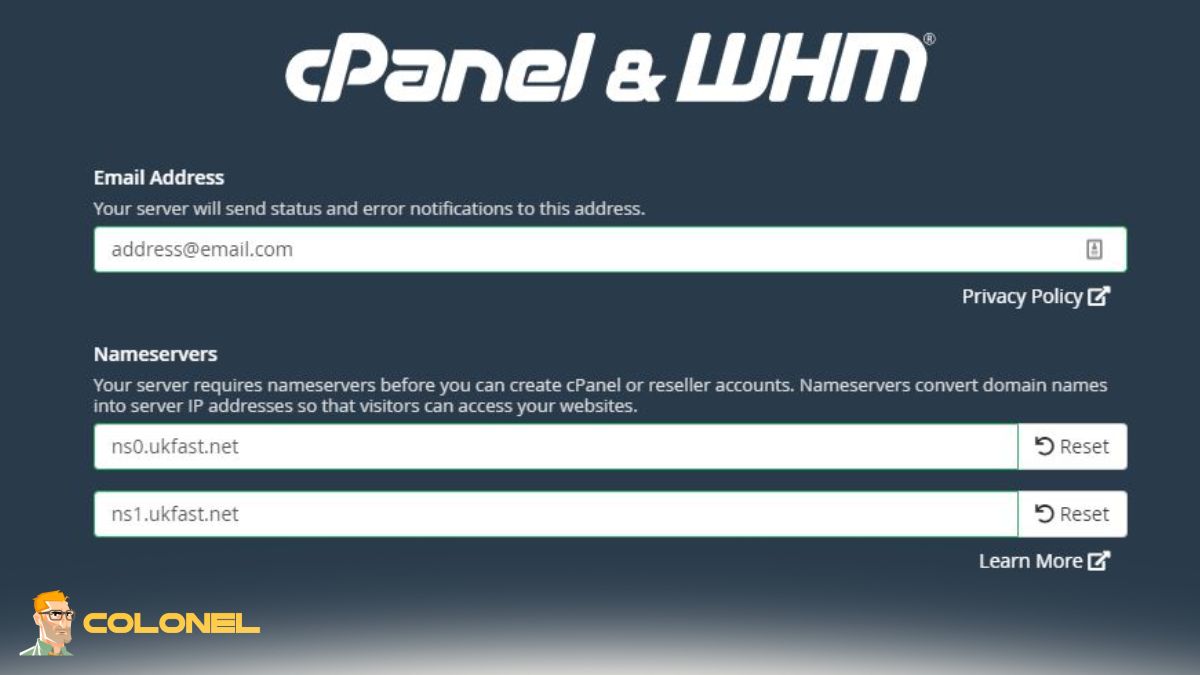
Het genereren van een CSR (Certificaatondertekeningsverzoek) is een van de belangrijkste stappen bij het verkrijgen van een SSL-certificaat. Dit bestand bevat uw domeingegevens en wordt door de certificeringsinstantie gebruikt om uw SSL-certificaat uit te geven.
- Voor het genereren van een CSR in WHM, log in op uw WHM-dashboard en navigeer naar de SSL/TLS-sectie. Vanaf daar, u kunt de optie selecteren om een nieuw certificaatondertekeningsverzoek te genereren. U wordt gevraagd om details op te geven, zoals uw domeinnaam, bedrijfsnaam, stad, en land.
- Zorg ervoor dat de informatie die u invoert juist is, omdat het in uw SSL-certificaat wordt ingebed. Zodra de CSR is gegenereerd, WHM zal ook een privésleutel aanmaken. Deze sleutel moet veilig worden bewaard, aangezien dit vereist is tijdens de SSL-installatie in WHM.
- Als u meerdere domeinen beheert, het centraal genereren van CSR's via WHM vereenvoudigt het proces. Het zorgt voor consistentie en vermindert het risico op configuratiefouten. Na het genereren van de CSR, u kunt het indienen bij de door u gekozen certificeringsinstantie om uw SSL-certificaatbestanden te ontvangen.
Terwijl eindgebruikers CSR's kunnen genereren via cPanel, beheerders geven vaak de voorkeur aan het gebruik van WHM voor betere controle. Deze stap legt de basis voor een soepele SSL-installatie in WHM en SSL-installatie in cPanel later in het proces.
Hoe u HTTPS en omleiding kunt afdwingen
De volgende belangrijke stap na SSL-installatie in WHM/SSL-installatie in cPanel forceert HTTPS. Daarbij, u zorgt ervoor dat alle bezoekers van uw website de beveiligde HTTPS-versie van uw site gebruiken wanneer ze deze bezoeken.
- Er zijn twee manieren om omleidingen uit te voeren. U kunt het .htaccess-bestand gebruiken met de nodige opdrachten om al het verkeer om te leiden. Anders, je kunt het doen via cPanel.
- Als uw website op een CMS zoals WordPress draait, u zou moeten overwegen om plug-ins te installeren om geforceerde HTTPS uit te voeren. Deze laatste optie wordt aanbevolen vanwege de hogere betrouwbaarheid.
- Door HTTPS verplicht te stellen voor uw website, u vergroot de veiligheid ervan. Bovendien, het omleiden van HTTP naar HTTPS vermijdt het probleem van dubbele inhoud in SEO.
Degenen die met ingewikkelde authenticatieprocedures werken, zullen geïnteresseerd zijn om te leren hoe ze dit moeten doen Hoe FreeRADIUS te installeren en configureren met MySQL op Ubuntu samen met SSL-instellingen in WHM/SSL-instellingen in cPanel.
Problemen met veelvoorkomende SSL-installatieproblemen oplossen
Zelfs met een duidelijk proces, SSL installeren kan soms een uitdaging zijn. Het begrijpen van veelvoorkomende problemen kan u tijd en frustratie besparen.
Privésleutel komt niet overeen
Een veelvoorkomend probleem is dat de privésleutel niet overeenkomt. Dit gebeurt wanneer de sleutel die tijdens de installatie wordt gebruikt, niet overeenkomt met de CSR die is gebruikt om het certificaat te genereren. Zorg altijd voor consistentie tussen uw bestanden tijdens de SSL-configuratie in WHM en SSL-configuratie in cPanel.
Ontbrekende tussentijdse certificaten
Een ander probleem is het ontbreken van tussenliggende certificaten. Zonder CA-bundel, browsers vertrouwen uw certificaat mogelijk niet volledig. Voeg altijd de CABUNDLE toe tijdens de installatie.
Onjuiste DNS-configuratie
Een onjuiste DNS-configuratie kan ook problemen veroorzaken. Als uw domein niet naar de juiste server verwijst, het SSL-certificaat wordt mogelijk niet correct gevalideerd. Controleer uw DNS-instellingen nogmaals voordat u installeert.
Verlopen certificaten
Verlopen certificaten zijn een ander veelvoorkomend probleem. Zorg ervoor dat je je SSL-certificaten op tijd vernieuwt en update ze via de SSL Setup in WHM of SSL Setup in cPanel.
Browsercaching
Eindelijk, browsercaching kan er soms voor zorgen dat SSL niet werkt. Door uw cache te wissen of te testen in de incognitomodus, kunt u de installatie verifiëren.
Beveilig het op de juiste manier: De gids voor SSL-succes
SSL is een van de meest kritische aspecten als het gaat om het beschermen van uw website en het winnen van het vertrouwen van uw bezoekers. Zowel SSL-installatie in WHM als SSL-installatie in cPanel bieden efficiënte en veilige methoden om ervoor te zorgen dat HTTPS correct tot stand wordt gebracht op uw site.
Als u weet wat u in elke fase moet doen, van het voldoen aan de vereisten tot het genereren van een CSR en het installeren van het SSL-certificaat, dan kunt u alle veelvoorkomende fouten vermijden. Denk er altijd aan om HTTPS af te dwingen en uw certificaten bij te houden.
De behoefte aan SSL-installatie in WHM en SSL-installatie in cPanel wordt tegenwoordig bijzonder acuut vanwege de groeiende dreiging van cyberaanvallen en malware. Met SSL-configuratie, u beveiligt uw gegevens en vergroot de kans op een goede ranking bij zoekmachines.
