
Website-Sicherheit ist keine Option mehr, sondern eine absolute Notwendigkeit, um die Daten der Benutzer zu schützen und ein Vertrauensgefühl innerhalb der Internet-Community zu schaffen. Durch die Aktivierung von SSL auf WHM/cPanel, you make sure that all the data sent between your web server and your site visitors is secured. The use of SSL also improves the reputation of your website and may have a positive effect on the ranking of your website in search engines.
What is SSL and why you should care about it?
As an owner of any website nowadays, you have to think about the safety of your site users. SSL is a special protocol that helps to encrypt the data transmission process from one’s computer through the web server to another person. In simple words, it is impossible for anyone to get any information, including usernames, Passwörter, credit card data, usw., from the transmitted stream. Ansonsten, hackers may easily perform different attacks on your website, including data theft.
Darüber hinaus, implementing the SSL will help you to establish a good reputation among the site visitors as modern web browsers display alerts while using insecure sites. Zum Beispiel, Chrome browser shows users that the current webpage does not have SSL protection implemented. daher, SSL Setup in WHM/cPanel is crucial for creating an image of a reliable site owner.
Endlich, such services are necessary because search engines highly appreciate sites that provide additional security to their users. daher, SSL Setup in WHM/cPanel can improve your SEO positions.
Prerequisites Before Installing an SSL Certificate
Before you begin installing an SSL certificate, it’s important to ensure that your server and domain are properly prepared. Skipping these prerequisites can lead to installation errors or misconfigurations.

WordPress-Webhosting
Ab 3,99 $/Monat
- Erste, you need a valid domain name that points to your server’s IP address. DNS settings must be correctly configured, as SSL certificates are issued based on domain validation. If your domain is not properly pointed, the certificate authority (CA) may fail to verify ownership.
- Zweite, make sure your server environment supports SSL. Most modern hosting setups with WHM/cPanel are already compatible, but it’s always a good idea to confirm that necessary ports (wie 443 for HTTPS) are open and properly configured.
- You will also need access to your hosting control panel. If you are an administrator, you will use SSL Setup in WHM. If you are a standard user, you will rely on SSL Setup in cPanel. Understanding which level of access you have is crucial before proceeding.
- Another requirement is obtaining an SSL certificate from a trusted Certificate Authority. This certificate is typically issued after generating a CSR (Anfrage zur Zertifikatssignierung). You’ll also receive a CA bundle and possibly intermediate certificates.
Schließlich, ensure you have your private key protected and accessible. This key is essential for the installation process. Whether you’re using SSL Setup in WHM or SSL Setup in cPanel, missing or mismatched keys are one of the most common causes of errors.
Installing an SSL Certificate via WHM Step-by-Step
Installing an SSL certificate through WHM is typically handled by server administrators or resellers. This method allows centralized control over multiple domains and hosting accounts.
Step-by-Step Process:
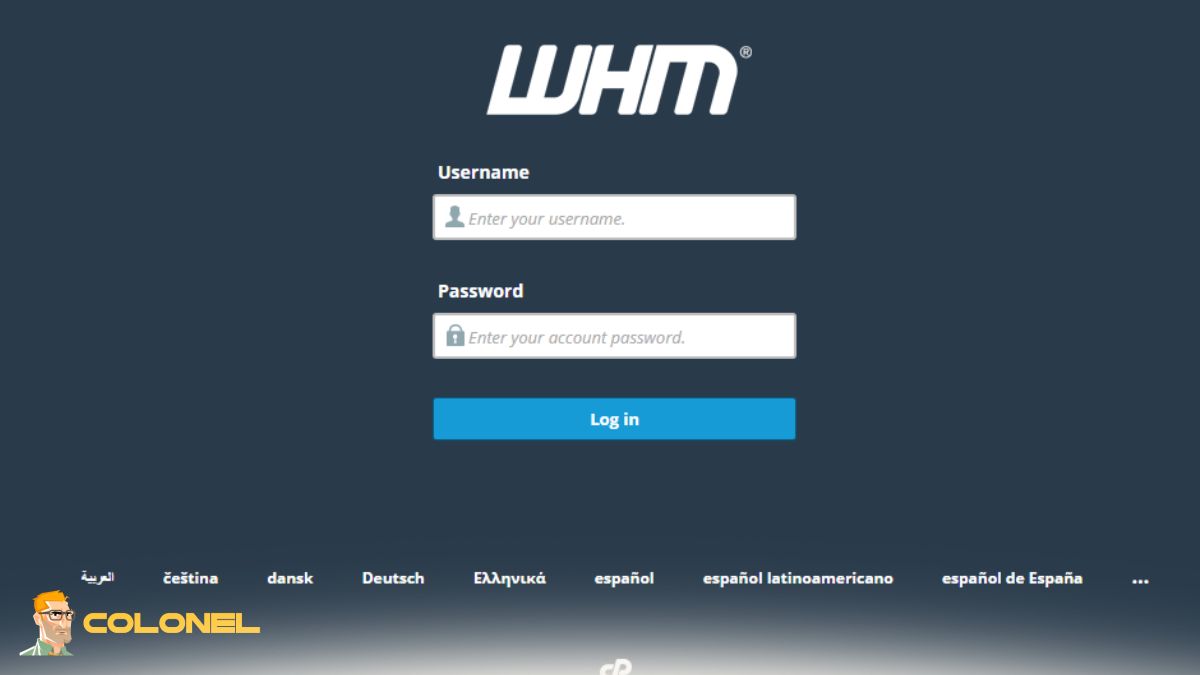
- Log in to WHM.
- In der linken Seitenleiste, navigate to: Home » SSL/TLS » Install an SSL Certificate on a Domain
- Paste your certificate details or use the file upload option (.crt, .Schlüssel, .ca-bundle).
- Certificate (CRT): Paste the SSL certificate provided by your CA.
- Private Key (KEY): This may auto-fill if the CSR was generated in WHM or cPanel. Ansonsten, paste it manually.
- Certificate Authority Bundle (CABUNDLE): Paste the CA bundle provided by your SSL provider.
- Wählen Sie die Domäne aus (it may auto-detect automatically).
- Klicken Sie auf Installieren.
Sobald es abgeschlossen ist, your SSL Setup in WHM is active, and your domain should start serving content over HTTPS. This method is highly efficient for administrators managing multiple domains.
If you’re interested in improving your server infrastructure further, you might also want to explore So installieren Sie KVM schnell unter Linux (2026 Führung) Profi! to enhance virtualization and hosting flexibility alongside your SSL Setup in WHM.

Günstiger VPS-Server
Ab 2,99 $/Monat
Setting Up SSL in cPanel for Individual Domains
For end users managing their own websites, cPanel provides an intuitive interface for SSL installation. This method is ideal for shared hosting environments where users don’t have access to WHM.
Step-by-Step Process:
- Melden Sie sich bei cPanel an.
- Scroll to the Security section and click SSL/TLS.
- Under “Install and Manage SSL for your site (HTTPS)”, click Manage SSL Sites.
- Scroll down to “Install an SSL Website”.
- Paste your certificate details or upload files (.crt, .Schlüssel, .ca-bundle).
- Certificate (CRT): Paste your SSL certificate.
- Private Key (KEY): Auto-filled if CSR was generated in cPanel; otherwise paste manually.
- Certificate Authority Bundle (CABUNDLE): Optional but recommended.
- Click Install Certificate.
Nach Abschluss dieser Schritte, your SSL Setup in cPanel is complete, and your website will be accessible via HTTPS. This process empowers users to manage their own security without needing server-level permissions.
Benefits of Using SSL in WHM/cPanel
Using SSL in WHM/cPanel offers both technical and business benefits. From a server management perspective, it simplifies the process of securing multiple domains while maintaining centralized control. This is especially useful for hosting providers and resellers.
Ability to efficiently manage certificates across multiple accounts
One of the biggest benefits of setting up SSL in WHM is the ability to efficiently manage certificates across multiple accounts. Administrators can install, erneuern, and troubleshoot SSL certificates from a single interface. Auf der anderen Seite, setting up SSL in cPanel allows users to secure their domains independently without having to access the server level.
Improved User Trust
Another key benefit is improved user trust. When visitors see the HTTPS prefix, they feel more confident interacting with your website. This can lead to higher conversion rates, especially for online stores and service-based businesses.

Windows VPS-Hosting
Fernzugriff und vollständige Verwaltung
Good Performance
Performance is also worth mentioning. Modern SSL implementations support HTTP/2, which can improve website loading speed. Setting up SSL in WHM and setting up SSL in cPanel, combined with better SEO rankings, become a powerful tool for increasing overall website performance. Endlich, SSL is essential for compliance with data protection regulations. Many global standards require encryption for handling user data. By properly configuring SSL Setup in WHM and SSL Setup in cPanel, you ensure that your website meets these requirements.
How to Generate a CSR in WHM
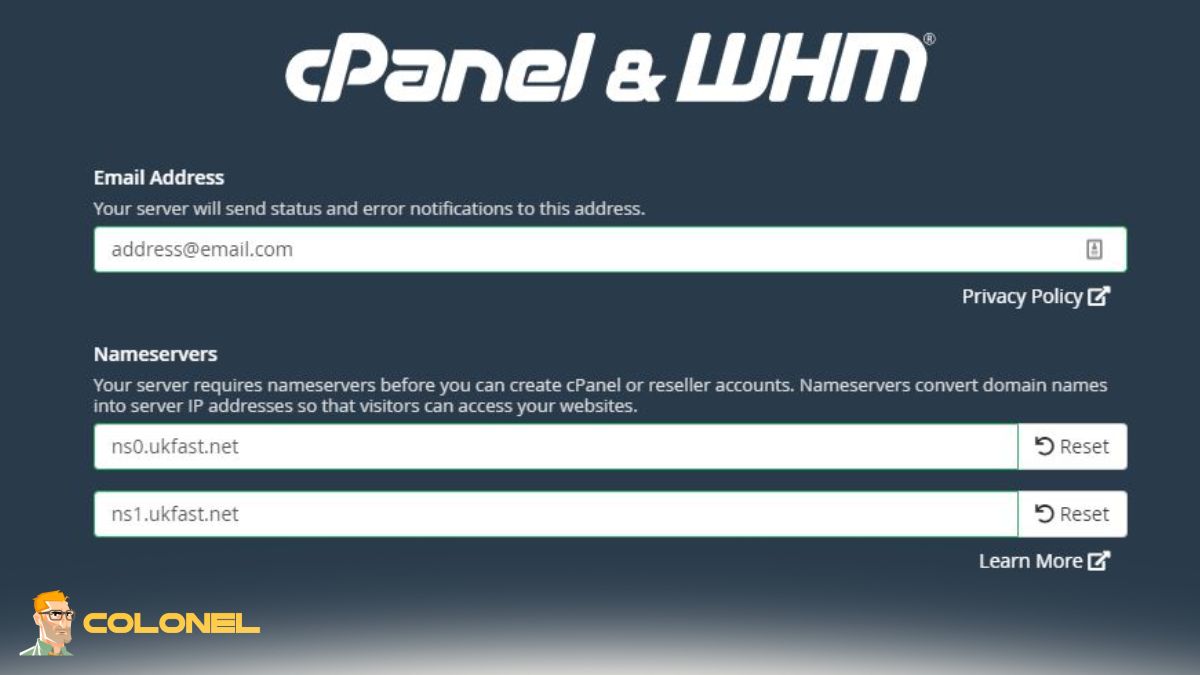
Generating a CSR (Anfrage zur Zertifikatssignierung) is one of the most important steps in obtaining an SSL certificate. This file contains your domain information and is used by the Certificate Authority to issue your SSL certificate.
- To generate a CSR in WHM, log in to your WHM dashboard and navigate to the SSL/TLS section. Von dort, you can select the option to generate a new certificate signing request. You’ll be asked to provide details such as your domain name, Name der Firma, Stadt, and country.
- Make sure the information you enter is accurate, as it will be embedded into your SSL certificate. Once the CSR is generated, WHM will also create a private key. This key must be stored securely, as it will be required during SSL Setup in WHM.
- If you are managing multiple domains, generating CSRs centrally through WHM simplifies the process. It ensures consistency and reduces the risk of configuration errors. After generating the CSR, you can submit it to your chosen Certificate Authority to receive your SSL certificate files.
While end users can generate CSRs through cPanel, administrators often prefer using WHM for better control. This step lays the foundation for a smooth SSL Setup in WHM and SSL Setup in cPanel later in the process.
How to Enforce HTTPS and Redirect
The following important step after SSL Setup in WHM/SSL Setup in cPanel is forcing HTTPS. In doing so, you will make sure all of your website’s visitors use the secure HTTPS version of your site when accessing it.
- There are two ways for performing redirections. You can utilize .htaccess file with necessary commands for redirecting all traffic. Ansonsten, you can do it via cPanel.
- If your website runs on a CMS such as WordPress, you should consider installing plugins to perform forced HTTPS. The latter option is recommended due to higher reliability.
- By making HTTPS mandatory for your website, you enhance its security. Darüber hinaus, redirecting HTTP to HTTPS avoids the problem of duplicate content in SEO.
Those who work with complicated authentication procedures will be interested to learn how to perform So installieren und konfigurieren Sie FreeRADIUS mit MySQL unter Ubuntu along with SSL Setup in WHM/SSL Setup in cPanel.
Troubleshooting Common SSL Installation Problems
Even with a clear process, installing SSL can sometimes be challenging. Understanding common problems can save you time and frustration.
Private Key Mismatch
A common problem is a private key mismatch. This occurs when the key used during installation does not match the CSR used to generate the certificate. Always ensure consistency between your files during SSL setup in WHM and SSL setup in cPanel.
Missing Intermediate Certificates
Another problem is missing intermediate certificates. Without a CA bundle, browsers may not fully trust your certificate. Always include the CABUNDLE during installation.
Incorrect DNS Configuration
Incorrect DNS configuration can also cause problems. If your domain is not pointing to the correct server, the SSL certificate may not validate properly. Double-check your DNS settings before installing.
Abgelaufene Zertifikate
Expired certificates are another common problem. Make sure you renew your SSL certificates on time and update them via the SSL Setup in WHM or SSL Setup in cPanel.
Browser Caching
Endlich, browser caching can sometimes cause SSL to not work. Clearing your cache or testing in incognito mode can help verify the installation.
Secure It Properly: The Guide for SSL Success
SSL is among the most critical aspects when it comes to protecting your website and gaining the trust of your visitors. Both SSL Setup in WHM and SSL Setup in cPanel provide efficient and safe methods for ensuring that HTTPS is properly established on your site.
If you know what to do at each stage from meeting the requirements to generating a CSR and installing the SSL certificate, then you will be able to avoid all common errors. Always remember to enforce HTTPS and keep track of your certificates.
The need for SSL Setup in WHM and SSL Setup in cPanel becomes especially acute nowadays due to the growing threat from cyber attacks and malware. With SSL setup, you will secure your data and increase the chances of ranking well with search engines.
