
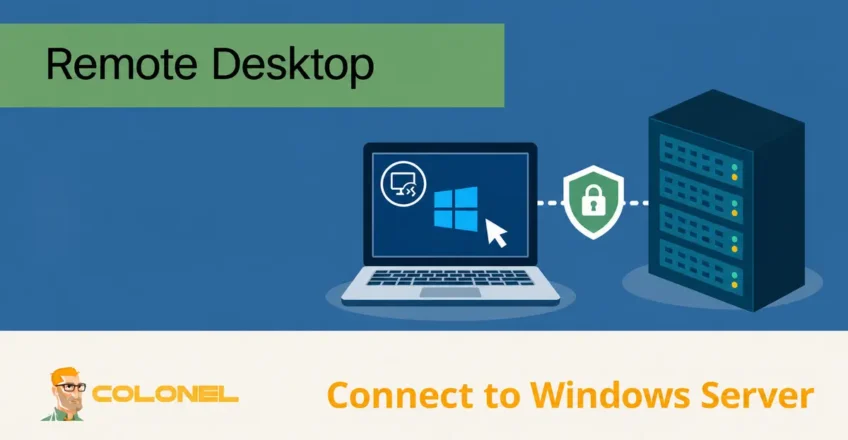
What Is Remote Desktop?
Remote Desktop is a built-in technology that allows you to access and control a Windows server from another device over the internet or a private network. Instead of physically sitting in front of the server, you can view and interact with its desktop environment directly from your computer, laptop, tablet, or smartphone.
Once connected, you can perform administrative tasks, manage files, install applications, modify system settings, troubleshoot issues, and carry out maintenance just as if you were working on the server locally.
This functionality relies on Microsoft’s Remote Desktop Protocol (RDP), a communication protocol designed specifically for secure remote access to Windows systems.
Although Remote Desktop and VPN services are sometimes confused, they serve different purposes. A VPN provides secure access to a network and its resources, while Remote Desktop gives direct control over a specific computer or server.
Requirements for Connecting to a Windows Server
Before establishing a Remote Desktop connection, ensure you have the following:
- A compatible Remote Desktop client
- The server’s IP address
- Administrator username or another authorized account
- The account password
- A stable internet connection
Remote Desktop clients are available for Windows, macOS, Linux, Android, and iOS devices, allowing administrators to connect from virtually any platform.

WordPress Web Hosting
Starting From $3.99/Monthly
Finding Your Windows Server IP Address
Before you can connect remotely, you’ll need the public IP address assigned to your server.
Finding the IP Address in Plesk
If your server uses Plesk:
- Log in to Plesk.
- Navigate to Tools & Settings.
- Under Tools & Resources, select IP Addresses.
- Locate the primary IP assigned to your server.
Finding the IP Address in Your Hosting Account
Open the service details for your Windows server in your hosting provider’s client area and copy its assigned IP address. A cPanel shared-hosting IP is not a Windows Server RDP endpoint.
Record the IP address, as it will be required during the connection process.
Preparing Your Windows Server for Remote Desktop Access
Check whether Remote Desktop is enabled on your Windows server. If it is disabled, you can enable it through the following methods.
Enable Remote Desktop Using Server Manager
- Open Server Manager.
- Select Local Server.
- Locate the Remote Desktop setting.
- Click the current status.
- Select Allow remote connections to this computer.
- Save the changes.
Enable Remote Desktop Using Control Panel
- Open Control Panel.
- Navigate to System and Security.
- Select System.
- Click Allow remote access.
- Under the Remote Desktop section, select:
Allow remote connections to this computer
- Apply the settings and close the window.
Enable Remote Desktop Using PowerShell
Launch PowerShell as Administrator and run:
Set-ItemProperty -Path 'HKLM:\System\CurrentControlSet\Control\Terminal Server\' -Name "fDenyTSConnections" -Value 0
This command enables Remote Desktop access on the server.

Cheap VPS Server
Starting From $2.99/Monthly
Configure Windows Firewall for RDP
Remote Desktop requires TCP port 3389 to be accessible.
To verify the firewall rule:
- Open Control Panel.
- Navigate to System and Security.
- Open Windows Defender Firewall.
- Select Allow an app or feature through Windows Defender Firewall.
- Ensure Remote Desktop is enabled for the appropriate network profiles.
You can also verify the firewall rule using PowerShell:
Enable-NetFirewallRule -DisplayGroup "Remote Desktop"
Installing a Remote Desktop Client
The client you need depends on your operating system.
Windows
Microsoft Remote Desktop Connection is included with most Windows versions and requires no additional installation.
macOS
Install Windows App, the replacement for Microsoft Remote Desktop on macOS, from the App Store.
Windows VPS Hosting
Remote Access & Full Admin
Linux
Several Remote Desktop clients are available, including:
- Remmina
- FreeRDP
- rdesktop
- Vinagre
Choose the client that best fits your distribution and workflow.
Connecting from a Windows Computer
To connect from Windows:
- Press Windows + R.
- Type:
mstsc
- Click OK.
- In the Computer field, enter the server IP address.
- Click Connect.
- Enter your Administrator username and password.
- Verify the server identity and certificate before accepting a security prompt.
After authentication, the Windows Server desktop will open and you can begin managing the system remotely.
Connecting from macOS
After installing Windows App:
- Launch the application.
- Click Add PC.
- Enter the server IP address in the PC Name field.
- Configure a friendly connection name if desired.
- Add your Administrator credentials.
- Save the connection.
- Double-click the newly created entry to connect.
Once authentication succeeds, the server desktop will appear in a separate window.
Connecting from Linux
Install your preferred Remote Desktop client.
For example, using rdesktop:
rdesktop SERVER_IP_ADDRESS
Replace SERVER_IP_ADDRESS with the actual IP address of your Windows server.
Example:
rdesktop 123.123.123.123
When prompted, enter:
Username: Administrator
Password: YourServerPassword
After successful authentication, the Windows desktop session will load on your Linux system.
Security Best Practices for Remote Desktop
Remote Desktop provides powerful administrative access and should always be secured properly.
Consider implementing the following protections:
- Use strong administrator passwords
- Enable two-factor authentication where available
- Restrict RDP access to trusted IP addresses
- Change the default RDP port if appropriate
- Keep Windows fully updated
- Enable account lockout policies
- Monitor failed login attempts
- Use a VPN for administrative access when possible
- Disable unused user accounts
Limiting exposure of Remote Desktop services significantly reduces the risk of unauthorized access attempts and brute force attacks.
Managing Your Windows Server Remotely
Once connected through Remote Desktop, administrators can perform virtually any server management task without physical access to the machine. From software installation and configuration changes to troubleshooting and routine maintenance, Remote Desktop provides a convenient and efficient way to manage Windows Server environments from almost anywhere with an internet connection.