

De vraag hoe u een FileZilla FTP-server op Linux instelt, is een veel voorkomende vraag onder systeembeheerders en ontwikkelaars die een veilige en efficiënte manier nodig hebben om bestandsoverdrachten tussen servers en computers te beheren.. Door deze specifieke dienst goed in te richten, u kunt de gebruikerstoegang effectief beheren, optimaliseer de efficiëntie van gegevensoverdracht, en een stabiel platform opzetten voor het beheren van websitebestanden, back-ups, of ontwikkelingsprojecten. In deze tutorial, we nemen u mee door het proces van het installeren en configureren van de FileZilla FTP-server op Linux.
Vereisten voor het installeren van FileZilla FTP Server op Linux
Voordat u verdergaat met de installatiestappen, het is belangrijk om de basisvereisten te begrijpen die nodig zijn om een FTP-serverservice op een Linux-server te implementeren. Deze fase is belangrijk om een soepeler installatieproces te garanderen. Het helpt ook om toestemmingsproblemen tijdens de installatie te voorkomen. Deze fase helpt u de vereiste elementen van tevoren voor te bereiden. Dit zal het installatieproces van de FileZilla FTP-server op Linux soepeler maken.
Je hebt een stabiele Linux-distributie zoals Ubuntu nodig, Debian, of CentOS. Daarnaast, je hebt root- of sudo-toegang nodig. Om pakketten te downloaden is een stabiele internetverbinding vereist. Daarnaast, het wordt aanbevolen ervoor te zorgen dat er voldoende RAM- en schijfruimte beschikbaar is. Het wordt ook aanbevolen om te zorgen voor de juiste hostnaamconfiguratie, samen met een statisch IP-adres.
Uw Linux-systeem bijwerken vóór de installatie
Het updaten van het besturingssysteem is een belangrijke stap die niet mag worden genegeerd voordat u overgaat tot het installeren van nieuwe services. Het bijwerken zorgt ervoor dat alle bestaande pakketten worden bijgewerkt naar de nieuwste versies die compatibel zijn met de nieuwe services die u gaat installeren. Het bijgewerkte systeem biedt een ideaal platform voor de uitvoering van de workflow Hoe FileZilla FTP-server instellen op Linux.
De update- en upgrade-opdrachten kunnen worden uitgevoerd om de nieuwste opslagplaatsen voor het systeem te downloaden. Met de opdracht worden ook de nieuwste kernelpatches en beveiligingsupdates voor het systeem geïnstalleerd. Het systeem kan na een update opnieuw worden opgestart om de systeembrede wijzigingen toe te passen.

WordPress-webhosting
Vanaf $ 3,99/maandelijks
FileZilla FTP-server installeren op Linux
In de installatiefase wordt de kernservice aan uw systeem toegevoegd en voorbereid voor configuratie. Afhankelijk van je Linux-distributie, de installatiemethode kan enigszins afwijken. De meeste beheerders geven er de voorkeur aan officiële repository's te gebruiken of vanaf de broncode te compileren voor betere controle. Deze stap vormt de basis van de FileZilla FTP-server instellen op Linux-implementatie.
De vereiste pakketten downloaden
Het downloaden van pakketten van vertrouwde bronnen garandeert de authenticiteit van de software en de systeembeveiliging. Controleer vóór de installatie altijd de repository of de officiële website. Dit helpt beschadigde of gewijzigde bestanden te voorkomen die uw server in gevaar kunnen brengen. Pakketverificatie is een standaard best practice in professionele omgevingen.
Het uitvoeren van de installatieopdrachten
Zodra de pakketten beschikbaar zijn, voer de installatieopdracht uit met behulp van uw pakketbeheerder. Het systeem lost automatisch afhankelijkheden op en configureert de vereiste services. Na installatie, u moet controleren of de service correct werkt. Door de service tijdens het opstarten in te schakelen, wordt de beschikbaarheid gegarandeerd nadat de server opnieuw is opgestart.
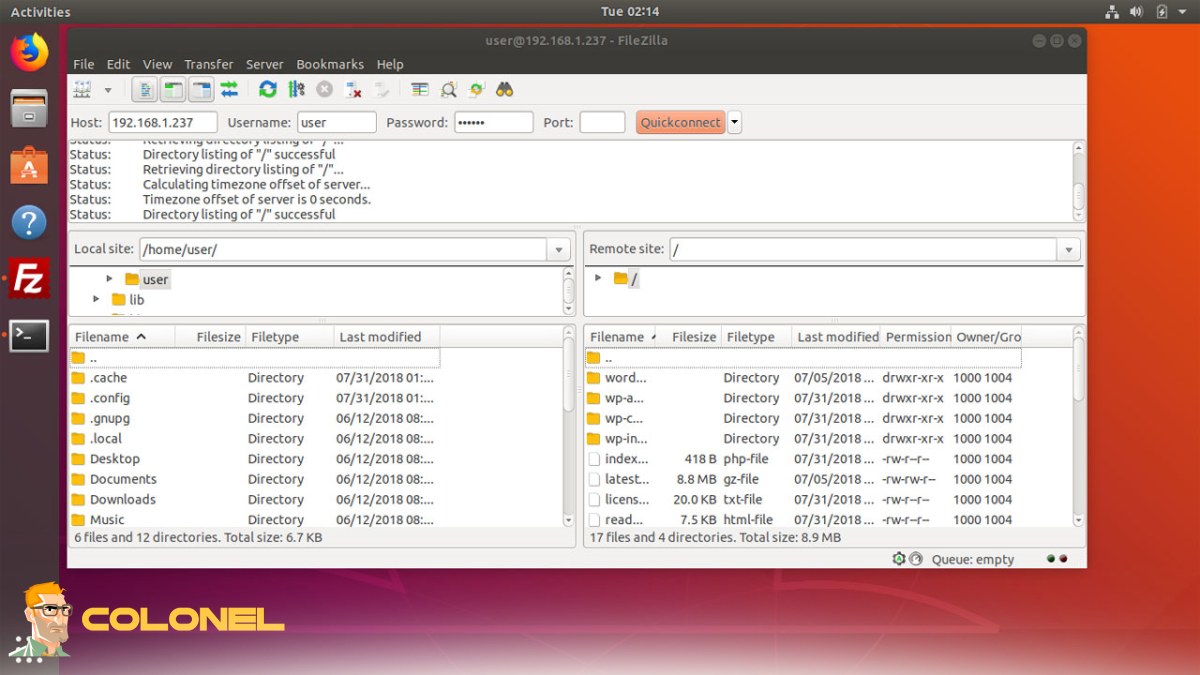
Eerste installatie van FileZilla FTP-server
Na het installatieproces, de volgende stap bestaat uit het instellen van de server volgens uw netwerk- en beveiligingsbehoeften. Dit is waar de juiste installatie en configuratie een rol spelen, bepalen hoe gebruikers verbinding zullen maken met de server en hoe gegevens zullen worden overgedragen. De standaardconfiguratie is nooit ideaal voor een productieserver. Deze fase is van cruciaal belang voor het succesvol voltooien van de cursus Hoe de FileZilla FTP-server op Linux in te stellen.
Toegang tot de FileZilla Server-interface
Deze interface geeft u controle over alle serverconfiguraties op één plek. De interface gebruiken, u kunt gebruikers configureren, havens, mappen, en encryptie. Het is absoluut noodzakelijk om ervoor te zorgen dat de toegang tot deze interface veilig is om ongeautoriseerde wijzigingen in de serverconfiguratie te voorkomen. Beheer op afstand moet altijd beperkt blijven tot vertrouwde IP-adressen.

Goedkope VPS-server
Vanaf $ 2,99/maandelijks
De luisterpoort en IP-binding instellen
Het instellen van de juiste luisterpoort voorkomt conflicten met andere services die op de server draaien. Door de server aan een bepaald IP-adres te koppelen, wordt de beveiliging en het netwerkbeheer verbeterd, met name voor multi-homed servers en VPS.
FTP-gebruikers aanmaken en beheren
Gebruikersbeheer is van cruciaal belang bij het bepalen wie toegang heeft tot uw bestanden en wat zij kunnen doen. Elke gebruiker moet een map krijgen om maximale isolatie en gegevensprivacy te garanderen. Authenticatie is van cruciaal belang om maximale veiligheid te garanderen. Dit is een cruciaal onderdeel in elke professionele handleiding voor het instellen van een FileZilla FTP-server op Linux.
Nieuwe gebruikers toevoegen en wachtwoorden toewijzen
Individuele accounts bieden een manier om te controleren en te controleren wat elke gebruiker kan doen. Het gebruik van unieke wachtwoorden en IP-adressen is van cruciaal belang voor het garanderen van maximale veiligheid. Het delen van wachtwoorden wordt niet aangemoedigd, omdat het de veiligheid en aansprakelijkheid vermindert.
Gedeelde mappen en machtigingen instellen
Machtigingen bepalen de mogelijkheid om te lezen, schrijven, verwijderen, of lijstbestanden. De juiste machtigingen moeten worden toegewezen op basis van rollen en verantwoordelijkheden. Als het niet correct wordt gedaan, ongeoorloofde openbaarmaking van gegevens of verwijdering van bestanden kan voorkomen. Gebruik altijd het principe van de minste privileges.
Firewall configureren voor FTP-verbindingen
Firewallconfiguratie is noodzakelijk voor inkomende en uitgaande FTP-verbindingen. Als het niet correct wordt gedaan, clients mogen geen verbinding maken met de FTP-server. U moet de controlepoort openen en het passieve poortbereik opgeven voor een soepele connectiviteit vanaf verschillende clientnetwerken.
| Instelling | Doel | Voorbeeld |
|---|---|---|
| Controlepoort | Belangrijkste FTP-verbinding | 21 |
| Passief poortbereik | Kanalen voor gegevensoverdracht | 50000–51000 |
| Protocol | Verbindingstype | TCP |

Windows VPS-hosting
Remote Access & Full Admin
Passieve modus inschakelen in FileZilla Server
Het inschakelen van de passieve modus op de server is cruciaal als de client zich achter een NAT of een firewall bevindt. In de passieve modus kan de client een gegevensverbinding tot stand brengen in plaats van de server. Dit is een belangrijke mijlpaal in het instellen van de FileZilla FTP-server op Linux.
Uw FTP-server beveiligen (SSL/TLS-installatie)
Beveiliging is een topprioriteit als het gaat om bestandsoverdracht via internet. Als u SSL/TLS inschakelt, worden de gegevens tijdens de overdracht gecodeerd. Dit zorgt ervoor dat geen enkele hacker de gegevens tijdens de overdracht kan onderscheppen. Dit is een noodzaak in de huidige omgeving, aangezien de meeste clients standaard gecodeerde gegevensoverdracht vereisen.
Zoals de stelt de Linux Foundation:
“Veiligheid is een continu proces, geen eenmalige configuratie.”
De FTP-verbinding testen
Eindelijk, Er worden tests uitgevoerd om er zeker van te zijn dat alles naar behoren werkt. Het testen kan worden gedaan met de hulp van een klant. De serverlogboeken helpen ook bij het identificeren of er problemen zijn met de verbinding. Zodra dit is gebeurd, er kan worden gezegd dat alles klaar is voor productie.
Voordat u verder gaat met deze tutorial, je kunt ook naar het artikel verwijzen “Wat is n8n? Workflowautomatisering voor AI voor ontwikkelaars” van onze website. In dit artikel, besproken wordt hoe FTP-servers middels automatisering geïntegreerd kunnen worden in de workflow. Het zal u helpen het beste uit uw FTP-servers te halen.
Veelvoorkomende problemen met de FileZilla-server oplossen
Er kunnen enkele veelvoorkomende problemen met de server optreden, zelfs nadat deze correct is geconfigureerd. Het is altijd het beste om de logboeken te raadplegen en de problemen te begrijpen. Zodra de problemen zijn begrepen, probleemoplossing kan worden gedaan. Het bespaart tijd en voorkomt serviceonderbrekingen.
De meest voorkomende problemen waarmee u met de server te maken kunt krijgen, zijn onder meer::
- Verbindingstime-out vanwege geblokkeerde passieve poorten
- Verificatieproblemen als gevolg van verkeerde maprechten
- TLS-problemen door verkeerde certificaten
Best practices voor het optimaliseren van FTP-serverprestaties
Het optimaliseren van de prestaties garandeert hoge overdrachtssnelheden en efficiënt gebruik van bronnen. Door verbindingen te beperken, wordt overbelasting van de server voorkomen. Solid State-schijven verhogen de lees- en schrijfsnelheid. Het monitoren van het bandbreedtegebruik zorgt voor een stabiel netwerk.
Om de prestaties te optimaliseren, de volgende best practices kunnen worden toegepast:
- Schakel verbindingslimieten per gebruiker in
- Splits systeem- en gegevenspartities
- Logboekrotatie plannen
Deze methoden maken uw FileZilla FTP-server op Linux-implementatie zeer schaalbaar en productievriendelijk.
Conclusie en volgende stappen
Het opzetten van een FTP-server op Linux is een systematisch proces dat een zorgvuldige planning en een goede installatie met zich meebrengt. Van het opzetten van het systeem tot het implementeren van encryptie en prestatie-optimalisatie, elke stap helpt bij het creëren van een betrouwbare omgeving voor bestandsoverdracht. Dit wordt bereikt door het volgen van de best practices. Door de tutorial Hoe FileZilla FTP-server op Linux in te stellen te voltooien, u beschikt over een zeer krachtige en flexibele tool voor het verwerken van bestanden op uw infrastructuur.