
What Is LVM in Linux?
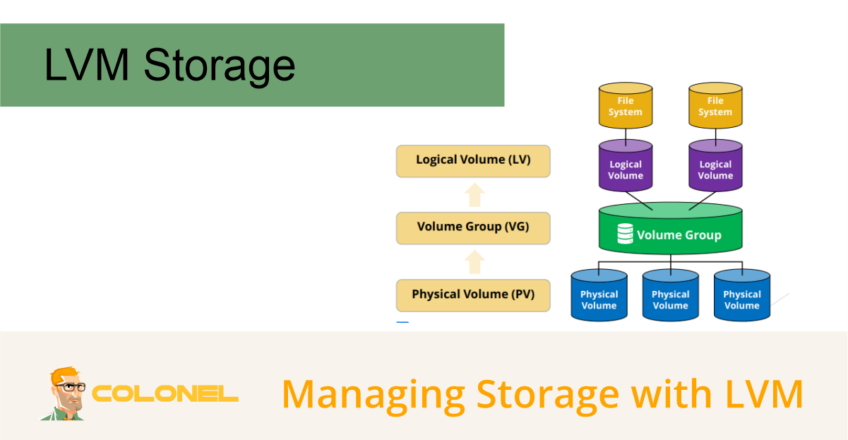
Logical Volume Manager (LVM) is an advanced storage management framework for Linux that abstracts physical storage devices into flexible logical storage pools. Instead of managing individual disks and partitions directly, administrators can combine multiple storage devices and allocate space dynamically as needed.
LVM sits between physical storage devices and file systems, providing a layer of flexibility that traditional partitioning methods cannot offer.
With LVM, administrators can:
- Combine multiple disks into a single storage pool
- Expand storage without major downtime
- Create flexible logical volumes
- Take storage snapshots
- Simplify storage administration
- Improve storage utilization
Because of its scalability and flexibility, LVM is widely used on production Linux servers, VPS platforms, cloud environments, and enterprise infrastructure.
Why Use LVM?
Traditional disk partitions are often difficult to resize once a system is in production.
Bijvoorbeeld, expanding a standard partition may require:

WordPress-webhosting
Vanaf $ 3,99/maandelijks
- Additional downtime
- Repartitioning disks
- Data migration
- Service interruptions
LVM eliminates many of these limitations by allowing storage resources to be allocated and adjusted dynamically.
Key advantages include:
- Online volume expansion
- Flexible storage allocation
- Snapshot functionality
- Easier storage management
- Better utilization of available disk space
These capabilities make LVM particularly useful for servers with changing storage requirements.
Core Components of LVM
LVM is built around three primary components:
- Physical Volumes (PV)
- Volume Groups (VG)
- Logical Volumes (LV)
Understanding how these components interact is essential for effective storage management.
Physical Volumes (PV)
Physical Volumes are the storage devices that provide capacity to LVM.

Goedkope VPS-server
Vanaf $ 2,99/maandelijks
A physical volume can be:
- A complete disk
- A disk partition
- A RAID device
- A virtual storage device
Before a storage device can participate in LVM, it must first be initialized as a physical volume.
Important considerations:
- The device must not contain active data that needs to be preserved.
- Existing partitions or file systems may need to be removed before use.
- Storage devices of different sizes can be combined.
Eenmaal geconfigureerd, LVM treats all physical volumes as storage resources that can be pooled together.
Creating Physical Volumes
Eerst, identify available disks:
fdisk -l
of:

Windows VPS-hosting
Toegang op afstand en volledig beheer
lsblk
Create physical volumes:
pvcreate /dev/sdb /dev/sdc /dev/sdd
Example output:
Physical volume "/dev/sdb" successfully created.
Physical volume "/dev/sdc" successfully created.
Physical volume "/dev/sdd" successfully created.
Viewing Physical Volumes
Display all physical volumes:
pvdisplay
This command shows:
- Physical volume name
- Size
- Allocation status
- Associated volume groups
Volume Groups (VG)
Volume Groups combine one or more physical volumes into a shared storage pool.
Think of a volume group as a storage container that aggregates available disk capacity.
Bijvoorbeeld:
Disk A: 100 GB
Disk B: 100 GB
Disk C: 100 GB
Combined into a volume group:
VG Total Capacity: 300 GB
Storage can then be allocated from this pool as required.
Creating a Volume Group
Create a volume group named vg-main:
vgcreate vg-main /dev/sdb /dev/sdc /dev/sdd
Example output:
Volume group "vg-main" successfully created
Viewing Volume Groups
Display detailed information:
vgdisplay
Useful information includes:
- Total size
- Free space
- Number of physical volumes
- Available capacity
A shorter summary can be displayed using:
vgs
Extending a Volume Group
Additional storage can be added later.
First create a new physical volume:
pvcreate /dev/sde
Then extend the volume group:
vgextend vg-main /dev/sde
This immediately increases available storage capacity.
Logical Volumes (LV)
Logical Volumes are the storage areas that users and applications actually use.
A logical volume is similar to a traditional disk partition but provides much greater flexibility.
Voordelen zijn onder meer:
- Dynamic resizing
- Simplified management
- Flexible storage allocation
Logical volumes can:
- Occupy part of a disk
- Occupy an entire disk
- Span multiple disks
Applications interact with logical volumes just like normal storage devices.
Creating a Logical Volume
Create a 25 GB logical volume:
lvcreate -n home -L 25G vg-main
Example output:
Logical volume "home" created
Viewing Logical Volumes
Display detailed information:
lvdisplay
Important information includes:
- Volume path
- Size
- Status
- Associated volume group
Example device path:
/dev/vg-main/home
Formatting Logical Volumes
Before use, logical volumes must be formatted with a file system.
Example using ext4:
mkfs.ext4 /dev/vg-main/home
Other supported file systems include:
- XFS
- ext3
- ext4
- Btrfs
Choose the file system that best suits your workload.
Mounting Logical Volumes
Create a mount point:
mkdir -p /mnt/home
Mount the logical volume:
mount -t ext4 /dev/vg-main/home /mnt/home
Verify:
df -h
Mounting Automatically During Boot
Add an entry to:
/etc/fstab
Example:
/dev/vg-main/home /mnt/home ext4 defaults 0 0
This ensures the volume mounts automatically after reboots.
Resizing Logical Volumes
One of LVM’s most valuable features is dynamic resizing.
Storage can be expanded without repartitioning disks.
Extending a Logical Volume
Increase the logical volume to 28 GB:
lvextend -L 28G /dev/vg-main/home
Als alternatief, use all available free space:
lvextend -l +100%FREE /dev/vg-main/home
Resizing the File System
After increasing the logical volume, expand the file system.
For ext4:
resize2fs /dev/vg-main/home
The file system will grow to match the new volume size.
Important Considerations
Before resizing:
- Verify backups exist
- Confirm available storage
- Review file system requirements
Most modern Linux file systems support online expansion.
Removing Logical Volumes
When storage is no longer required, logical volumes can be removed.
Warning
Removing a logical volume permanently deletes all data stored on it.
Always:
- Verify backups
- Move required data elsewhere
- Unmount the volume
Unmount the logical volume:
umount /mnt/home
Remove the volume:
lvremove /dev/vg-main/home
Confirm the operation when prompted.
The allocated storage returns to the volume group’s available capacity.
LVM Snapshots
Snapshots are one of the most powerful LVM features.
A snapshot captures the state of a logical volume at a specific point in time.
Snapshots are useful for:
- System updates
- Software testing
- Configuration changes
- Short-term recovery points
They provide a safety net before performing potentially risky operations.
How LVM Snapshots Work
Snapshots initially consume very little space.
As changes occur on the original volume, LVM preserves the original data blocks inside the snapshot.
This allows the snapshot to represent the volume exactly as it existed when created.
Snapshots should not be considered a replacement for backups.
They are designed for temporary protection and short-term rollback scenarios.
Creating an LVM Snapshot
Create a 5 GB snapshot:
lvcreate -s -n snapshot -L 5G /dev/vg-main/home
Parameters:
-screates a snapshot-nassigns a name-Ldefines snapshot size
The snapshot appears as a new logical volume.
Accessing Snapshot Data
Because a snapshot is a logical volume, it can be mounted like any other volume.
Example:
mount /dev/vg-main/snapshot /mnt/snapshot
This allows administrators to:
- Recover files
- Compare data
- Verify changes
without affecting the original volume.
Restoring from a Snapshot
To revert a logical volume to its previous state:
lvconvert --merge vg-main/snapshot
Example output:
Merging of volume snapshot started.
home: Merged: 100.0%
After the merge:
- The snapshot is removed
- The original volume returns to the snapshot state
Snapshot Merge Requirements
In most cases:
- The original volume must be unmounted
- Services should be stopped
- Root volume restores may require a reboot
Plan snapshot restoration carefully in production environments.
Removing Snapshots
If rollback is unnecessary, snapshots can be deleted.
Remove a snapshot:
lvremove vg-main/snapshot
Once removed:
- Storage space is reclaimed
- Snapshot data is permanently lost
Ensure the snapshot is no longer needed before deletion.
Best Practices for LVM
To maximize reliability:
Maintain Regular Backups
LVM is not a backup solution.
Always maintain:
- Offsite backups
- Automated backups
- Recovery procedures
Monitor Free Space
Check available capacity regularly:
vgs
En:
lvs
Use Descriptive Naming
Examples:
vg-production
vg-backups
lv-database
lv-home
Clear naming improves administration and troubleshooting.
Use Snapshots Carefully
Snapshots are extremely useful but should be temporary.
Large numbers of active snapshots can impact performance and consume storage.
Plan Future Growth
One of LVM’s strengths is scalability.
When designing storage layouts, leave room for future expansion whenever possible.
Why LVM Remains Essential for Linux Storage Management
LVM provides Linux administrators with a flexible and scalable storage management framework that goes far beyond traditional partitioning. By combining physical volumes into volume groups and allocating storage through logical volumes, organizations gain the ability to expand storage dynamically, create snapshots, simplify administration, and adapt infrastructure to changing requirements. For modern Linux servers, VPS environments, and enterprise workloads, LVM remains one of the most powerful tools available for efficient storage management and operational flexibility.
