
DNS-problemen oplossen met dig en nslookup is een van de beste methoden voor het diagnosticeren en oplossen van problemen met het oplossen van domeinnamen op serverniveau, websites, en netwerken. Als er problemen zijn zoals het niet kunnen oplossen van het domein, het niet bezorgen van e-mail of het onjuist bijwerken van DNS-records, deze diagnostische hulpmiddelen helpen u het probleem te diagnosticeren en in een mum van tijd op te lossen. Met behulp van dig en nslookup, men zal alle records kunnen onderzoeken, inclusief A-record, MX-record, CNAME's, voortplantingsproces en andere aspecten.
Wat is DNS-probleemoplossing en waarom is het belangrijk??
DNS-probleemoplossing verwijst naar het identificeren en oplossen van problemen met betrekking tot domeinomzettingsprocessen. Zodra de gebruiker een adres in een browservenster invoert, DNS transformeert dat specifieke domein naar een IP-adres. In het geval dat dit proces mislukt, websites zouden niet beschikbaar zijn, e-mails zouden niet doorkomen, API-verzoeken zouden mislukken, en zelfs serververbindingen zouden inconsistent worden.
Voor wie is DNS-probleemoplossing belangrijk?
Deze informatie is essentieel voor mensen zoals systeembeheerders, DevOps-professionals, en hostingbedrijven, evenals site-eigenaren. DNS-fouten kunnen tot veel soorten problemen leiden, variërend van website-downtime, SSL-certificaat issues, vertraagde e-mailbezorging, en plotselinge problemen bij het plaatsen van nieuwe inhoud na het bijwerken van records.
Wat veroorzaakt DNS-problemen?
Er bestaat een algemene misvatting dat DNS-problemen voortkomen uit verkeerde A-recordconfiguraties, Echter, de probleemoplossing kan een MX-recordcontrole omvatten, CNAME-ketenonderzoek, Validatie van TXT-records, inzicht in TTL's en caching-problemen, evenals propagatievertragingen van gezaghebbende naamservers.

Problemen met DNS oplossen en een uitstekend voorbeeld van DNS-problemen!
In plaats van de DNS-cache van uw lokale browser te bekijken wanneer u DNS-fouten opspoort met behulp van de dig- en nslookup-tools, u zult zien hoe de rest van de wereld uw domein ziet, wat uiterst belangrijk is, omdat dit niet altijd het geval zal zijn met browsercaches.

Goedkope VPS-server
Vanaf $ 2,99/maandelijks
Bijvoorbeeld, wanneer een domein wordt gemigreerd naar een nieuwe hostserver, inwoners van het ene land kunnen veranderingen in IP-adressen zien, terwijl inwoners van andere landen nog steeds hetzelfde IP-adres oplossen. Dit heeft niet altijd te maken met webhosts; dit kan slechts een vertraging van de voortplanting van recursieve solvers zijn.
Nauwkeurige detectie van DNS maakt een verschil voor de bedrijfscontinuïteit en betrouwbaarheid.
Op webbrowser gebaseerde hulpprogramma's voor het oplossen van DNS-problemen
Gebruikers die bedenkingen hebben bij het gebruik van shell-opdrachten bij het oplossen van problemen, vinden het wellicht beter om te beginnen met het gebruik van DNS-tools online. Met behulp van dergelijke middelen, u kunt DNS-tests rechtstreeks vanuit uw browser uitvoeren zonder toegang tot welke terminal dan ook.
Browsertesten zijn ideaal voor gebruikers die niet al te veel tijd ter beschikking hebben: senior beheerders, inhoud managers, of zelfs bedrijfseigenaren – gewoon om te zien wat er met een domein aan de hand is. Deze stap geeft u een hint dat het probleem bij het domein zelf ligt, of elders.
Het belangrijkste voordeel!
Eerst en vooral, het belangrijkste voordeel van het gebruik van browsergebaseerde tools is hun eenvoud. Met andere woorden, het enige wat u nodig heeft is een domeinnaam en toegang tot internet. Er is niets anders nodig.
Ten tweede, er moet sprake zijn van locatiegebonden testen. Het is belangrijk om in gedachten te houden dat veel problemen met DNS locatiespecifiek kunnen zijn, omdat sommige solvers sneller updaten dan andere.

Windows VPS-hosting
Toegang op afstand en volledig beheer
Dit is precies de reden waarom veel mensen eerst webtools gebruiken voordat ze DNS analyseren via dig en nslookup. Dit kan als direct referentiepunt worden gebruikt bij het vergelijken van de resultaten van andere analyses.

Gebruik van populaire hulpmiddelen om deze taak te volbrengen
Met behulp van populaire tools kunt u dit controleren:
- Een record – voor de resolutie van IP-adressen
- MX-record – voor e-mailbezorging
- CNAME-record – voor aliasvalidatie
- TXT-record – voor SPF/DKIM/verificatiedoeleinden
- NS-record – voor delegatieverificatie
- Publicatie van de informatie over verschillende zones
Het enige nadeel dat kan worden aangetroffen bij het gebruik van webtools is dat ze nooit mogen dienen als vervanging voor opdrachtregelcontroles.
DNS-propagatie online controleren
DNS-propagatie betekent dat DNS-wijzigingen van kracht worden op alle DNS-servers over de hele wereld. Nadat u wijzigingen heeft aangebracht in uw A-record, MX-record, of naamservers, niet alle DNS-servers zouden meteen worden bijgewerkt.
De reden hierachter ligt in het cachen van recursieve solvers op basis van hun TTL's. Het antwoord wordt pas geretourneerd totdat de TTL verloopt.
WhastMyDNS
WhastMyDNS is een van de meest populaire tools om uw DNS-propagatie te testen. U hoeft alleen maar uw domeinnaam in te voeren en een kaart te krijgen die de resultaten voor verschillende DNS-servers weergeeft.
Hiermee kunt u belangrijke vragen beantwoorden, zoals:
- Wordt het nieuwe IP wereldwijd gepropageerd??
- Zijn er regio's die het vorige IP-adres omzetten??
- Ligt het probleem lokaal of mondiaal??
- Zijn de wijzigingen in de nameservers al doorgevoerd??
Bijvoorbeeld, als een domein moet worden omgeleid naar een nieuwe server, maar Europa terugkeert naar de oude hosting, terwijl Azië terugkeert naar het nieuwe IP-adres, het betekent dat DNS-propagatie niet goed werkt.
Het betekent niet dat de server kapot is; liever, u moet in plaats daarvan de DNS-wijzigingen controleren.
Gebruik dig en nslookup voor DNS-probleemoplossing
Tijdens het oplossen van DNS-problemen met dig en nslookup, teamleden valideren het resultaat van de analyse meestal door de CLI-uitvoer te vergelijken met de propagatiekaart die door andere tools wordt gegenereerd. Deze aanpak maakt het mogelijk de precisie te verbeteren en valse negatieven te minimaliseren.
Controle van DNS-propagatie is daarna van cruciaal belang:
- Serververhuizing,
- CDN inschakelen,
- E-mailprovider wijzigen,
- SSL-verificatie voltooien,
- Domeineigendom overdragen,
- Cloudflare implementeren.
Zonder de release te valideren, netwerkingenieurs kunnen concluderen dat hun implementatie niet succesvol was. Echter, de reden kan liggen in vertraging en het verlopen van de cache.

Geavanceerde DNS-tests via de Dig-webinterface
Wanneer er diepgaander testen nodig is vanuit de webbrowser zelf, er is de Dig-webinterface die de daadwerkelijke functionaliteiten simuleert die beschikbaar zijn door het gebruik van dig-opdrachten.
In tegenstelling tot tools voor propagatiecontrole die alleen maar resultaten tonen, deze interface presenteert georganiseerde zoekresultaten die lijken op de resultaten die worden gepresenteerd door de daadwerkelijke dig-opdrachten.
Dit is vooral handig als u gedetailleerde resultaten nodig heeft, ondanks dat u op een extern systeem werkt zonder directe toegang tot de terminal.
A-records testen
Bij het testen op A-records, de gebruiker gebruikt eenvoudigweg de interface, voert de domeinnaam in, geeft aan dat het recordtype A is, selecteert een naamservervoorkeur, ofwel Google DNS of OpenDNS, en voert de query uit.
Er wordt een DNS-resultaat weergegeven, compleet met het eigenlijke dig-commando dat door het systeem wordt gebruikt.
Dergelijke kennis is nuttig omdat het helpt bij het leren overschakelen van browsergebaseerde tools naar de daadwerkelijke terminalgebaseerde diagnostiek.
Je kunt ook testen:
- MX voor postbezorging
- CNAME voor aliasbestemmingen
- TXT voor domeinvalidatie
- NS voor gezaghebbende servers
- SOA voor zonebeheer
- PTR voor validatie van reverse DNS-lookup
Voordat we naar de onderstaande tabel kijken, het zou handig zijn om te weten wat elk recordtype wordt gebruikt om op te lossen.
| Recordtype | Primair doel | Veelvoorkomend gebruiksscenario |
|---|---|---|
| A | Wijst domein toe aan IPv4-adres | Website-hosting |
| MX | Definieert de bestemming van de mailserver | E-mailbezorging |
| CNAME | Creëert een alias voor een andere hostnaam | CDN- en subdomeinroutering |
| TXT | Slaat op tekst gebaseerde verificatiegegevens op | SPF, DKIM, domeineigendom |
| NS | Identificeert gezaghebbende naamservers | DNS-delegatie |
| PTR | Omgekeerde DNS-toewijzing | E-mailreputatie en -validatie |
Het begrijpen van deze recordtypen verbetert zowel de diagnosesnelheid als de betrouwbaarheid van de infrastructuur.

Hoe nslookup te gebruiken op Microsoft Windows
Windows-systemen bevatten standaard geen dig, maar ze bieden nslookup, die vergelijkbare functionaliteit biedt voor praktische DNS-tests.
Om te beginnen, open de opdrachtprompt door op Start te drukken, door Uitvoeren te selecteren, cmd typen, en druk op Enter.
De meest fundamentele vraag is:
nslookup example.com
Deze opdracht controleert het A-record en retourneert het IP-adres dat aan het domein is gekoppeld.
Ook wordt weergegeven welke DNS-resolver het verzoek heeft beantwoord. Dit is belangrijk omdat de resultaten kunnen variëren afhankelijk van de gebruikte recursieve server.
Bijvoorbeeld:
nslookup example.com 208.67.222.222
Dit forceert de query via OpenDNS in plaats van de lokale standaardresolver.
Wanneer professionals DNS-problemen oplossen met dig en nslookup, testen met meerdere solvers helpt bepalen of het probleem lokale cache is, Caching op ISP-niveau, of gezaghebbende DNS-misconfiguratie.
Typische uitvoer omvat:
- Server gebruikt voor opzoeken
- IP-adres van de oplosser
- Domein opgelost
- Eindbestemming IP
Hierdoor ontstaat direct inzicht in het routeringsgedrag.
Voor het hosten van migraties, dit is vaak de snelste manier om te verifiëren of een Windows-machine de bijgewerkte bestemming ziet.
Nslookup is lichtgewicht, snel, en betrouwbaar voor diagnostiek op het eerste niveau, vooral binnen bedrijfsomgevingen waar Windows het dominante desktopplatform blijft.
A controleren, MX, en CNAME-records met nslookup
Standaard, nslookup controleert A-records, maar voor het oplossen van problemen bij productie is doorgaans meer nodig dan een eenvoudige IP-resolutie.
De bezorging van e-mail is afhankelijk van MX-records. CDN-routering is vaak afhankelijk van CNAME. Verificatiesystemen vereisen TXT-records.
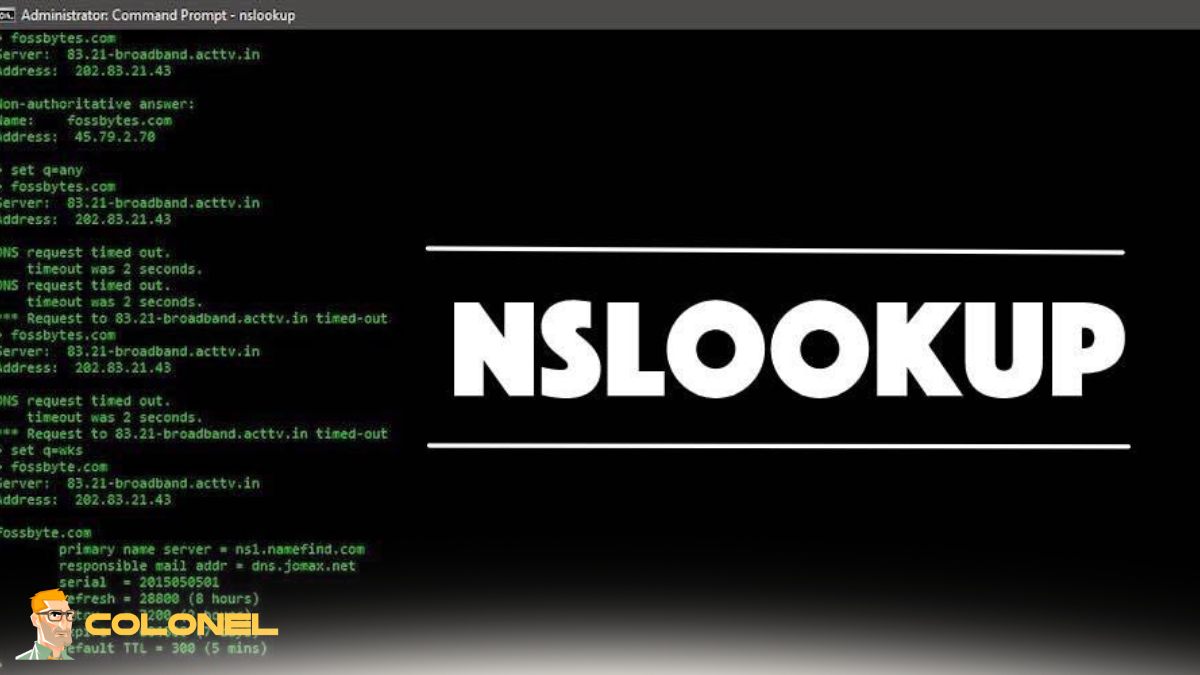
Om deze documenten te inspecteren, nslookup gaat naar de interactieve modus.
Begin met typen:
nslookup
Gebruik dan:
set type=MX
example.com
Hiermee worden de mailexchanger-records voor het domein geretourneerd en wordt aangegeven welke servers verantwoordelijk zijn voor de bezorging van inkomende e-mail.
Dit is van belang omdat gebruikers vaak melden dat "e-mail niet werkt" terwijl het werkelijke probleem een onjuiste MX-prioriteit of verouderde providerrouting is.
U kunt CNAME-records ook testen door het type te wijzigen:
set type=CNAME
Dit helpt bij het valideren van aliassen zoals:
- mail.voorbeeld.com
- blog.voorbeeld.com
- cdn.voorbeeld.com
- winkel.voorbeeld.com
Een kapotte CNAME-keten kan een applicatiefout veroorzaken, zelfs als het hoofd-A-record correct is.
Bij het oplossen van DNS-problemen met dig en nslookup
Wanneer technici DNS-problemen oplossen met dig en nslookup, they do not stop at homepage resolution, they validate service architecture across all supporting records.
Voor bedrijven die transactionele e-mail gebruiken, CRM-integraties, of externe SaaS-verificatiesystemen, Het controleren van deze gegevens is operationeel van cruciaal belang.
Als u ook op Linux gebaseerde webservers beheert, het lezen van artikel IInstalleer phpMyAdmin in LAMP met AlmaLinux OS (7 Stap) wordt sterk aanbevolen omdat databasetoegang en DNS-validatie elkaar vaak kruisen tijdens serverimplementatie en migratieworkflows.
Hoe gebruik je dig op macOS en Linux?
Op macOS en Linux, dig is het geprefereerde DNS-diagnostisch hulpmiddel vanwege zijn flexibiliteit, precisie, en gedetailleerde uitvoer.
Open Terminal vanuit Applicaties op macOS of start uw favoriete terminalsessie op Linux.
De eenvoudigste vraag is:
dig example.com
Hiermee wordt het A-record voor het domein opgehaald.
Handmatig een oplosser opgeven, gebruik:
dig @208.67.222.222 example.com
Dit is uiterst handig bij het vergelijken van antwoorden tussen lokale DNS, Google-DNS, Cloudflare DNS, en OpenDNS.
Het helpt bepalen of het probleem zich op de oplosserlaag of op het gezaghebbende naamserverniveau voordoet.
Om de e-mailroutering te controleren:
dig example.com MX
Om CNAME te inspecteren:
dig example.com CNAME
Om TXT te inspecteren:
dig example.com TXT
Deze commandostructuur is één van de redenen waarom geavanceerde beheerders de voorkeur geven aan dig wanneer zij DNS-problemen oplossen met dig en nslookup in gemengde besturingssysteemomgevingen.
Dig biedt ook een schonere gestructureerde uitvoer dan nslookup, waardoor het eenvoudiger wordt om scriptcontroles uit te voeren, validatie automatiseren, en documenteer incidentrapporten.
Voor DevOps-workflows waarbij CI/CD-implementatie betrokken is, servermigratie, Kubernetes ingress validation, of omgekeerde proxy-updates, dig wordt een dagelijks operationeel hulpmiddel in plaats van een incidenteel hulpprogramma voor het oplossen van problemen.

De resultaten van opgravingsopdrachten begrijpen en interpreteren
Hardlopen is slechts de eerste stap. De echte vaardigheid ligt in het correct interpreteren van het antwoord.
- Een standaarduitvoer bevat verschillende secties, elk met een operationele betekenis.
- In de VRAAGGEDEELTE wordt weergegeven wat er is gevraagd.
- De ANTWOORDGEDEELTE laat zien wat de DNS-server heeft geretourneerd.
- De SERVER-regel geeft aan welke oplosser heeft gereageerd.
- De Querytijd toont de prestatielatentie.
- De TTL-waarde geeft aan hoe lang het antwoord in de cache mag blijven.
- Het statusveld is bijzonder belangrijk.
- NOERROR betekent dat de zoekopdracht is geslaagd.
- NXDOMAIN betekent dat het domein niet bestaat.
- SERVFAIL duidt vaak op een probleem met de oplossing of een gezaghebbende server.
- GEWEIGERD kan wijzen op beleidsbeperkingen.
- Bijvoorbeeld, als de ANTWOORDGEDEELTE terugkeert:
- voorbeeld.com IN A 93.184.216.119
- dit bevestigt dat het domein momenteel naar dat IP-adres wordt omgezet.
- Als het verwachte IP-adres anders is, het probleem kan zijn:
- onjuiste gezaghebbende DNS
- onvoltooide voortplanting
- in de cache opgeslagen recursieve oplosserreactie
- verkeerde naamserverdelegatie
- Verkeerde configuratie op registrarniveau
Experienced administrators troubleshoot DNS with dig and nslookup by comparing expected infrastructure state with real resolver output, not assumptions.
Deze op bewijs gebaseerde methode onderscheidt reactief raden van professioneel systeembeheer.
DNS-probleemoplossing buiten het opzoeken
DNS-probleemoplossing gaat niet alleen over het oplossen van een probleem met uw domein; het gaat over het begrijpen van de communicatielaag zonder welke geen website mogelijk is, e-maildiensten, API's, of cloudservices kunnen werken. Door te leren hoe u DNS-problemen kunt oplossen met behulp van de dig- en nslookup-tools, men neemt de volledige verantwoordelijkheid voor het zelfstandig oplossen van problemen, in plaats van te moeten raden wat er mis is met het proces.
Afhankelijk van of je begint met browsertools of overschakelt naar nslookup in Windows en graaft in Linux, the common objective will always be the same verification of facts of DNS operation. Deze praktijk zorgt voor minder downtime, soepele migratieprocessen, en bedrijfscontinuïteit.
Goed beheerde DNS biedt een toegevoegde waarde in de vorm van betere bescherming tegen kwetsbaarheden gerelateerd aan mailrouting, SPF, DKIM, en delegatie van naamservers. De kleinste fout in de DNS-configuratie kan tot ernstige operationele problemen leiden.
Hoe vaker men DNS-probleemoplossing uitvoert met behulp van dig/nslookup, hoe gemakkelijker het is om de oorzaken van storingen te begrijpen en hoe beter beheer van real-time operaties kan worden verzekerd. Dit geldt vandaag de dag vooral als het gaat om hosting- en serverbeheerpraktijken.
