
Creating Backup via SSH in cPanel is one of the most effective and reliable ways to ensure the security of your websites’ files, database, emails, and other information stored on the server in 2026. Unlike manually downloading information from the browser interface, accessing the server with SSH allows performing full or selective backup actions in a few seconds from the command line interface. This option makes it particularly useful for virtual private servers (VPS) and dedicated hosting, allowing you to back up data automatically, transfer files to another server, or restore lost files in case of a disaster. With SSH access, it is possible to protect any valuable data stored on your cPanel server effectively.
Why Backing Up Your cPanel Account Is Important
Every website owner eventually faces unexpected problems such as accidental file deletion, malware infections, failed updates, hardware crashes, or server misconfigurations. Without a proper backup, recovering lost data can become extremely difficult and expensive. This is why creating regular backups is one of the most important responsibilities in server management. A backup gives you the ability to restore your website, databases, emails, and account settings quickly whenever something goes wrong.
Using Backup via SSH in cPanel provides more control and flexibility compared to browser-based backup methods. SSH access allows administrators to create backups directly from the terminal, automate backup tasks, and securely move files between servers. This approach is especially useful for VPS and dedicated servers where speed and advanced management options matter.
Backups also help during migrations and upgrades. If you plan to transfer your website to another hosting provider or update server software, a recent backup acts as a safety net. In 2026, cyberattacks and ransomware threats continue to increase, making backup strategies more important than ever for businesses and personal websites alike.

What Is SSH Access in cPanel Hosting?
SSH, or Secure Shell, is a secure protocol used to remotely connect to a server through the command line. In cPanel hosting environments, SSH access enables administrators and advanced users to manage files, execute commands, install software, and create backups without relying only on the graphical interface.

Cheap VPS Server
Starting From $2.99/Monthly
Unlike FTP, SSH encrypts all communication between your computer and the server. This makes it far safer for transferring sensitive files and managing server operations. SSH is widely used by developers and system administrators because it provides direct control over the hosting environment.
When using Backup via SSH in cPanel, users can automate backups with scripts, compress files more efficiently, and access system tools that are unavailable in the regular cPanel dashboard. Most modern hosting providers offer SSH access on VPS and dedicated hosting plans, while some shared hosting companies provide limited SSH access upon request.
Prerequisites Before Using SSH for Backups
Before creating backups through SSH, you should prepare your server environment correctly. Several important requirements must be checked to avoid permission issues or failed backup operations.
You should first verify whether your hosting plan supports SSH access. Some entry-level hosting plans disable terminal access for security reasons. You also need your server IP address, SSH username, and password or SSH key authentication.
In addition, your server should have enough free disk space to store backup archives. Large websites with multiple databases and email accounts can generate massive backup files. Running a backup without sufficient storage may cause incomplete archives or server instability.
Security preparation is equally important. Strong passwords, SSH key authentication, and firewall configuration can reduce the risk of unauthorized access while performing remote server operations.

Windows VPS Hosting
Remote Access & Full Admin
Enabling SSH Access in cPanel
SSH access is not always enabled by default. Depending on your hosting provider, you may need to activate it manually through the cPanel dashboard or request activation from support.
In many cPanel environments, SSH settings can be found under the “Security” section. Some providers require users to upload an SSH public key before enabling access. This method improves server security because it replaces password-only authentication with cryptographic keys.
Once enabled, you can connect using applications such as PuTTY or Terminal. Always verify the server hostname and SSH port before attempting to log in.
Required Permissions and Root Access
The level of access you have determines which backup operations you can perform. Standard cPanel users can back up their own accounts, but advanced system-wide backups often require root access.
Root access gives administrators full control over all accounts and system files. This is especially useful when managing reseller hosting environments or dedicated servers with multiple websites.
However, root access also carries security risks. Incorrect commands can damage important server files. For this reason, server administrators should use sudo privileges carefully and restrict root login whenever possible.
Checking Available Disk Space
Before starting any backup operation, you should confirm that enough storage space exists on the server. Backup archives often consume significant disk space, especially when websites contain large media libraries or email accounts.
You can check storage usage using commands like:
df -h
This command displays available storage in a human-readable format. You should also identify directories consuming the most space with:
du -sh *
Monitoring disk usage prevents failed backups and ensures stable server performance during the process.
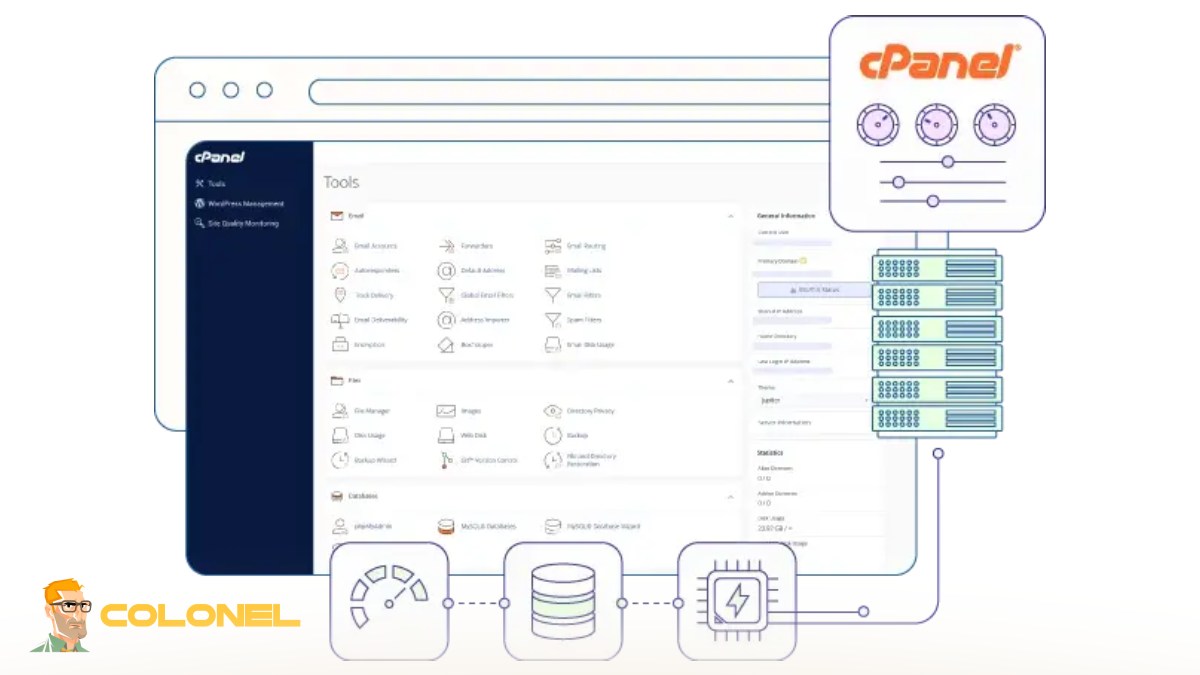
How to Connect to Your Server via SSH
Connecting to a server through SSH is relatively simple once SSH access is enabled. The process requires an SSH client and valid login credentials.
The general SSH syntax is:
ssh username@server-ip
After entering the password or using an SSH key, you gain command-line access to the server environment. Secure SSH connections are essential for managing Backup via SSH in cPanel operations efficiently.
Using PuTTY on Windows
Windows users commonly use PuTTY as their SSH client. PuTTY is lightweight, free, and widely trusted by server administrators.
To connect:
- Open PuTTY.
- Enter the server IP address.
- Select SSH as the connection type.
- Click Open.
- Enter your username and password.
PuTTY also supports SSH key authentication for improved security. Saved sessions allow users to reconnect quickly without re-entering configuration details every time.
Connecting with Terminal on Linux and macOS
Linux and macOS include built-in Terminal applications that support SSH connections without additional software.
Users simply run:
ssh username@hostname
If you use SSH keys, you can specify them with:
ssh -i keyfile.pem username@hostname
Terminal-based access is fast, efficient, and commonly preferred by experienced Linux administrators.
Basic SSH Login Command Examples
Below are common SSH commands frequently used in cPanel hosting environments:
| Command | Purpose |
ssh [email protected] |
Connect to server |
exit |
Disconnect SSH session |
pwd |
Show current directory |
ls -la |
List directory contents |
cd /home |
Navigate to directory |
top |
Monitor server resources |
Understanding these commands helps users manage backups more effectively and troubleshoot server issues quickly.
Understanding cPanel Backup Types
cPanel supports several backup methods designed for different recovery situations. Choosing the correct backup type depends on your server environment and recovery goals.
Some backups focus on complete account recovery, while others only save specific components such as databases or website files. Knowing the differences between backup types can improve storage efficiency and simplify restoration procedures.
Full Account Backups
A full account backup contains everything associated with a cPanel account, including:
- Website files
- MySQL databases
- Email accounts
- DNS settings
- FTP accounts
- SSL certificates
Full backups are ideal for migrations and disaster recovery because they allow the entire account to be restored quickly. However, they consume more storage space and may take longer to create.
Partial Backups
Partial backups only save selected components such as databases, home directories, or email configurations. These backups are useful when making small website changes or updating applications.
For example, developers often back up only the database before modifying website content management systems.
Partial backups are smaller and faster than full backups, making them practical for frequent backup schedules.
Incremental Backups
Incremental backups only store changes made since the last backup. This approach saves disk space and reduces server load significantly.
Instead of duplicating entire files every time, incremental systems track modified data blocks. Many enterprise backup solutions use incremental methods because they improve efficiency for large hosting environments.
Manual vs Automated Backups
Manual backups require users to execute commands themselves, while automated backups run on predefined schedules.
Manual backups provide direct control and are useful before major server changes. Automated backups reduce human error and ensure consistent protection.
Advantages of automated backups include:
- Regular protection without manual intervention
- Reduced risk of forgotten backups
- Faster disaster recovery preparation
- Better scheduling flexibility
- Consistent backup retention policies
Most administrators combine manual and automated strategies for maximum reliability.
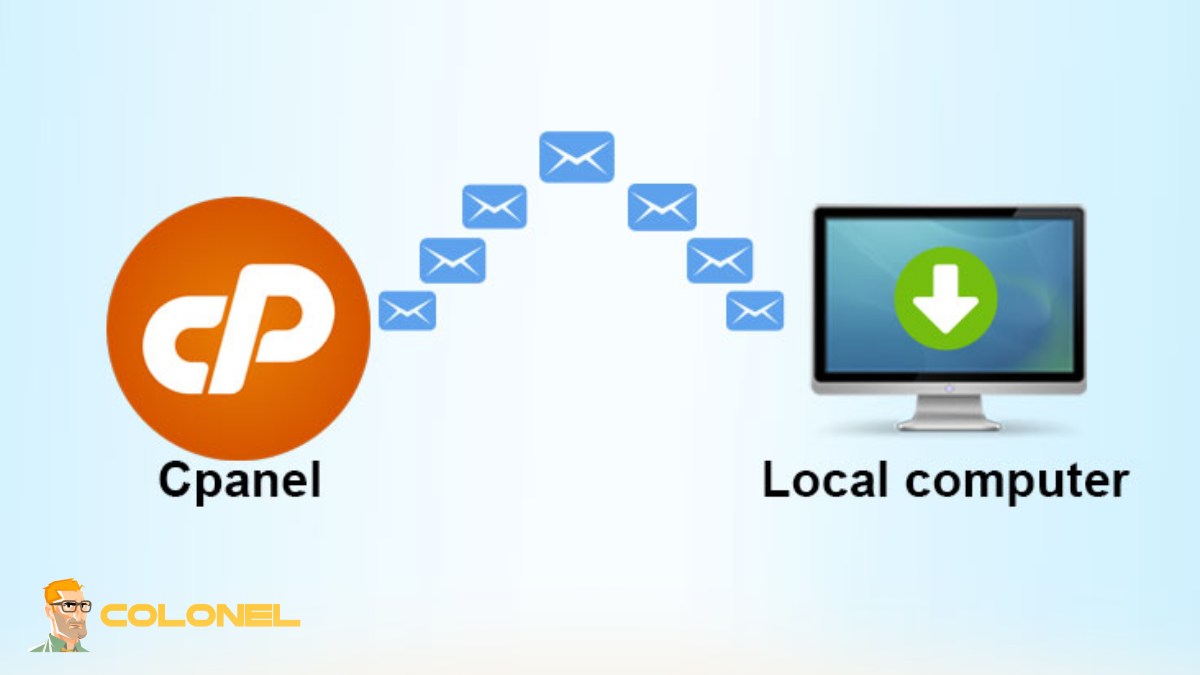
How To Backup via SSH in cPanel Step-by-Step
Creating backups through SSH involves several steps depending on the type of data being protected. The command line gives users advanced flexibility compared to standard cPanel backup tools.
Using Backup via SSH in cPanel can improve backup speed, especially on servers hosting large websites or multiple accounts.
Creating a Full cPanel Backup Using SSH
cPanel includes built-in scripts for generating complete account backups.
Example command:
/scripts/pkgacct username
This creates a compressed backup archive in the /home directory. Administrators can later transfer or restore this file on another server.
For multiple accounts, root users can automate batch backup creation with shell scripts.
Backing Up Website Files with tar Command
The tar command is one of the most popular Linux tools for file archiving and compression.
Example:
tar -czvf backup.tar.gz public_html
This command compresses the entire website directory into a .tar.gz archive.
The tar utility is highly efficient and works perfectly for Backup via SSH in cPanel tasks involving large file collections.
Exporting MySQL Databases via SSH
Database backups are critical for dynamic websites such as WordPress, Joomla, or Magento.
You can export MySQL databases using:
mysqldump -u username -p database_name > backup.sql
After entering the password, the database contents are exported into an SQL file.
Database dumps are easy to restore and essential before upgrading website applications or modifying server configurations.
Compressing Backup Files for Faster Transfers
Compressed backups consume less bandwidth and storage space. Common Linux compression formats include .gz, .bz2, and .xz.
Example compression command:
gzip backup.sql
Compression significantly speeds up remote file transfers and reduces storage costs.
Storing Backups in a Custom Directory
Organizing backup files in dedicated directories improves server management.
Example:
mkdir /backup
mv backup.tar.gz /backup
Keeping backups outside public web directories enhances security and prevents accidental exposure through browsers.

Useful SSH Commands for cPanel Backups
Several Linux commands can simplify backup management and improve automation.
Common commands include:
rsync
scp
cron
gzip
tar
find
Mastering these tools makes backup administration faster and more reliable.
Using rsync for Remote Backups
rsync is an advanced synchronization tool widely used for remote server backups.
Example:
rsync -avz /home user@remote-server:/backup
This command securely synchronizes backup data with another server while minimizing bandwidth usage.
Many administrators prefer rsync because it supports incremental file transfers and resume functionality.
Scheduling Automatic Backups with Cron Jobs
Cron jobs allow servers to execute backup commands automatically at scheduled times.
Example cron task:
0 2 * * * /scripts/pkgacct username
This command creates a backup daily at 2 AM.
Automated scheduling is one of the biggest advantages of Backup via SSH in cPanel because it ensures continuous data protection without manual intervention.
Checking Backup File Integrity
A corrupted backup is almost as dangerous as having no backup at all. Administrators should always verify backup integrity.
Checksum verification example:
md5sum backup.tar.gz
You can compare checksums after transferring files to ensure data integrity remains intact.
Monitoring Backup Progress in Real Time
Large backups may take several hours. Real-time monitoring helps administrators track progress and identify bottlenecks.
Useful commands include:
top
htop
iotop
These tools display CPU, memory, and disk activity during backup operations.
How to Download Backup Files Securely
After creating backups, administrators usually transfer them to local computers or external storage platforms.
Secure transfer methods are essential because backup archives may contain sensitive customer data and account credentials.
Using SCP to Transfer Backups
SCP is a secure file transfer method built on SSH encryption.
Example:
scp backup.tar.gz user@local-ip:/destination
SCP is simple, secure, and commonly used for server migrations.
Downloading Backups with SFTP
SFTP provides graphical file transfer capabilities using SSH encryption. Applications such as FileZilla and WinSCP support SFTP connections.
SFTP is easier for beginners who prefer graphical interfaces over terminal commands.
Moving Backups to Cloud Storage
Cloud storage services provide off-site redundancy and protection against physical server failures.
Popular options include:
- Google Cloud Storage
- Amazon S3
- Backblaze B2
- Dropbox
- Wasabi
Remote cloud storage significantly improves disaster recovery planning.
Restoring cPanel Backups via SSH
Creating backups is only half the process. Administrators must also know how to restore data correctly during emergencies.
Testing restoration procedures regularly helps ensure backups remain usable when needed.
Restoring Website Files
Website restoration usually involves extracting compressed archives back into the public web directory.
Example:
tar -xzvf backup.tar.gz
Always verify file permissions after restoration to avoid website access problems.
Importing MySQL Databases
MySQL databases can be restored using:
mysql -u username -p database_name < backup.sql
This command imports the saved SQL dump back into the database server.
Restoring Full cPanel Accounts
Root administrators can restore entire accounts using:
/scripts/restorepkg username
This process restores files, databases, emails, and account configurations automatically.
Common Backup Errors and How to Fix Them
Even experienced administrators encounter backup-related problems. Understanding common errors helps reduce downtime and avoid failed recoveries.
Permission Denied Errors
Permission errors usually occur when users attempt to access restricted directories.
Solutions include:
- Using sudo privileges
- Correcting file ownership
- Adjusting directory permissions
- Verifying SSH user access
Always avoid using overly permissive settings such as 777 unless absolutely necessary.
Disk Space Issues
Insufficient storage is one of the most common causes of backup failure.
Administrators should regularly remove old backups and monitor storage usage with:
df -h
External storage solutions can also reduce local disk pressure.
Corrupted Backup Archives
Corrupted archives may result from interrupted transfers, disk failures, or incomplete compression processes.
To minimize corruption risks:
- Verify checksums
- Use reliable storage hardware
- Test backups regularly
- Avoid sudden server shutdowns
Reliable Backup via SSH in cPanel practices always include integrity verification.
SSH Connection Problems
SSH issues can occur because of firewall restrictions, incorrect credentials, or disabled SSH services.
Troubleshooting steps include:
systemctl status sshd
Administrators should also verify SSH ports and restart the SSH service if necessary.

Best Practices for Secure cPanel Backups in 2026
Modern backup strategies require more than simply creating archive files. Security, automation, and redundancy are equally important.
Implementing best practices helps organizations minimize data loss risks and improve operational reliability.
Keeping Multiple Backup Copies
The 3-2-1 backup rule remains highly recommended:
- Keep 3 copies of your data
- Store backups on 2 different media types
- Keep 1 copy off-site
This strategy protects against hardware failure, ransomware, and accidental deletion.
Encrypting Sensitive Backup Data
Backup archives often contain passwords, customer data, and confidential business information.
Encryption tools such as GPG can secure backup files:
gpg -c backup.tar.gz
Encrypted backups add an extra layer of protection against unauthorized access.
Automating Backup Schedules
Consistent backup schedules reduce human error and improve disaster preparedness.
Many administrators configure:
- Daily database backups
- Weekly full account backups
- Monthly archive retention
- Off-site synchronization tasks
Automated systems are essential for scalable hosting environments in 2026.
Testing Backup Restoration Regularly
A backup is only useful if it can be restored successfully. Periodic restoration testing ensures backup archives remain functional and complete.
Testing should include:
- File restoration
- Database recovery
- Email account verification
- Permission validation
If you are planning major server maintenance, you should also read the article How to Upgrade cPanel Without Breaking Your Server to avoid configuration conflicts and downtime during updates.
The Smart Way to Protect Your Hosting Environment
Managing server backups properly is one of the most important parts of website administration. From protecting databases and website files to securing email accounts and system settings, reliable backup strategies can prevent serious downtime and financial loss. Using Backup via SSH in cPanel gives administrators advanced flexibility, better automation, and stronger security compared to standard browser-based methods. Whether you are running a personal blog, business website, or reseller hosting environment, learning SSH-based backup techniques can improve recovery speed and overall server stability. In 2026, combining automated backups, encrypted storage, remote synchronization, and regular restoration testing remains the best strategy for long-term data protection and disaster recovery preparedness.
