
Het maken van back-ups via SSH in cPanel is een van de meest effectieve en betrouwbare manieren om de veiligheid van uw websites te garanderen’ bestanden, database, e-mails, en andere informatie die op de server is opgeslagen 2026. In tegenstelling tot het handmatig downloaden van informatie via de browserinterface, Door toegang te krijgen tot de server met SSH kunt u binnen enkele seconden volledige of selectieve back-upacties uitvoeren vanaf de opdrachtregelinterface. Deze optie maakt het bijzonder nuttig voor virtuele privéservers (VPS) en toegewijde hosting, zodat u automatisch een back-up van uw gegevens kunt maken, bestanden overbrengen naar een andere server, of herstel verloren bestanden in geval van een ramp. Met SSH-toegang, het is mogelijk om alle waardevolle gegevens die op uw cPanel-server zijn opgeslagen effectief te beschermen.
Waarom het maken van een back-up van uw cPanel-account belangrijk is
Elke website-eigenaar wordt uiteindelijk geconfronteerd met onverwachte problemen, zoals het per ongeluk verwijderen van bestanden, malware-infecties, mislukte updates, hardware crasht, of verkeerde configuraties van de server. Zonder een goede back-up, het herstellen van verloren gegevens kan uiterst moeilijk en duur worden. Daarom is het maken van regelmatige back-ups een van de belangrijkste verantwoordelijkheden bij serverbeheer. Een back-up geeft u de mogelijkheid om uw website te herstellen, databases, e-mails, en accountinstellingen snel wanneer er iets misgaat.
Het gebruik van Back-up via SSH in cPanel biedt meer controle en flexibiliteit vergeleken met browsergebaseerde back-upmethoden. Met SSH-toegang kunnen beheerders rechtstreeks vanaf de terminal back-ups maken, back-uptaken automatiseren, en bestanden veilig tussen servers verplaatsen. Deze aanpak is vooral handig voor VPS en dedicated servers waar snelheid en geavanceerde beheeropties belangrijk zijn.
Back-ups helpen ook tijdens migraties en upgrades. Als u van plan bent uw website over te zetten naar een andere hostingprovider of de serversoftware te updaten, een recente back-up fungeert als vangnet. In 2026, cyberaanvallen en ransomware-bedreigingen blijven toenemen, waardoor back-upstrategieën belangrijker dan ooit zijn voor zowel bedrijven als persoonlijke websites.
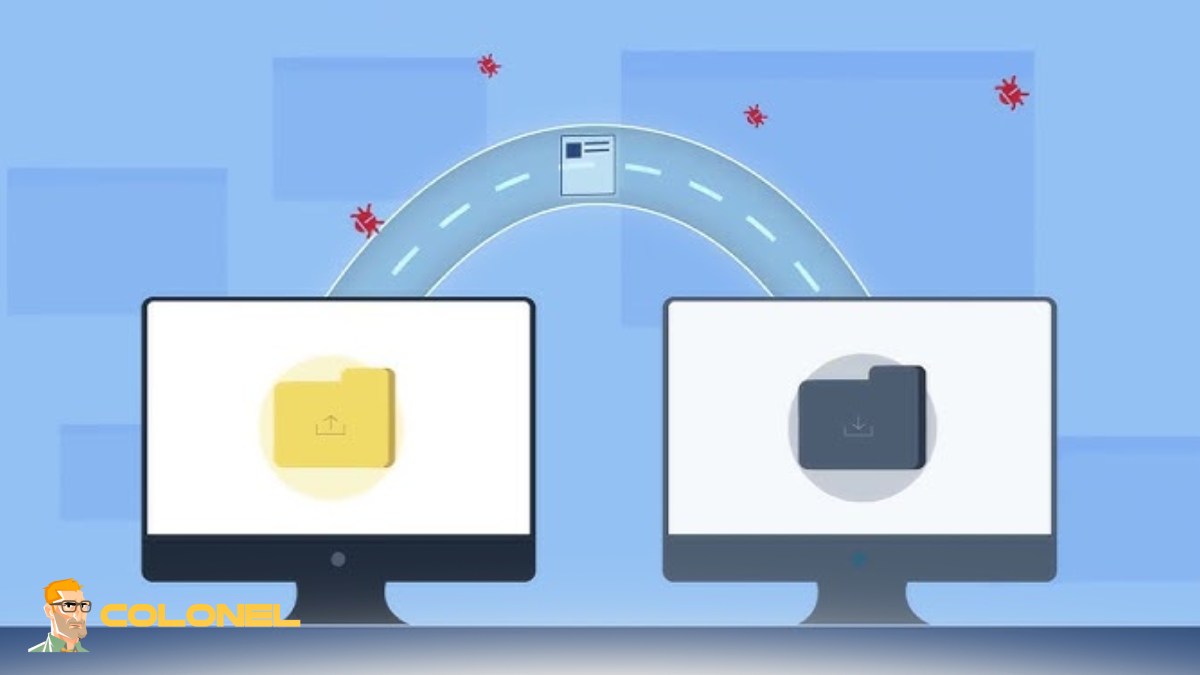
Wat is SSH-toegang in cPanel-hosting?
SSH, of Secure Shell, is een beveiligd protocol dat wordt gebruikt om op afstand verbinding te maken met een server via de opdrachtregel. In cPanel-hosting omgevingen, Met SSH-toegang kunnen beheerders en geavanceerde gebruikers bestanden beheren, opdrachten uitvoeren, software installeren, en maak back-ups zonder alleen op de grafische interface te vertrouwen.

Goedkope VPS-server
Vanaf $ 2,99/maandelijks
In tegenstelling tot FTP, SSH codeert alle communicatie tussen uw computer en de server. Dit maakt het veel veiliger voor het overbrengen van gevoelige bestanden en het beheren van serveractiviteiten. SSH wordt veel gebruikt door ontwikkelaars en systeembeheerders omdat het directe controle biedt over de hostingomgeving.
Bij gebruik van Back-up via SSH in cPanel, gebruikers kunnen back-ups automatiseren met scripts, bestanden efficiënter comprimeren, en krijg toegang tot systeemtools die niet beschikbaar zijn in het reguliere cPanel-dashboard. De meeste moderne hostingproviders bieden SSH-toegang op VPS en speciale hostingplannen, while some gedeelde hosting companies provide limited SSH access upon request.
Vereisten voordat u SSH voor back-ups gebruikt
Voordat u back-ups maakt via SSH, u moet uw serveromgeving correct voorbereiden. Er moeten verschillende belangrijke vereisten worden gecontroleerd om toestemmingsproblemen of mislukte back-upbewerkingen te voorkomen.
Controleer eerst of uw hostingpakket SSH-toegang ondersteunt. Sommige hostingpakketten op instapniveau schakelen om veiligheidsredenen de terminaltoegang uit. U hebt ook het IP-adres van uw server nodig, SSH-gebruikersnaam, en wachtwoord- of SSH-sleutelverificatie.
In aanvulling, uw server moet voldoende vrije schijfruimte hebben om back-uparchieven op te slaan. Grote websites met meerdere databases en e-mailaccounts kunnen enorme back-upbestanden genereren. Het uitvoeren van een back-up zonder voldoende opslagruimte kan onvolledige archieven of serverinstabiliteit veroorzaken.
Beveiligingsvoorbereiding is net zo belangrijk. Sterke wachtwoorden, SSH-sleutelverificatie, en firewallconfiguratie kunnen het risico op ongeautoriseerde toegang verminderen tijdens het uitvoeren van externe serverbewerkingen.

Windows VPS-hosting
Toegang op afstand en volledig beheer
SSH-toegang inschakelen in cPanel
SSH-toegang is niet altijd standaard ingeschakeld. Afhankelijk van uw hostingprovider, Mogelijk moet u het handmatig activeren via het cPanel-dashboard of activering aanvragen bij de ondersteuning.
In veel cPanel-omgevingen, SSH-instellingen zijn te vinden onder het gedeelte ‘Beveiliging’. Sommige providers vereisen dat gebruikers een openbare SSH-sleutel uploaden voordat ze toegang verlenen. Deze methode verbetert de serverbeveiliging omdat authenticatie met alleen wachtwoorden wordt vervangen door cryptografische sleutels.
Eenmaal ingeschakeld, u kunt verbinding maken met toepassingen zoals PuTTY of Terminal. Controleer altijd de hostnaam van de server en de SSH-poort voordat u probeert in te loggen.
Vereiste machtigingen en root-toegang
Het toegangsniveau dat u heeft, bepaalt welke back-upbewerkingen u kunt uitvoeren. Standaard cPanel-gebruikers kunnen een back-up maken van hun eigen accounts, maar voor geavanceerde systeembrede back-ups is vaak root-toegang vereist.
Root-toegang geeft beheerders volledige controle over alle accounts en systeembestanden. This is especially useful when managing reseller-hosting environments or dedicated servers with multiple websites.
Echter, root-toegang brengt ook veiligheidsrisico's met zich mee. Onjuiste opdrachten kunnen belangrijke serverbestanden beschadigen. Om deze reden, serverbeheerders moeten sudo-rechten zorgvuldig gebruiken en root-login waar mogelijk beperken.
Beschikbare schijfruimte controleren
Voordat u een back-upbewerking start, u moet bevestigen dat er voldoende opslagruimte op de server aanwezig is. Back-uparchieven nemen vaak aanzienlijke schijfruimte in beslag, vooral wanneer websites grote mediabibliotheken of e-mailaccounts bevatten.
U kunt het opslaggebruik controleren met opdrachten zoals:
df -h
Met deze opdracht wordt de beschikbare opslagruimte weergegeven in een voor mensen leesbaar formaat. U moet ook de mappen identificeren die de meeste ruimte in beslag nemen:
du -sh *
Het monitoren van schijfgebruik voorkomt mislukte back-ups en zorgt voor stabiele serverprestaties tijdens het proces.
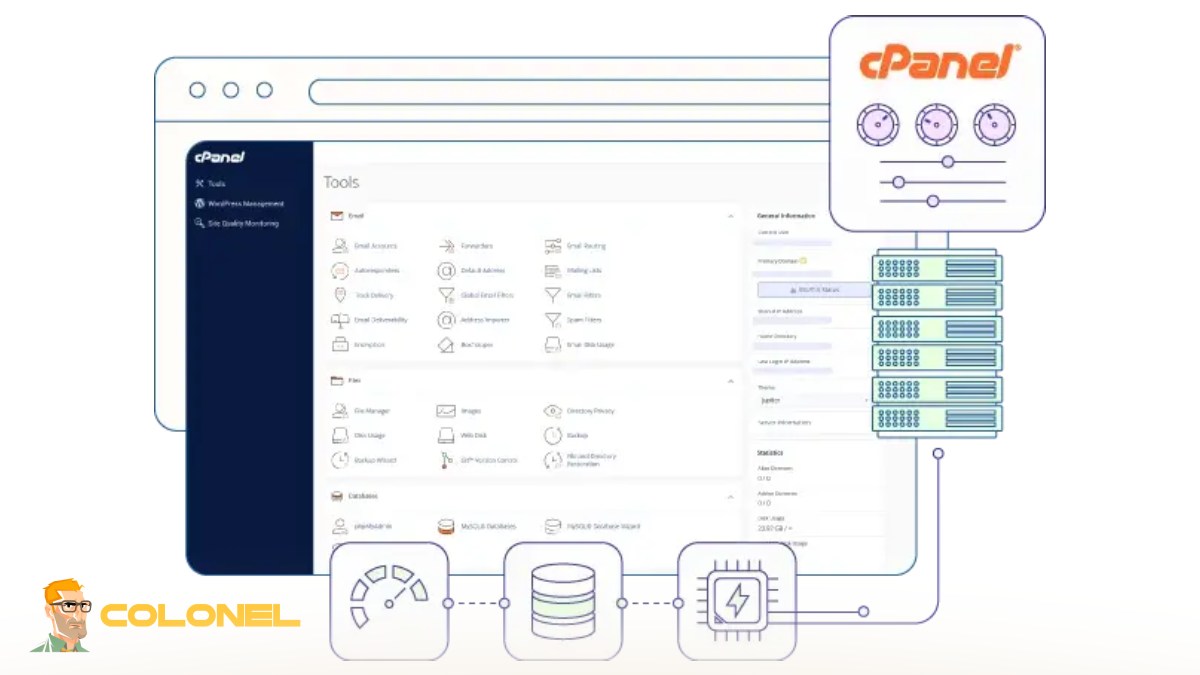
Verbinding maken met uw server via SSH
Verbinding maken met een server via SSH is relatief eenvoudig zodra SSH-toegang is ingeschakeld. Voor het proces zijn een SSH-client en geldige inloggegevens vereist.
De algemene SSH-syntaxis is:
ssh username@server-ip
Na het invoeren van het wachtwoord of het gebruik van een SSH-sleutel, u krijgt opdrachtregeltoegang tot de serveromgeving. Veilige SSH-verbindingen zijn essentieel voor het beheer Back-up via SSH in cPanel operaties efficiënt.
PuTTY gebruiken op Windows
Windows-gebruikers gebruiken PuTTY vaak als hun SSH-client. PuTTY is lichtgewicht, vrij, en algemeen vertrouwd door serverbeheerders.
Om verbinding te maken:
- Open PuTTY.
- Voer het IP-adres van de server in.
- Selecteer SSH als verbindingstype.
- Klik op Openen.
- Voer uw gebruikersnaam en wachtwoord in.
PuTTY ondersteunt ook SSH-sleutelauthenticatie voor verbeterde beveiliging. Met opgeslagen sessies kunnen gebruikers snel opnieuw verbinding maken zonder elke keer de configuratiegegevens opnieuw in te voeren.
Verbinding maken met Terminal op Linux en macOS
Linux en macOS bevatten ingebouwde Terminal-applicaties die SSH-verbindingen ondersteunen zonder aanvullende software.
Gebruikers rennen gewoon weg:
ssh username@hostname
Als u SSH-sleutels gebruikt, je kunt ze opgeven met:
ssh -i keyfile.pem username@hostname
Terminal-gebaseerde toegang is snel, efficiënt, en wordt vaak geprefereerd door ervaren Linux-beheerders.
Basisvoorbeelden van SSH-aanmeldingsopdrachten
Hieronder vindt u veelgebruikte SSH-opdrachten die vaak worden gebruikt in cPanel-hostingomgevingen:
| Commando | Doel |
ssh [email protected] |
Maak verbinding met de server |
exit |
Verbreek de SSH-sessie |
pwd |
Toon huidige map |
ls -la |
Lijst met directory-inhoud |
cd /home |
Navigeer naar map |
top |
Bewaak serverbronnen |
Door deze opdrachten te begrijpen, kunnen gebruikers back-ups effectiever beheren en serverproblemen snel oplossen.
Inzicht in cPanel-back-uptypen
cPanel ondersteunt verschillende back-upmethoden die zijn ontworpen voor verschillende herstelsituaties. Het kiezen van het juiste back-uptype is afhankelijk van uw serveromgeving en hersteldoelen.
Sommige back-ups zijn gericht op volledig accountherstel, terwijl anderen alleen specifieke componenten opslaan, zoals databases of websitebestanden. Het kennen van de verschillen tussen back-uptypen kan de opslagefficiëntie verbeteren en herstelprocedures vereenvoudigen.
Volledige accountback-ups
Een volledige accountback-up bevat alles wat aan een cPanel-account is gekoppeld, inbegrepen:
- Website-bestanden
- MySQL-databases
- E-mailaccounts
- DNS-instellingen
- FTP-accounts
- SSL-certificaten
Volledige back-ups zijn ideaal voor migraties en noodherstel, omdat hiermee het volledige account snel kan worden hersteld. Echter, ze verbruiken meer opslagruimte en het kan langer duren om ze te maken.
Gedeeltelijke back-ups
Gedeeltelijke back-ups slaan alleen geselecteerde componenten op, zoals databases, thuismappen, of e-mailconfiguraties. Deze back-ups zijn handig bij het maken van kleine wijzigingen aan de website of het updaten van applicaties.
Bijvoorbeeld, ontwikkelaars maken vaak alleen een back-up van de database voordat ze de contentbeheersystemen van websites aanpassen.
Gedeeltelijke back-ups zijn kleiner en sneller dan volledige back-ups, waardoor ze praktisch zijn voor frequente back-upschema's.
Incrementele back-ups
Incrementele back-ups slaan alleen wijzigingen op die zijn aangebracht sinds de laatste back-up. Deze aanpak bespaart schijfruimte en vermindert de serverbelasting aanzienlijk.
In plaats van elke keer hele bestanden te dupliceren, incrementele systemen volgen gewijzigde datablokken. Veel zakelijke back-upoplossingen maken gebruik van incrementele methoden omdat ze de efficiëntie van grote hostingomgevingen verbeteren.
Handmatige versus geautomatiseerde back-ups
Voor handmatige back-ups moeten gebruikers zelf opdrachten uitvoeren, terwijl geautomatiseerde back-ups volgens vooraf gedefinieerde schema's worden uitgevoerd.
Handmatige back-ups bieden directe controle en zijn handig vóór grote serverwijzigingen. Geautomatiseerde back-ups verminderen menselijke fouten en zorgen voor consistente bescherming.
Voordelen van geautomatiseerde back-ups zijn onder meer::
- Regelmatige bescherming zonder handmatige tussenkomst
- Verminderd risico op vergeten back-ups
- Snellere voorbereiding op noodherstel
- Betere planningsflexibiliteit
- Consistent beleid voor het bewaren van back-ups
De meeste beheerders combineren handmatige en geautomatiseerde strategieën voor maximale betrouwbaarheid.
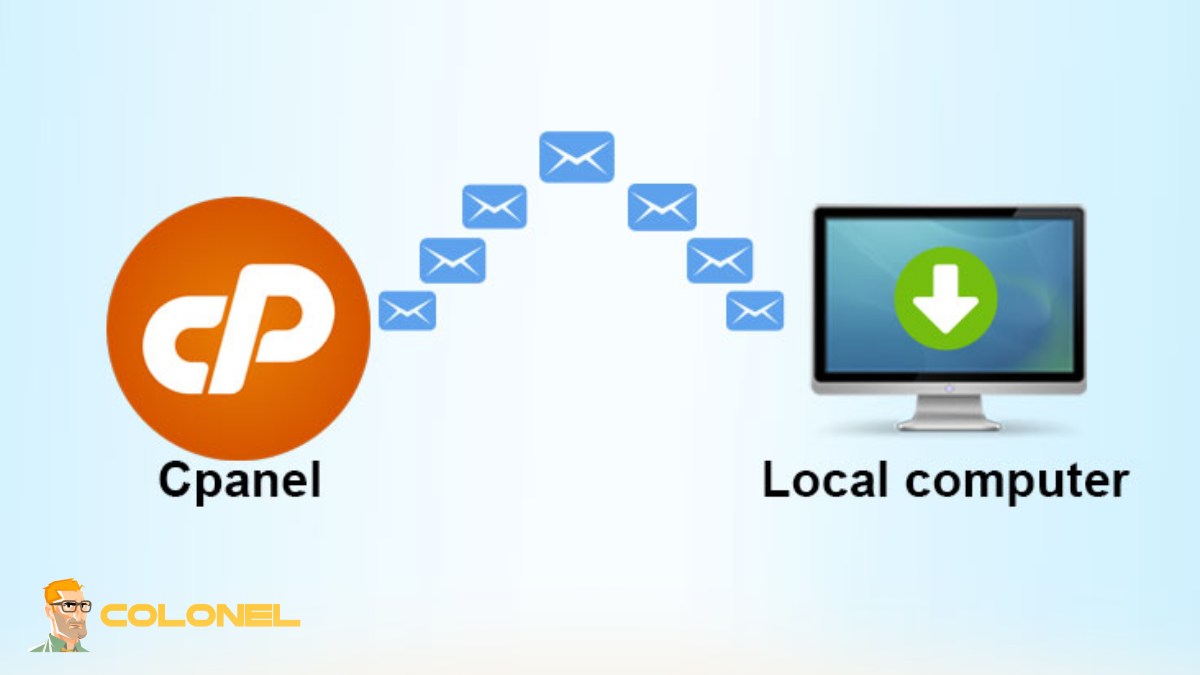
Stap voor stap een back-up maken via SSH in cPanel
Het maken van back-ups via SSH omvat verschillende stappen, afhankelijk van het type gegevens dat wordt beschermd. De opdrachtregel biedt gebruikers geavanceerde flexibiliteit in vergelijking met standaard cPanel-back-uptools.
Het gebruik van Back-up via SSH in cPanel kan de back-upsnelheid verbeteren, vooral op servers die grote websites of meerdere accounts hosten.
Een volledige cPanel-back-up maken met behulp van SSH
cPanel bevat ingebouwde scripts voor het genereren van volledige accountback-ups.
Voorbeeld commando:
/scripts/pkgacct username
Hierdoor wordt een gecomprimeerd back-uparchief gemaakt in de /thuis map. Beheerders kunnen dit bestand later overbrengen of herstellen naar een andere server.
Voor meerdere accounts, root-gebruikers kunnen het maken van batchback-ups automatiseren met shell-scripts.
Een back-up maken van websitebestanden met de tar-opdracht
De teer command is een van de meest populaire Linux-tools voor het archiveren en comprimeren van bestanden.
Voorbeeld:
tar -czvf backup.tar.gz public_html
Met deze opdracht wordt de volledige websitemap gecomprimeerd in een .tar.gz archief.
De teer Utility is zeer efficiënt en werkt perfect voor Back-up via SSH in cPanel taken waarbij grote bestandsverzamelingen betrokken zijn.
MySQL-databases exporteren via SSH
Databaseback-ups zijn van cruciaal belang voor dynamische websites zoals WordPress, Joomla, of Magento.
U kunt MySQL-databases exporteren met behulp van:
mysqldump -u username -p database_name > backup.sql
Na het invoeren van het wachtwoord, de database-inhoud wordt geëxporteerd naar een SQL-bestand.
Databasedumps zijn eenvoudig te herstellen en essentieel voordat websiteapplicaties worden geüpgraded of serverconfiguraties worden gewijzigd.
Back-upbestanden comprimeren voor snellere overdracht
Gecomprimeerde back-ups verbruiken minder bandbreedte en opslagruimte. Veel voorkomende Linux-compressieformaten zijn onder meer .gz, .bz2, En .xz.
Voorbeeld compressieopdracht:
gzip backup.sql
Compressie versnelt de bestandsoverdracht op afstand aanzienlijk en verlaagt de opslagkosten.
Back-ups opslaan in een aangepaste map
Het organiseren van back-upbestanden in speciale mappen verbetert het serverbeheer.
Voorbeeld:
mkdir /backup
mv backup.tar.gz /backup
Het bewaren van back-ups buiten openbare webmappen verbetert de veiligheid en voorkomt onbedoelde blootstelling via browsers.

Handige SSH-opdrachten voor cPanel-back-ups
Verschillende Linux-opdrachten kunnen het back-upbeheer vereenvoudigen en de automatisering verbeteren.
Veel voorkomende opdrachten zijn onder meer:
rsync
scp
cron
gzip
tar
find
Door deze tools onder de knie te krijgen, wordt het back-upbeheer sneller en betrouwbaarder.
Rsync gebruiken voor externe back-ups
rsync is een geavanceerd synchronisatiehulpmiddel dat veel wordt gebruikt voor back-ups van externe servers.
Voorbeeld:
rsync -avz /home user@remote-server:/backup
Met deze opdracht worden back-upgegevens veilig gesynchroniseerd met een andere server, terwijl het bandbreedtegebruik wordt geminimaliseerd.
Veel beheerders geven de voorkeur aan rsync omdat het incrementele bestandsoverdrachten en CV-functionaliteit ondersteunt.
Automatische back-ups plannen met cronjobs
Met cronjobs kunnen servers automatisch op geplande tijden back-upopdrachten uitvoeren.
Voorbeeld cron-taak:
0 2 * * * /scripts/pkgacct username
Met deze opdracht wordt dagelijks een back-up gemaakt op 2 BEN.
Geautomatiseerde planning is een van de grootste voordelen van Back-up via SSH in cPanel omdat het continue gegevensbescherming garandeert zonder handmatige tussenkomst.
Controle van de integriteit van back-upbestanden
Een beschadigde back-up is bijna net zo gevaarlijk als helemaal geen back-up. Beheerders moeten altijd de integriteit van back-ups verifiëren.
Voorbeeld van controlesomverificatie:
md5sum backup.tar.gz
U kunt controlesommen vergelijken na het overbrengen van bestanden om ervoor te zorgen dat de gegevensintegriteit intact blijft.
Bewaking van de back-upvoortgang in realtime
Grote back-ups kunnen enkele uren duren. Realtime monitoring helpt beheerders de voortgang te volgen en knelpunten te identificeren.
Handige commando's zijn onder meer:
top
htop
iotop
Deze tools geven CPU weer, geheugen, en schijfactiviteit tijdens back-upbewerkingen.
Hoe u veilig back-upbestanden kunt downloaden
Na het maken van back-ups, beheerders dragen ze meestal over naar lokale computers of externe opslagplatforms.
Veilige overdrachtsmethoden zijn essentieel omdat back-uparchieven gevoelige klantgegevens en accountgegevens kunnen bevatten.
SCP gebruiken om back-ups over te zetten
SCP is een veilige methode voor bestandsoverdracht die is gebaseerd op SSH-codering.
Voorbeeld:
scp backup.tar.gz user@local-ip:/destination
SCP is eenvoudig, zeker, en vaak gebruikt voor servermigraties.
Back-ups downloaden met SFTP
SFTP biedt mogelijkheden voor grafische bestandsoverdracht met behulp van SSH-codering. Applicaties zoals FileZilla en WinSCP ondersteunen SFTP-verbindingen.
SFTP is gemakkelijker voor beginners die grafische interfaces verkiezen boven terminalopdrachten.
Back-ups verplaatsen naar cloudopslag
Cloudopslagdiensten bieden off-site redundantie en bescherming tegen fysieke serverstoringen.
Populaire opties zijn onder meer:
- Google Cloud-opslag
- Amazon S3
- Tegenslag B2
- Dropbox
- Wasabi
Externe cloudopslag verbetert de planning voor noodherstel aanzienlijk.
cPanel-back-ups herstellen via SSH
Het maken van back-ups is slechts de helft van het proces. Beheerders moeten ook weten hoe ze gegevens tijdens noodgevallen correct kunnen herstellen.
Door de herstelprocedures regelmatig te testen, kunt u ervoor zorgen dat back-ups bruikbaar blijven wanneer dat nodig is.
Websitebestanden herstellen
Bij het herstellen van websites gaat het meestal om het extraheren van gecomprimeerde archieven naar de openbare webdirectory.
Voorbeeld:
tar -xzvf backup.tar.gz
Controleer altijd de bestandsrechten na herstel om problemen met de toegang tot de website te voorkomen.
MySQL-databases importeren
MySQL-databases kunnen worden hersteld met behulp van:
mysql -u username -p database_name < backup.sql
Met deze opdracht importeert u de opgeslagen SQL-dump terug naar de databaseserver.
Volledige cPanel-accounts herstellen
Rootbeheerders kunnen volledige accounts herstellen met behulp van:
/scripts/restorepkg username
Met dit proces worden bestanden hersteld, databases, e-mails, en accountconfiguraties automatisch.
Veelvoorkomende back-upfouten en hoe u deze kunt oplossen
Zelfs ervaren beheerders komen back-upgerelateerde problemen tegen. Door veelvoorkomende fouten te begrijpen, kunt u de downtime verminderen en mislukte herstelacties voorkomen.
Fouten met geweigerde toestemming
Toestemmingsfouten treden meestal op wanneer gebruikers proberen toegang te krijgen tot beperkte mappen.
Oplossingen omvatten:
- Sudo-rechten gebruiken
- Bestandseigendom corrigeren
- Directory-rechten aanpassen
- SSH-gebruikerstoegang verifiëren
Vermijd altijd het gebruik van al te tolerante instellingen zoals 777 tenzij absoluut noodzakelijk.
Problemen met schijfruimte
Onvoldoende opslagruimte is een van de meest voorkomende oorzaken van back-upfouten.
Beheerders moeten regelmatig oude back-ups verwijderen en het opslaggebruik controleren:
df -h
Externe opslagoplossingen kunnen ook de lokale schijfdruk verminderen.
Beschadigde back-uparchieven
Beschadigde archieven kunnen het gevolg zijn van onderbroken overdrachten, schijfstoringen, of onvolledige compressieprocessen.
Om het corruptierisico te minimaliseren:
- Controlesommen verifiëren
- Gebruik betrouwbare opslaghardware
- Test back-ups regelmatig
- Voorkom plotselinge server-uitschakelingen
Betrouwbare back-up via SSH in cPanel-praktijken omvat altijd integriteitsverificatie.
SSH-verbindingsproblemen
SSH-problemen kunnen optreden vanwege firewallbeperkingen, onjuiste legitimatiegegevens, of uitgeschakelde SSH-services.
Stappen voor probleemoplossing omvatten:
systemctl status sshd
Beheerders moeten ook SSH-poorten verifiëren en indien nodig de SSH-service opnieuw starten.

Best practices voor veilige cPanel-back-ups in 2026
Moderne back-upstrategieën vereisen meer dan alleen het maken van archiefbestanden. Beveiliging, automatisering, en redundantie zijn even belangrijk.
Door best practices te implementeren, kunnen organisaties de risico's op gegevensverlies minimaliseren en de operationele betrouwbaarheid verbeteren.
Meerdere back-upkopieën bewaren
De 3-2-1 back-upregel blijft sterk aanbevolen:
- Houden 3 kopieën van uw gegevens
- Back-ups opslaan 2 verschillende mediatypen
- Houden 1 kopieer buiten de site
Deze strategie beschermt tegen hardwarefouten, ransomware, en per ongeluk verwijderen.
Gevoelige back-upgegevens coderen
Back-uparchieven bevatten vaak wachtwoorden, klantgegevens, en vertrouwelijke bedrijfsinformatie.
Encryptietools zoals GPG kunnen back-upbestanden beveiligen:
gpg -c backup.tar.gz
Gecodeerde back-ups voegen een extra beschermingslaag toe tegen ongeautoriseerde toegang.
Back-upschema's automatiseren
Consistente back-upschema's verminderen menselijke fouten en verbeteren de paraatheid bij rampen.
Veel beheerders configureren:
- Dagelijkse databaseback-ups
- Wekelijkse volledige accountback-ups
- Maandelijkse archiefbewaring
- Off-site synchronisatietaken
Geautomatiseerde systemen zijn essentieel voor schaalbare hostingomgevingen in 2026.
Back-upherstel regelmatig testen
Een back-up heeft alleen zin als deze succesvol kan worden hersteld. Periodieke hersteltests zorgen ervoor dat back-uparchieven functioneel en compleet blijven.
Testen zou moeten omvatten:
- Bestandsherstel
- Databaseherstel
- Verificatie van e-mailaccount
- Toestemmingsvalidatie
Als u groot serveronderhoud plant, je moet ook het artikel lezen Hoe u cPanel kunt upgraden zonder uw server kapot te maken om configuratieconflicten en downtime tijdens updates te voorkomen.
De slimme manier om uw hostingomgeving te beschermen
Het correct beheren van serverback-ups is een van de belangrijkste onderdelen van websitebeheer. Van het beschermen van databases en websitebestanden tot het beveiligen van e-mailaccounts en systeeminstellingen, betrouwbare back-upstrategieën kunnen ernstige downtime en financieel verlies voorkomen. Het gebruik van Back-up via SSH in cPanel geeft beheerders geavanceerde flexibiliteit, betere automatisering, en sterkere beveiliging vergeleken met standaard browsergebaseerde methoden. Of u nu een persoonlijke blog heeft, zakelijke website, of reseller hostingomgeving, Het leren van op SSH gebaseerde back-uptechnieken kan de herstelsnelheid en de algehele serverstabiliteit verbeteren. In 2026, het combineren van geautomatiseerde back-ups, gecodeerde opslag, synchronisatie op afstand, en regelmatige hersteltests blijven de beste strategie voor gegevensbescherming op de lange termijn en paraatheid bij rampenherstel.
